

Create a campaign
Start a campaign by describing it to Kit, from a template, as a copy of another campaign, or from an empty flow.
Before you start
- A connected channel to send from: email, LinkedIn or Telegram. See Channels.
- A product in AI Agent › Knowledge. Kit writes from its documents, and a campaign can’t launch without one.
- An audience in People › Audiences. Without one, a campaign goes to everyone.
New campaign on the Campaigns page opens New campaign, with four ways to start. Nothing is sent until you review the campaign and press Launch.
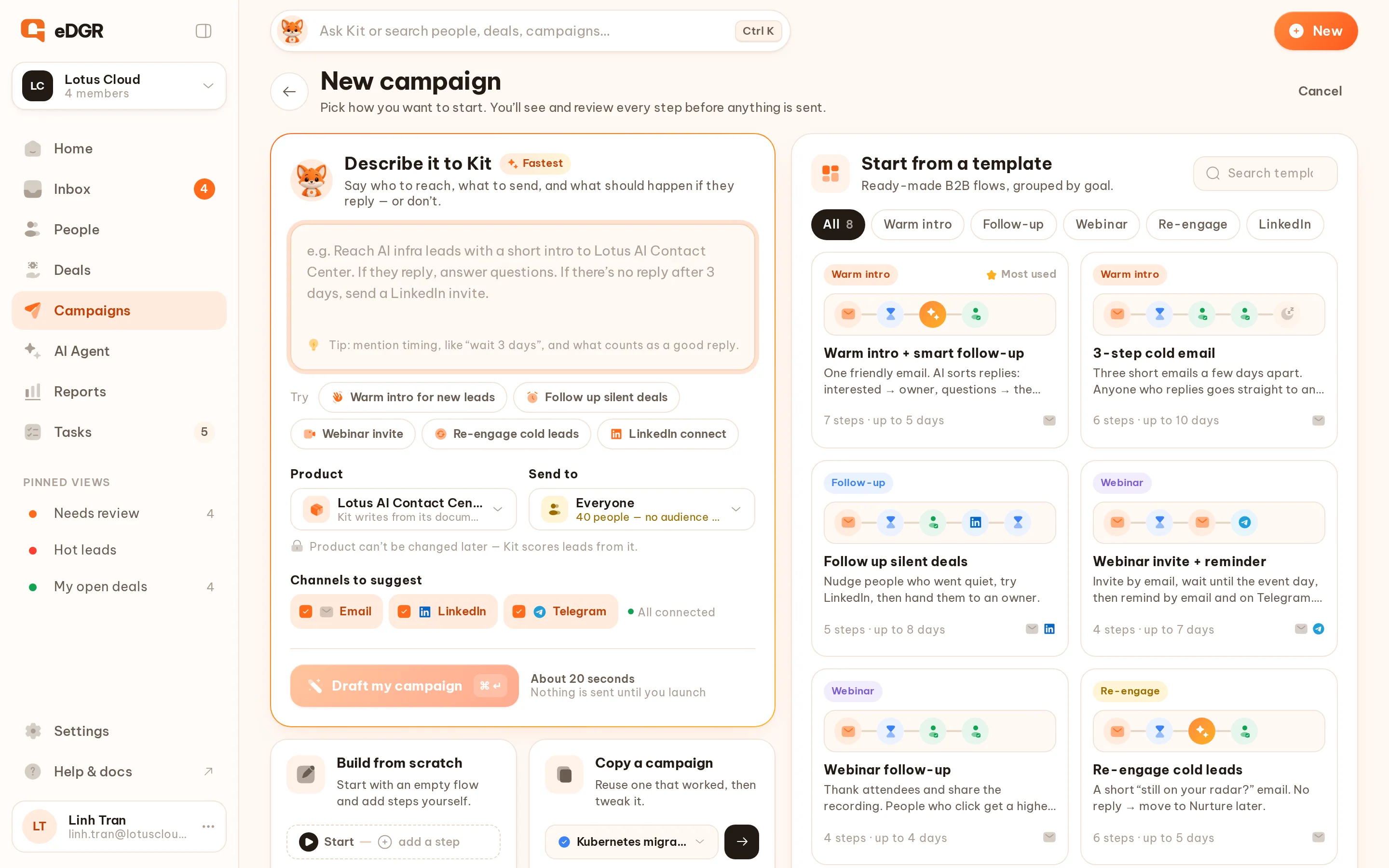
- 1 Describe the campaign in your own words.
- 2 Send to — the audience, or Everyone.
- 3 Draft my campaign — Kit builds the flow.
- 4 Build from scratch — an empty flow.
- 5 Copy a campaign that worked.
- 6 Start from a template — ready-made flows by goal.
Product and audience
The Product and Send to pickers apply to every way of starting.
- Product starts on the product your campaigns use most. It is linked when the campaign is created and can’t be changed later, because Kit scores leads from it.
- Send to lists your audiences and Everyone in People, with the number of people. Everyone is marked as a warning. You can change the audience later in Review & launch.
Describe it to Kit
-
Write what should happen
In the Describe it to Kit box, say who to reach, what to send, and what happens if they reply or don’t. Mention timing, such as “wait 3 days”, and what counts as a good reply. The chips under the box (Warm intro for new leads, Follow up silent deals, Webinar invite, Re-engage cold leads, LinkedIn connect) fill in an example to edit.
-
Pick product, audience and channels
Set Product and Send to. Under Channels to suggest, tick the channels Kit may use; channels that aren’t connected can’t be ticked. Kit is told to draft with the ticked channels only. You can still add steps on other channels later.
-
Draft my campaign
Press Draft my campaign or ⌘ Enter. Drafting usually takes about 20 seconds. The builder opens on the new flow, and the campaign is named after the first words of your description.
-
Check every step
Kit doesn’t see your connected accounts or your teammates. Open every message step and pick the sender under Who sends this?, every AI step and pick the AI connection and model, and every Assign owner step and pick the teammate. Fields left blank show as issues on the step. See The builder.
Kit drafts with the AI model set for chat in your workspace. If none is set, drafting fails with an error; ask an admin to set one in AI models.
Start from a template
The gallery on the right holds ready-made B2B flows. The chips filter by goal (Warm intro, Follow-up, Webinar, Re-engage, LinkedIn) and Search templates searches names and descriptions.
| Template | What it does |
|---|---|
| Warm intro + smart follow-up | One intro email. Kit sorts replies: interested people go to an owner, questions go to the AI agent. No reply after 3 days gets one follow-up, then a cool-down. |
| 3-step cold email | Three short emails a few days apart. Anyone who replies goes to an owner. |
| Follow up silent deals | A check-in email, a LinkedIn message after 5 quiet days, then an owner. |
| Webinar invite + reminder | The invite, a wait until the event, an email reminder and a Telegram reminder. |
| Webinar follow-up | Thanks and the recording. People who click are tagged and handed to an owner. |
| Re-engage cold leads | A short check-in. Replies are sorted; no reply after 5 days means a cool-down. |
| LinkedIn connect + note | An invite with a note, a follow-up message once they accept, and reply sorting. |
| LinkedIn first, then email | A LinkedIn intro, then an email two days later if they stay quiet. |
Preview on a card lists its steps and how many days it takes. Use template creates the campaign and opens the builder. Each message step comes with a short sample text to rewrite. The sender is your first connected account on each channel, AI steps use the workspace’s chat model, and Assign owner steps assign you. Email steps from a template have open and click tracking and an unsubscribe link turned on.
Copy a campaign
Copy a campaign suggests your newest campaign that completed, or your newest campaign if none has; the picker lists the others with their status. The arrow button creates the copy and opens it in the builder. The copy is named “(copy)” and keeps the flow, audience and product. It has no runs, and a scheduled launch on the original isn’t carried over.
Duplicate in a campaign’s ⋯ menu does the same from the list or the report.
Build from scratch
Build from scratch creates “Untitled campaign” with only the Start step and opens the builder. Rename it by clicking the name in the builder header.
Rebuild a flow with Kit
In the builder, the Ask Kit to change this flow… bar at the bottom of the canvas takes a description of the change. Kit reads the current flow and writes a new one, and Rebuild replaces every step with it.