

Deals
The deal board and list, the four stages, creating a deal, marking it won or lost, and the views that find the deals needing you.
A deal is a sales opportunity with one person: what they might buy, for how much, and by when. Every deal belongs to a person, and to that person’s company when they have one. You create deals yourself, and Kit creates one when a lead it is talking to is ready to buy. Deals in the sidebar opens the board of every deal in the workspace.
Stages
A deal is in one of four stages.
| Stage | Means | On the board |
|---|---|---|
| Open | Interested and talking. A new deal starts here. | Every open deal. |
| Negotiating | Pricing, terms and sign-off. | Every negotiating deal. |
| Won | They bought. | Deals won in the last 30 days. |
| Lost | It did not work out. eDGR asks why. | Deals lost in the last 30 days. |
Open and Negotiating are the open pipeline. Moving a deal to Won or Lost records the day it closed. Moving it back to Open or Negotiating reopens it and clears that date; reopening a lost deal also clears its lost reason.
The board
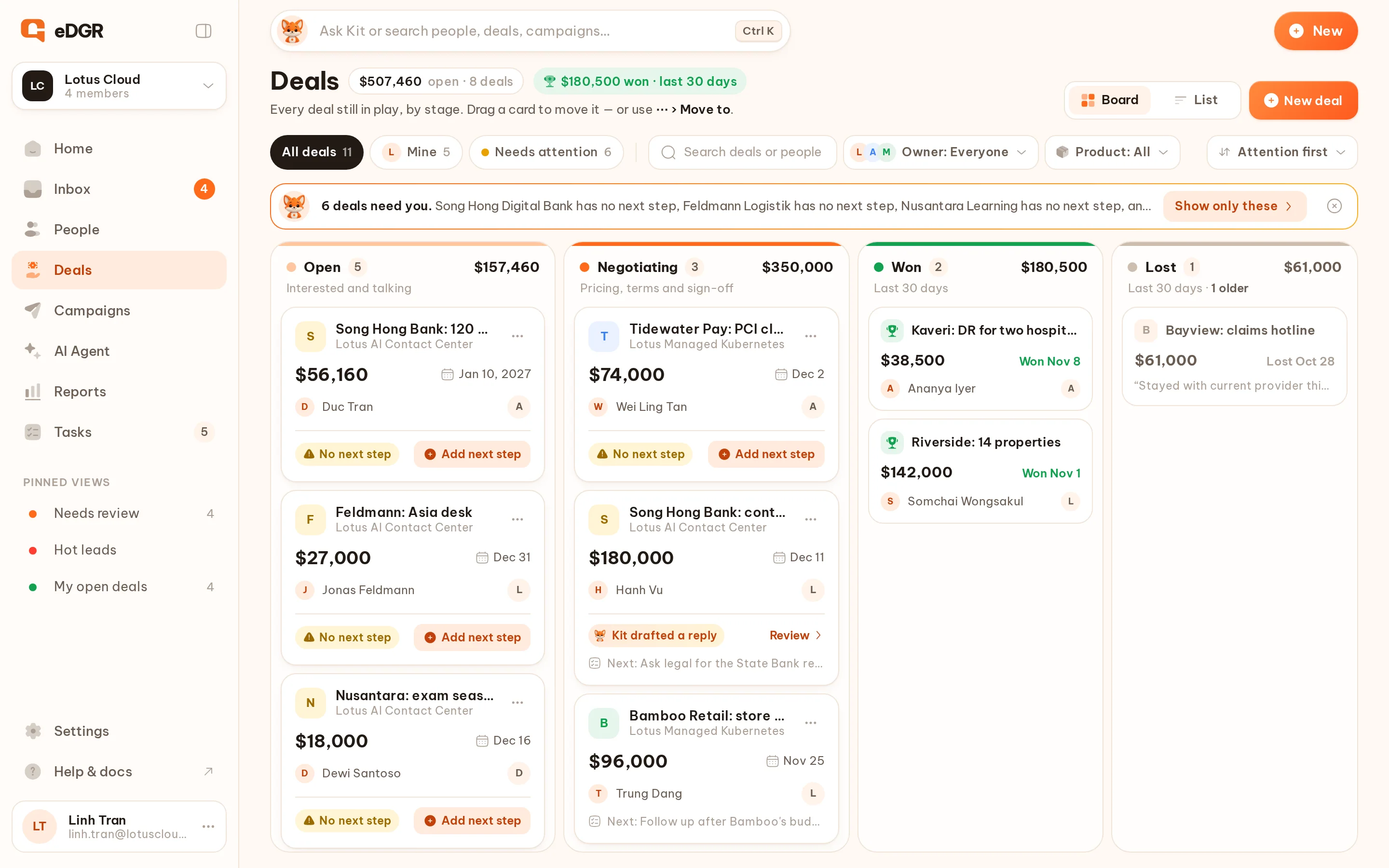
- 1 Open pipeline total, and what was won in the last 30 days.
- 2 Board or List, and New deal.
- 3 All deals, Mine and Needs attention.
- 4 Search, owner, product and sort.
- 5 Kit's summary of the deals that need you.
- 6 A stage column with its count and total.
- 7 A deal card and its menu.
Each column shows its stage, how many deals it holds and their total. The cards show the deal name, the product, the amount, the expected close date, the person and the owner, then warnings such as a late next step, or the next step itself.
Drag a card to another column to change its stage, or use the card’s ⋯ menu › Move to. The same menu holds Open deal and Delete deal. Add deal under Open or Negotiating starts a new deal in that stage.
Won and Lost show only the last 30 days. The N older link in their header opens the list with every deal in that stage, of all time. An open column with more deals than the board loaded shows Showing N of M · see all.
Totals add up the most common currency on the board. Deals in other currencies are counted beside it, such as “+1 in TWD”, and are not converted.
Views and filters
| Control | Does |
|---|---|
| All deals | Every deal on the board. |
| Mine | Deals you own. My open deals under Pinned views in the sidebar opens this view and counts your open deals. |
| Needs attention | Open deals with a warning. |
| Search | Finds deals by deal name, person or company. |
| Owner | Everyone, one teammate, or No owner. |
| Product | All products or one product. |
| Sort | Attention first, Biggest amount, Closing soonest or Recently updated. |
An open deal needs attention when any of these is true:
- Its next step is late: an open task on the deal is past its due date.
- It has no next step: no open task is attached to it.
- It is quiet: no message to or from the person for 7 days or more.
- Its expected close date has passed.
A draft from Kit waiting for review also shows on the card, and moves the deal up under Attention first. The strip above the board sums up what needs you, such as “Hooli has no next step, and Stark has been quiet for 9 days”. Show only these switches to Needs attention, and Dismiss hides the strip for the rest of the browser session.
The list
List at the top shows every deal in a table, including deals that closed long ago: Deal, Person, Stage, Amount, Expected close, Owner and Status. Status shows the day a deal was won or lost (with the lost reason), the first warning, the next step, or On track. The views, filters and sort work the same as on the board. Load more fetches the next page when the list holds more deals than it has loaded.
Create a deal
New deal on Deals, Create deal on a person’s or company’s page, or New on a person’s deal card opens the form.
-
Who is this deal with?
Pick the person; the deal takes their company from their profile.
-
Name and product
The name is filled in as “Company × Product” (the person’s name when they have no company) until you type your own, and Product shows when your workspace has products.
-
Amount, currency and close date
Type the amount and pick the currency: USD, EUR, GBP, SGD, AUD, JPY, TWD or VND. Expected close takes a date, or Month end, Quarter end or In 90 days.
-
Stage and owner
Pick Open or Negotiating. Owner is you unless you pick a teammate or No owner.
-
Next step
Add a next step is on, with a due date two days out. Type what you will do, such as “Send Lan a quote”. It becomes a task on the deal, assigned to the owner, or to you when the deal has no owner. A deal without a next step is flagged on the board.
-
Create
Choose Create deal, or press ⌘ Enter. Tick Open the deal after creating to go straight to it.
Add a description adds a text box for context, scope and who decides. To change the currency later, click Amount on the deal’s page.
Kit’s deals start in Open with a name, and sometimes an amount and a product. They have no owner until you set one, and their page says Created by Kit.
Mark a deal lost
Moving a deal to Lost, from the board or from its page, opens Why didn’t this one work out?.
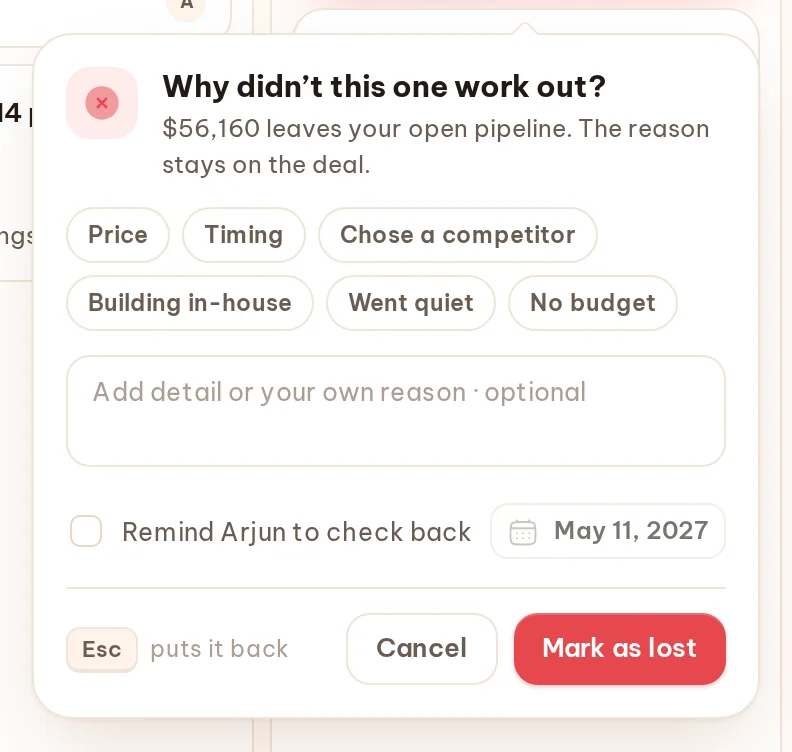
- 1 Reason chips.
- 2 Your own detail.
- 3 Remind me to check back, and when.
- 4 Mark as lost.
- Pick one reason: Price, Timing, Chose a competitor, Building in-house, Went quiet or No budget, and add detail or write your own. Both are optional. A chip and a detail are saved together, as “Price — they went with a cheaper plan”.
- Remind me to check back adds a task “Check back with Lan” on the date you pick, six months out at first. It is assigned to the deal’s owner, or to you when the deal has none; on a teammate’s deal the box names them, as in “Remind Arjun to check back”.
- Mark as lost or ⌘ Enter saves it. Cancel or Esc leaves the deal where it was.
Marking a deal won needs no reason. The message that follows has Undo, which puts it back in its old stage.
A deal’s page
Clicking a card or a row opens the deal.
- The header has the deal’s name (click it to rename), the person and company, and who created it. Mark won and Mark lost close it. More actions holds Rename deal, the person’s profile and Delete deal.
- The stage bar below shows Open, Negotiating, Won and Lost; click one to move the deal. A closed deal shows a banner with the date it closed, its lost reason and Reopen.
- The key facts are Amount, Expected close, Owner, Product and Next step. Click one to change it. With no next step the last one reads Add a next step.
- The tabs are Activity, with the filters All, Conversations, Notes & tasks and By Kit, then Notes and Tasks. Notes and tasks written here belong to the deal.
- The side column shows the person, the open next steps, what Kit remembers about the person, and the details: currency, when it was created, last updated and closed, the lost reason (editable on a lost deal) and the description.
Previous deal and Next deal at the top step through the deals in the same group, with a count such as “2 of 4 open deals”: all open and negotiating deals for an open deal, or the won or lost deals for a closed one.
Deleting a deal removes it from your pipeline for good.