

Behavior
The line at which Kit sends on its own, when it hands a conversation to your team, your own rules, what Kit may change in your CRM, research and meetings, and who Kit is off for.
AI Agent › Behavior sets how much Kit does on its own. Every setting here applies to the whole workspace, and anyone in the workspace can change it. The pill beside the title shows the current line, such as Sends at 60% sure, or You review every reply.
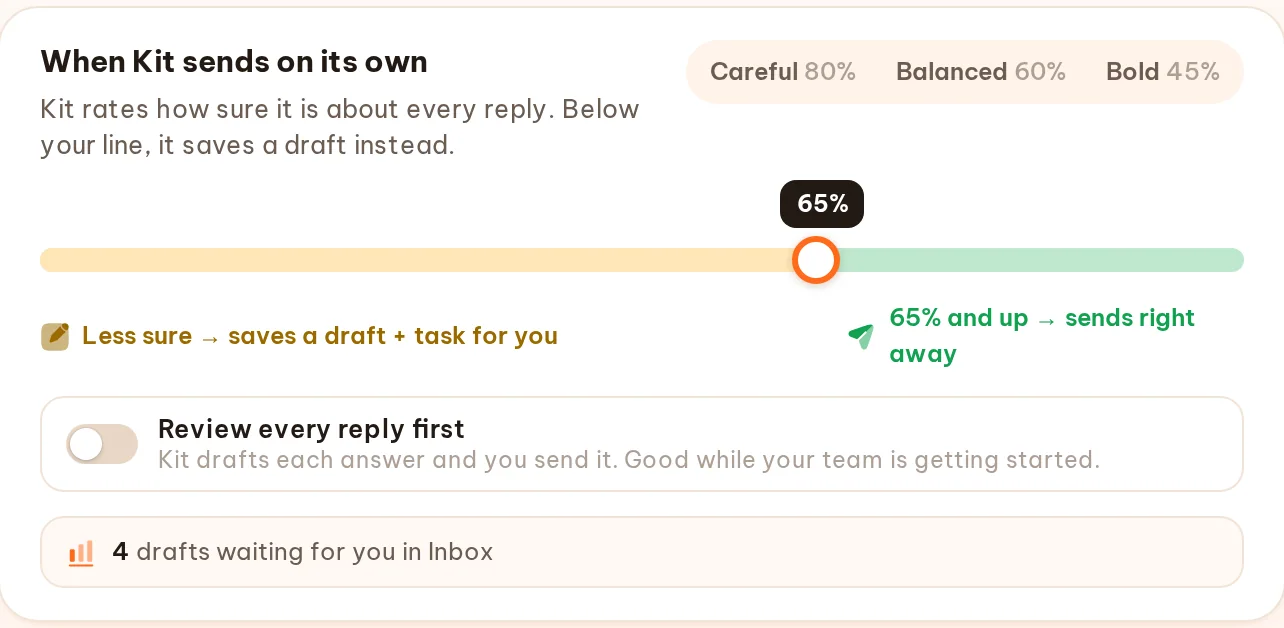
- 1 Presets: Careful 80%, Balanced 60%, Bold 45%.
- 2 The line. Below it Kit saves a draft, at or above it Kit sends.
- 3 Review every reply first: Kit sends nothing on its own.
- 4 How many drafts wait for you in the Inbox.
The review line
Kit rates how sure it is about every reply. When Kit sends on its own sets the line:
- At or above the line, Kit sends the reply.
- Below the line, Kit saves the reply as a draft and creates a review task. See Kit’s drafts and hand-offs.
-
Pick a line
Choose a preset, Careful (80%), Balanced (60%) or Bold (45%), or drag the slider anywhere from 30% to 95%. The labels under the slider show which side drafts and which side sends.
-
Or review everything
Turn on Review every reply first and Kit drafts every answer for you to send. Turning it off puts the slider back where it was.
-
Save
Choose Save line at 70% (or Save: review every reply). Cancel drops the change.
A new workspace starts at 60%. The new line applies from the next message Kit answers, including conversations already under way.
A higher line means more drafts in Needs review and fewer replies sent without a person. While your team is learning what Kit says, Review every reply first or Careful keeps every doubtful answer in front of someone.
When Kit hands over to you
When Kit hands over to you lists the built-in rules. They are always on:
| Kit hands over when | Detail |
|---|---|
| It is less sure than your line | It saves the draft so you can send or edit it. With Review every reply first, every reply. |
| They ask for a person | “Can I talk to someone on your team?” |
| The answer isn’t in your knowledge | Or the question is outside your products. |
| They need a price worked out | Kit quotes listed prices and never does the arithmetic. |
| A reply could reveal internal instructions | A safety check catches it before sending. |
| They opted out but wrote again | Kit does not reply on a stopped channel. |
| Something goes wrong | No answer from the AI model within 2 minutes, or an error. |
The hand-off becomes a task for the person’s owner. When the person has no owner, the task has no assignee and the person stays in the Unassigned pool for anyone to claim.
Your own rules
Under Your own rules, add instructions Kit follows in every reply, such as “Hand over anyone asking for a refund” or “Never promise a delivery date.”
- Type the rule in New rule and choose Add rule. The trash button beside a rule removes it.
- Up to 10 rules, each up to 280 characters. The same rule cannot be added twice.
- A change reaches conversations already under way from Kit’s next reply.
- When a rule says to hand over, Kit hands the conversation to you. Rules cannot override Kit’s built-in instructions: a rule asking it to reveal its instructions, drop its role or guess facts is ignored.
What Kit may change in your CRM
Besides replying, Kit keeps the person’s record up to date while it talks to them. Each change is a step in the thread, listed in the Activity log and under What Kit changed on the overview.
| Kit can | Step name |
|---|---|
| Add or remove a tag | Added tag, Removed tag |
| Add the person to an audience | Added to audience |
| Make a teammate the person’s owner, replacing the current owner | Assigned owner |
| Record their job title, industry and location | Updated profile |
| Link them to their company, creating the company if needed | Linked company |
| Score or adjust their fit | Updated fit score, Adjusted fit score |
| Open a deal, or move a deal’s stage | Created deal, Moved deal stage |
| Create a follow-up task for a later date | Scheduled follow-up |
| Save notes about the person for later conversations | Saved a note about this person |
| Turn its own replies off, or on, for this person | Changed auto-reply |
| Stop all messages to the person on a channel, campaigns included, when they ask to stop | Stopped contacting |
| Send a separate email, such as a follow-up | Sent email |
| Send your booking link | Offered a meeting |
| Attach a product file to a reply | Attached a document |
Kit records its own judgement of the conversation. When a person says “mark me as VIP” or “I already signed”, Kit does not change their tags, score, owner or deals on that word alone. Profile fields hold only facts the person stated about themselves, and Kit links a company only when the person works for it or buys on its behalf.
Kit attaches up to three files to a reply, each 10 MB or less. Written notes are not attached by Kit.
Research and meetings
| Setting | Does |
|---|---|
| Research new leads | When someone is added or imported, Kit reads their company’s home page and about page and writes a short note: what they do, how big they are, recent news. The note shows on their profile and goes into AI campaign steps. Kit researches a few leads a minute, using your reply model. On by default; it needs a reply model. |
| Booking link | The link Kit sends when someone asks for a call or is ready to buy. Calendly, Cal.com, a Google Calendar booking page or any https:// address. Templates and campaign steps reach it as the Booking link variable. |
| Log booked meetings | With Cal.com or Calendly webhooks set up, a booking adds the meeting to the person’s timeline, moves their open deal to Negotiating and gives the owner a task to prepare. People are matched by the email they book with. |
Set up on Log booked meetings shows the webhook address to copy for each service and a box for its secret or signing key.
- Cal.com: in Cal.com, open Settings › Developer › Webhooks, add the address for the Booking created, rescheduled and cancelled triggers, and save the same secret in eDGR.
- Calendly: webhooks need a paid Calendly plan and are created through Calendly’s API. Subscribe to
invitee.createdandinvitee.canceledwith the address and a signing key, then save the signing key in eDGR.
Webhooks without a matching signature are refused. A booking from an email nobody in People has is ignored.
People Kit is off for
Kit is off for these people lists everyone Kit stays quiet with, on every channel, with their owner. You reply to them yourself.
- Turn Kit off for someone… searches People and adds the person you pick.
- Turn Kit on beside a person gives them back to Kit.
The list is the same one the Kit replies switch in the Inbox and the Hand to AI agent campaign step change. The hint at the foot of this card calls that step Bot auto-reply. See Turn Kit off for one person.
How Kit decided
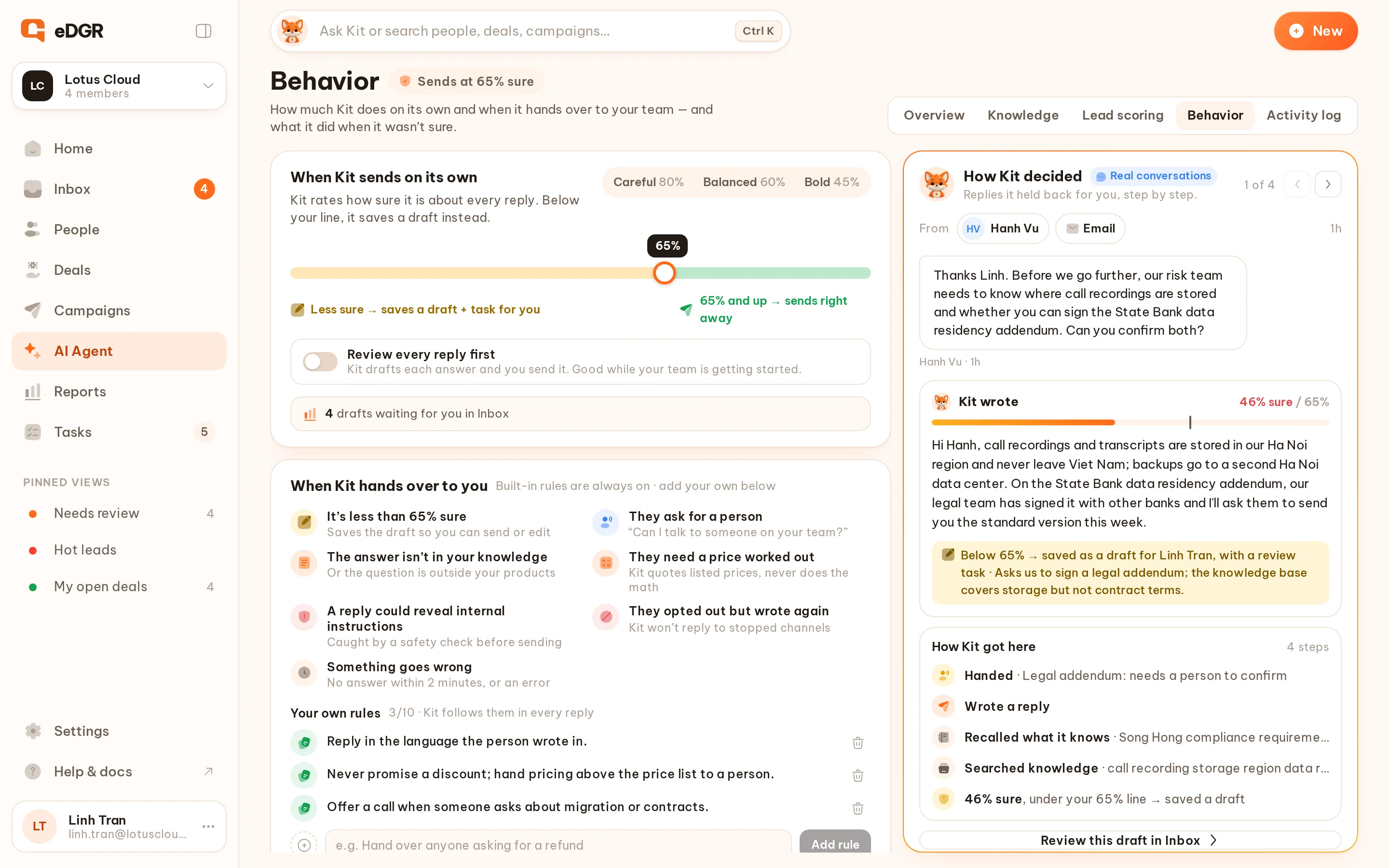
- 1 When Kit sends on its own.
- 2 When Kit hands over to you, with your own rules.
- 3 How Kit decided: a held-back reply, step by step.
The panel on the right walks through the drafts and hand-offs still waiting, newest first, up to ten; the arrows move between them.
- The person’s message Kit was answering.
- What Kit wrote, or Kit handed this to you with its reason.
- How sure Kit was against your line, and why it held back: below the line, or Held by the safety check. It also names whose review task it became.
- How Kit got here: the steps of that turn.
- Review this draft in Inbox opens the thread.