

A person's page
Everything about one person, from their channels and activity timeline to notes, tasks, fit, owner, tags and what Kit remembers.
A person’s page has three columns: who they are on the left, what happened in the middle, and what Kit knows and their deals, audiences and tags on the right. Open it by clicking a name in People, with Open full profile in the preview, or from a deal, a task or the Inbox.
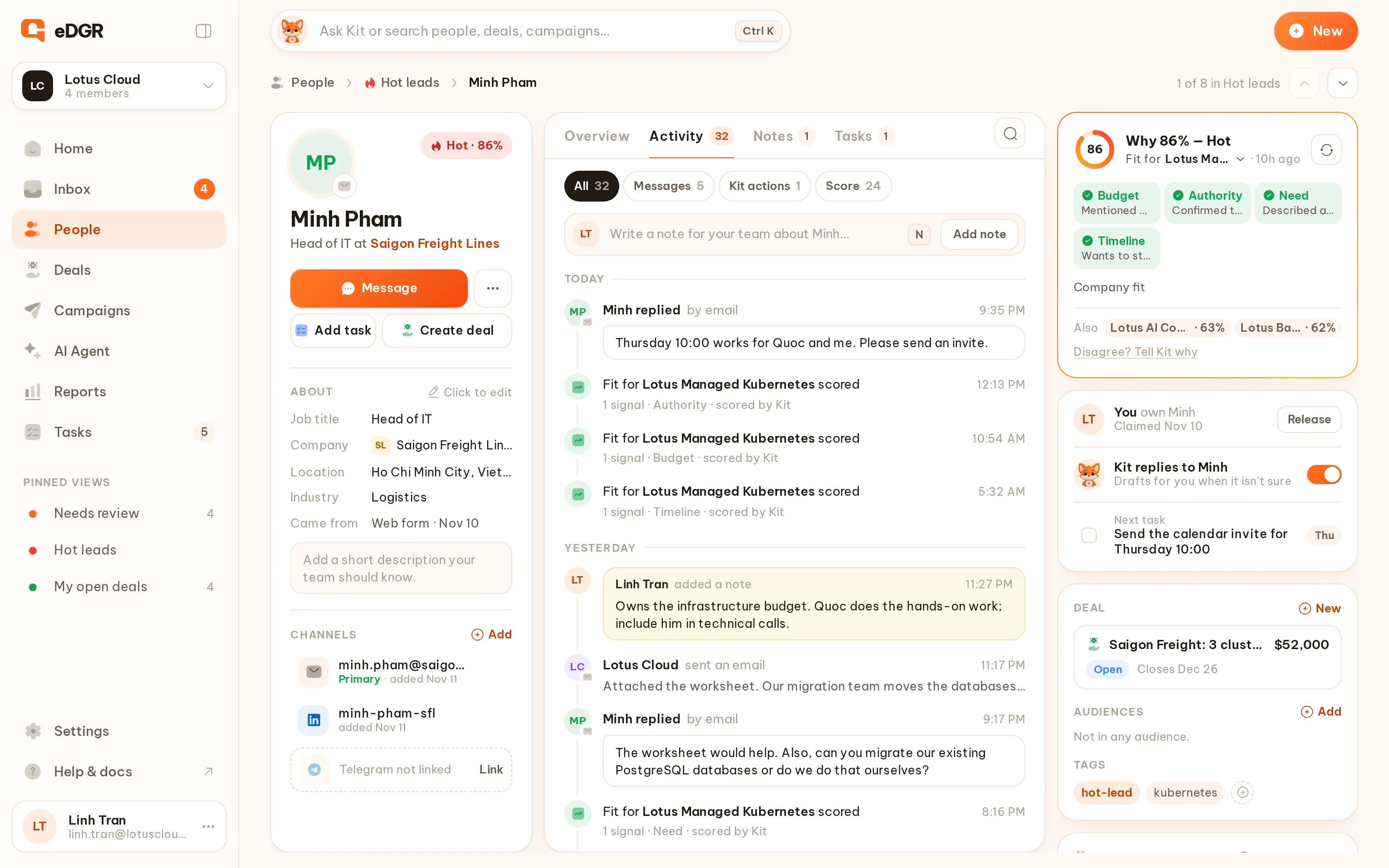
- 1 Where you came from, and the pager through that list.
- 2 Message, Add task and Create deal, under the fit pill.
- 3 About, with Click to edit.
- 4 Channels.
- 5 Overview, Activity, Notes and Tasks.
- 6 Activity filters.
- 7 Fit for one of your products, and Score again now.
- 8 Owner, and whether Kit replies to them.
- 9 Deals, audiences and tags.
The bar across the top shows where you came from. Opened from Hot leads, it reads People › Hot leads › the person’s name, with “3 of 38 in Hot leads” and Previous person and Next person arrows. ↑ and ↓, or K and J, do the same.
Who they are
The left column starts with the person’s name, job title and company, and a pill with their fit: Hot · 82% on a hot lead, otherwise the percentage or Not scored.
| Button | Does |
|---|---|
| Message | Opens their conversation in the Inbox. |
| Add task | Adds a task about them. It lands on your Tasks page. |
| Create deal | Opens a new deal with this person filled in. See Deals. |
| More actions | Claim or Release to the pool, Stop Kit replying or Let Kit reply again, and Delete person. |
About lists Job title, Company, Location, Industry and Came from: how they arrived (Added by hand, Imported, Wrote in first, Web form, Campaign) and when. Click to edit turns the name, the fields and the description into inputs; Save keeps the change, and the company is picked from the companies you already have.
Deleting a person removes their channels, activity, deals and scores as well, and cannot be undone.
Channels
A channel is one way to reach the person: an email address, a LinkedIn profile, a Telegram handle or a phone number. The first channel that still works is marked Primary.
- Add beside Channels adds another. Telegram not linked with Link appears while they have no Telegram.
- A channel’s menu holds Edit, Stop sending here and Remove from this person.
- A stopped channel turns red and says why: bounced, stopped by your team, unsubscribed, marked as spam or do not contact. Campaigns and Kit do not send to it.
- Allow again lifts a stop that came from a bounce or from your team. A stop the person asked for (unsubscribe, spam report, do not contact) has no Allow again.
- A phone number is for your team only. eDGR cannot call or text it.
Timeline
Activity is the person’s timeline, newest first and grouped by day. It merges these entries:
- Messages sent and received on every channel, and Kit’s drafts waiting for review.
- Opens, clicks, connection accepts, bounces and unsubscribes. Several in a row fold into one line.
- Notes and tasks.
- Fit scoring. One scoring run shows as one line, however many criteria it scored.
- Campaign steps, meetings, and the conversation being closed, reopened or snoozed.
Kit’s own steps while it works on a reply fold into one line too. The chips above the list filter it: All, Messages, Opens & clicks, Kit actions and Score, each with its count. A chip with nothing to show is hidden. Search activity, the magnifier beside the tabs, finds a word in the entries. Show older activity at the bottom loads the next 150.
Overview is the short version: a card when Kit has a reply waiting for you (Review in Inbox), the two latest notes and the five latest events.
Notes
A note is for your team; the person never sees it. Write one from the box above the timeline or on the Notes tab: press N or click the box, type, and press ⌘ Enter or Add note.
You can edit and delete your own notes, and the workspace owner can edit and delete anyone’s.
Tasks
The Tasks tab lists the open tasks about the person, then the ones that are done. Ticking the box marks a task done. Add task opens the same form as on the Tasks page. Kit adds a task when a reply needs you, and it shows here.
Fit
The top card on the right is the person’s fit for one of your products, scored by Kit: a ring with the percentage, a headline such as Why 82% — Hot, and the reasons behind it.
- When they are scored for more than one product, the product name is a menu, and the others are listed under Also.
- Score again now (the circular arrow) asks Kit to score them again. It needs a reply model in Settings › AI model; without one the button is greyed out and Disagree? Tell Kit why is hidden.
- Disagree? Tell Kit why opens Human review. Write what Kit got wrong, for example that the person is junior and not a decision maker yet, and Kit scores them again with your note in mind.
- No fit score yet with Set up means no product has scoring rules. See Lead scoring.
Fit tiers are Hot (70% and up), Warm (30% to 69%), Neutral (above −30%) and Low fit.
Owner and Kit
The next card says who owns the person: You own them, a teammate’s name, or Nobody owns them yet with Claim. When you own them, Release puts them back in the unassigned pool. Only the owner can release a person from this card.
The switch below decides whether Kit answers them: on, Kit replies and drafts for you when it isn’t sure; off, you answer every message yourself. Under the switch is the person’s next open task, when they have one.
Linked records
- Deal shows two of their deals with stage, amount and expected close, open deals first, then +N more. New creates one.
- Audiences lists the audiences they were added to by hand. Add picks one or creates one by name; the × on a chip takes them out. Audiences whose rules match them are not listed here.
- Tags works the same way. The + button finds a tag or creates one.
Company research
Company research is Kit’s summary of the company they work at, read from the homepage and about page of its website: what it does, how big it is and any recent news. Research now or Research again starts it. It needs a reply model, and a company with a domain or a work email to find the website.
What Kit remembers
The last card lists what Kit has learned about the person from conversations and keeps for later replies, newest first. A short summary sits on top when Kit has one, then items tagged FACT, PLAN (a next step someone intends) or CHAT (a note from a past conversation), each with its date. The card is Read-only: you cannot edit or delete what Kit remembers.
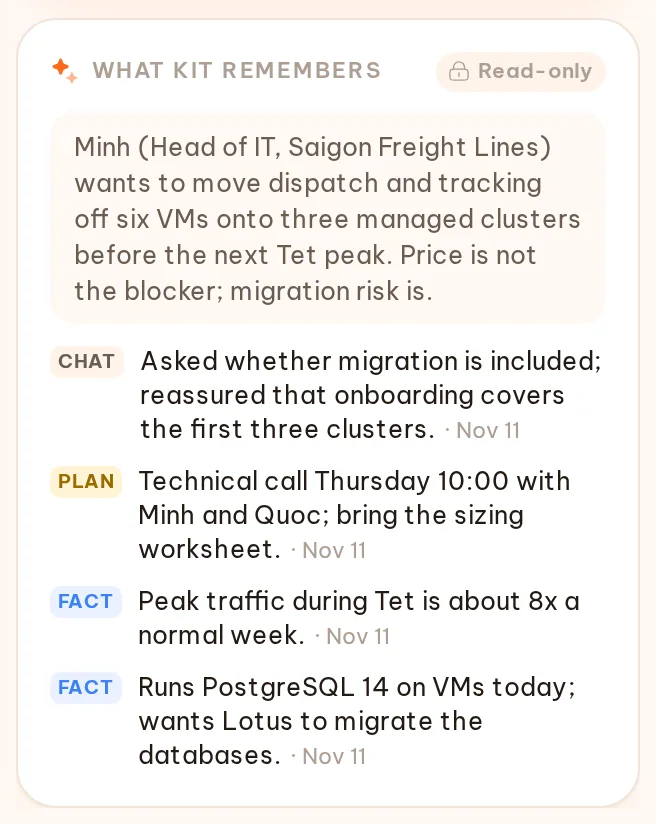
- 1 A fact Kit learned, with its date.
- 2 Read-only.