

Administer
Where a workspace is set up and kept working: the team, channels, the AI model, integrations and the opt-out list.
Everything in this section lives under Settings, at the bottom of the sidebar. Settings opens on Workspace. The workspace card at the top of the sidebar also links to Workspace & members and Channels.
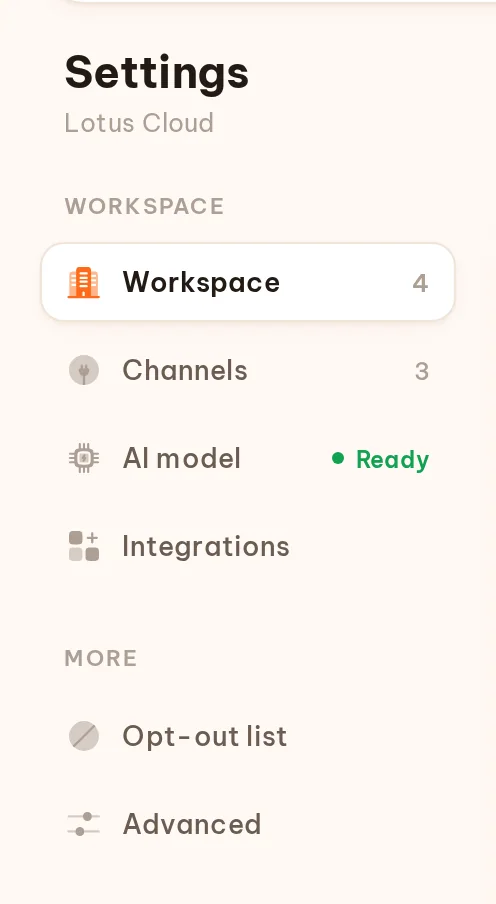
- 1 Workspace, with the number of members
- 2 Channels, with the number of accounts, or an amber count of accounts that failed their check
- 3 AI model: Ready, Set up or Check
- 4 Integrations: Slack, HubSpot and Salesforce
- 5 Opt-out list
- 6 Advanced opens the AI provider accounts on the AI model page
What each screen does
Who can change settings
A workspace has two roles, Owner and Member. Owners rename the workspace, invite people, change roles and remove people. Everything else in Settings is open to members too: a member can connect a channel, change the AI model, connect Slack or allow an opted-out address again, as the table under Roles shows.
A first setup
-
Connect an AI account
On AI model, connect Amazon Bedrock, OpenAI or Anthropic. The first account you add picks default models for you.
-
Connect at least one channel
On Channels, add the mailbox or LinkedIn account your team sends from, and turn on reply reading for email so answers reach Inbox.
-
Invite your team
On Workspace, create invite links and send them yourself, because eDGR does not email them.
-
Connect Slack, if your team lives there
On Integrations, add a Slack webhook to hear about hand-offs, drafts, won deals and campaign replies.