

Opt-out list
Every address eDGR will not send to, why it stopped, and how to stop or allow an address by hand.
Workspace admins How-to 4 min read
Settings › Opt-out list lists every email address, LinkedIn account and Telegram user eDGR will not send to. Nothing reaches a listed address: no campaign step, no reply from Kit and no reply typed in Inbox. Any member can stop an address or allow it again.
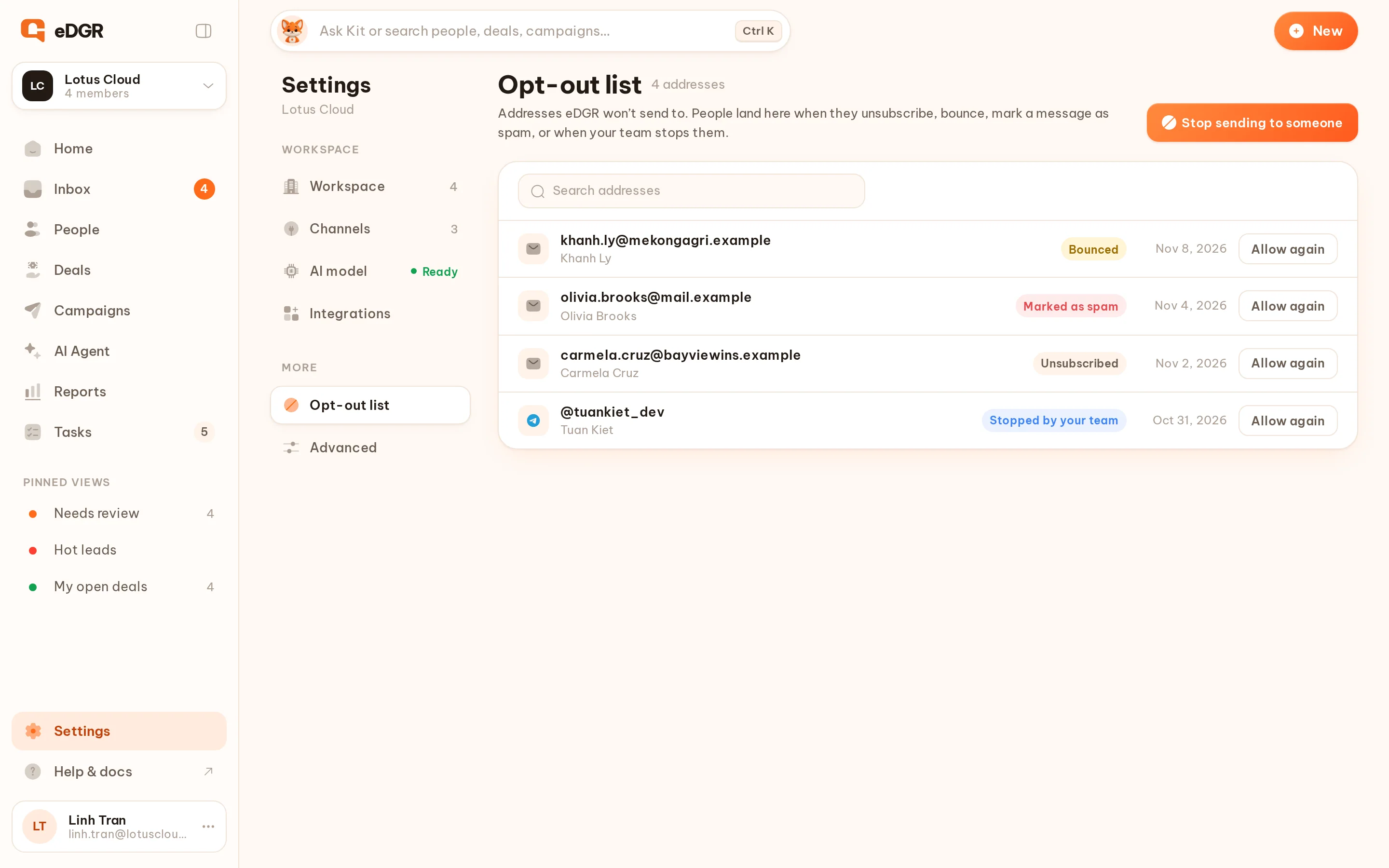
- 1 Stop sending to an address by hand
- 2 Search by any part of the address
- 3 Why sending stopped
- 4 Allow again lifts it
Each row shows the address, the people it belongs to, the reason and the date. The list is newest first, 25 to a page.
How an address gets on the list
| Reason | How it happens |
|---|---|
| Unsubscribed | The person used the unsubscribe link in a campaign email and confirmed on the page it opens. The link is added when the email step has Add an unsubscribe link on |
| Bounced | A hard bounce came back. eDGR sees bounces in mailboxes with reply reading on, and through your email provider’s delivery reports where your deployment receives them |
| Marked as spam | The recipient reported the email as spam, through your email provider’s delivery reports |
| Stopped by your team | Someone used Stop sending to someone, or the person reached an End & stop contacting campaign step with no reason of its own |
| Asked not to be contacted | An End & stop contacting step with do_not_contact typed under Why? |
| Any other words | The reason typed into an End & stop contacting step, such as “Not interested”, or Kit’s own words when a person asked Kit to stop. Kit stops all of that person’s addresses on the channel they wrote on |
The stop is per address. A person with two email addresses who unsubscribes from one can still be reached on the other, and on LinkedIn.
Stop sending to someone
-
Open the search
Select Stop sending to someone at the top of the page. -
Find the address
Type part of an email, LinkedIn or Telegram address. Only addresses of people in the workspace show. -
Stop it
Select Stop on the address. It joins the list as Stopped by your team.
Allow an address again
Select Allow again on the row and confirm. Campaigns and replies can reach the address from then on.