

AI model
Connect Amazon Bedrock, OpenAI or Anthropic, and pick the model for writing and replies and the model for knowledge search.
Kit and every other AI feature in eDGR run on an AI account your workspace connects: Amazon Bedrock, OpenAI (or a server that speaks the OpenAI API) or Anthropic. Settings › AI model holds those accounts and the two model choices. Any member can change them, and the choices apply to the whole workspace.
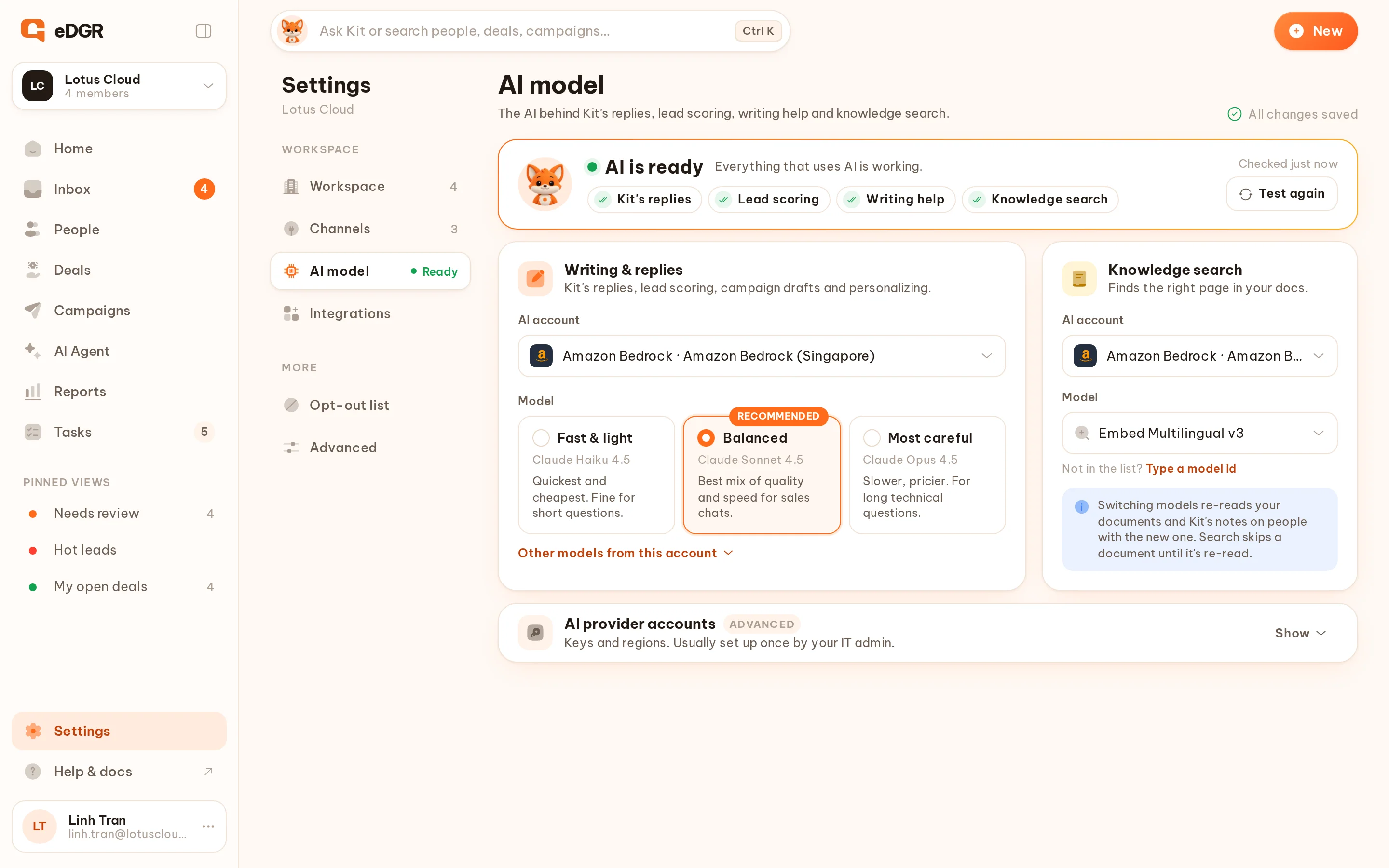
- 1 Overall status and one chip per job
- 2 Test again re-checks the accounts in use
- 3 Writing & replies: the account and model for Kit, scoring and drafts
- 4 Knowledge search: the account and model that search your documents
- 5 AI provider accounts: keys and regions
Models and jobs
| Job | Uses | Without it |
|---|---|---|
| Kit’s replies | Writing & replies | Kit does not reply. Conversations wait for a person |
| Lead scoring | Writing & replies | People get no fit score |
| Writing help: campaigns drafted by AI, lead research, describing pictures in documents | Writing & replies | Drafting a campaign with AI fails with an error. Lead research and picture descriptions do not run |
| Knowledge search | Knowledge search | Kit cannot look things up in product documents or its notes on people |
The AI steps in a campaign (personalise, classify a reply, adjust the score) pick their own account and model from the accounts connected here, under Which AI should do this? in the step.
A product can also have its own model, set under Channels & AI model in the product’s menu on AI Agent › Knowledge. Kit uses it for replies and scoring when a conversation is about that one product, and falls back to Writing & replies if the product’s model fails.
Every provider can do writing and replies. Anthropic has no search models, so knowledge search needs an Amazon Bedrock or OpenAI account. One workspace can write with Anthropic and search with Bedrock.
Connect an AI account
Before you start
- Amazon Bedrock: an AWS access key pair or a Bedrock API key, in a region where your account has the Claude and embedding models enabled.
- OpenAI: an API key from platform.openai.com, or the address of an OpenAI-compatible server (Azure, OpenRouter, Ollama…).
- Anthropic: an API key from console.anthropic.com.
-
Open the provider accounts
On a new workspace the page opens on AI isn’t set up yet; select Connect an AI account. Otherwise select Advanced in the Settings list, or Show on AI provider accounts.
-
Pick the provider
Select Add key beside Amazon Bedrock, OpenAI or Anthropic. A provider that already has an account offers Add … account for a second one, such as another AWS region.
-
Fill it in
Account name, the Region (Singapore, Tokyo, Sydney, N. Virginia, Oregon, Ireland or Frankfurt), then Sign in with: Access key takes an Access key ID and Secret access key; Bedrock API key takes a key created in the AWS console under Amazon Bedrock › API keys.
Account name and API key. Under Custom server or organization, a Base URL points the account at an OpenAI-compatible server, and Organization ID (optional) is for a key that belongs to several organisations. A server that takes no key can be saved without one.
Account name and API key. Custom address takes a Base URL if your company routes Anthropic through a proxy.
-
Test and connect
Select Test the keys or Test the key, then Connect. Keys are encrypted and hidden after you save them.
The first AI account a workspace adds picks the models for you:
| First account | Writing & replies | Knowledge search |
|---|---|---|
| Amazon Bedrock | Claude Sonnet 4.5 | Cohere Embed Multilingual v3 |
| OpenAI | gpt-4.1 | text-embedding-3-small |
| OpenAI with a base URL | Not set | Not set |
| Anthropic | Claude Sonnet 4.5 | Not set |
Pick whatever is not set in the cards above the accounts.
Pick the models
Writing & replies takes an AI account and a model. On Amazon Bedrock and Anthropic you pick one of three:
| Choice | Model | Fits |
|---|---|---|
| Fast & light | Claude Haiku 4.5 | Quickest and cheapest. Short questions |
| Balanced (recommended) | Claude Sonnet 4.5 | Quality and speed for sales chats |
| Most careful | Claude Opus 4.5 | Slower and pricier. Long technical questions |
A choice the account cannot reach is greyed out, with “Not offered in this account’s region.” on Bedrock or “Not offered on this account.” on Anthropic. Other models from this account lists everything else the account offers. On OpenAI you pick from the account’s own list. If the model is missing from the list, select Type a model id. If the account cannot list its models at all, a box for the model id appears in place of the list.
Knowledge search lists only Bedrock and OpenAI accounts and their embedding models.
Changes wait for Save in the page header, beside Unsaved change and Discard, and once saved the header reads All changes saved.
Status and checks
The top of the page says AI is ready, AI needs attention with the reason, Checking AI… or AI isn’t set up yet. Each job chip is ticked, crossed, spinning or greyed out when nothing is set. The check is a real call to the accounts in use; Test again runs it now. The same state shows beside AI model in the Settings list as Ready, Set up or Check.
Each provider account row says Connected with the time of its last check, or Check failed with the provider’s error, and “powers Kit” on the account behind writing and replies. Test and Edit sit at the end of the row. Editing a region, sign-in method or address asks for the secret again; renaming alone does not.
There is no way to remove an AI account from this page. To stop using one, pick another account in both cards and save. Products and campaign AI steps that picked the account keep using it until you change them too.