

Integrations
Post eDGR events to Slack, and import contacts and companies from HubSpot or Salesforce.
Settings › Integrations connects apps that hear from eDGR or send records into it. Slack only receives notifications. HubSpot and Salesforce only send records in; eDGR writes nothing back to them. The accounts eDGR sends messages from are on Channels.
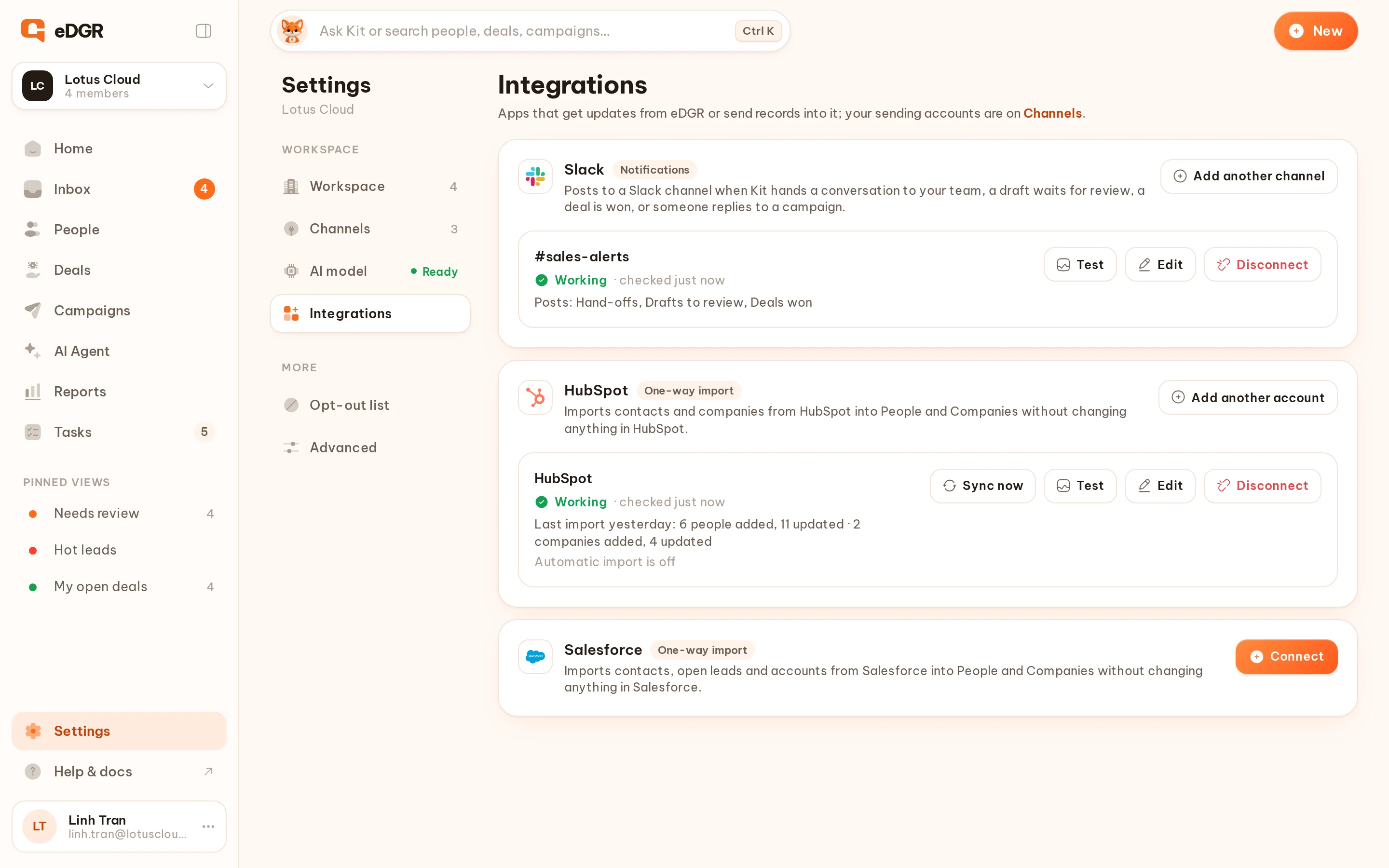
- 1 Slack posts notifications
- 2 HubSpot imports contacts and companies
- 3 Salesforce imports contacts, leads and accounts
Each card has Connect, then Add another … once one is connected. A connected row shows Working with the time of its last check, the provider’s error in red, or “Not tested since it was saved”, with Test, Edit and Disconnect at its end.
Slack
-
Create the webhook
In Slack, create an app, turn on Incoming Webhooks, add a webhook to the channel you want, and copy its URL. -
Paste it
On the Slack card, select Connect. Name the connection, for example#sales-alerts, and paste the Incoming webhook URL. -
Pick what it posts
Under Post to Slack when, every event starts on: Hand-offs (Kit passes a conversation to a person), Drafts to review (Kit wrote a reply and held it), Deals won and Campaign replies. -
Test and connect
Select Send a test message, check the channel, then Connect Slack.
For more than one Slack channel, connect one webhook per channel. If Slack is unreachable, eDGR keeps trying for 6 hours and then drops the notification. If Slack refuses the webhook (deleted, or the channel archived), the row shows the error and that notification is dropped. The next event still goes to the same webhook, so fix or disconnect it.
HubSpot and Salesforce
In HubSpot, open Settings › Integrations › Private apps, create an app with the crm.objects.contacts.read and crm.objects.companies.read scopes, and copy its access token. On the HubSpot card select Connect and paste it as the Private app access token. eDGR then imports HubSpot contacts as people and HubSpot companies as companies.
In Salesforce Setup, create a connected app with OAuth on, enable the client credentials flow and pick a Run As user. On the Salesforce card select Connect and fill in My Domain URL, Consumer key and Consumer secret. eDGR reads Contacts, Leads and Accounts as that user, and imports contacts and open leads as people and accounts as companies.
Import automatically sets how often: Off, Every hour, Every 6 h (the default), Every 12 h or Daily. With Off, imports run only when you select Sync now on the row. The row shows the last import, what it added and updated, and when the next one is due.
How records are matched
- People are matched by email and companies by domain, so nothing is added twice.
- A field you edit in eDGR is left alone by later imports.
- People and companies you delete in eDGR are not imported again.
- A person without a company joins the company that owns their email domain.
Disconnecting stops automatic imports. People and companies already imported stay in eDGR. If you connect the app again, the next import matches them by email and domain.