

People
The People list, its four views, search, filters, columns and the preview panel.
A person is someone your team sells to. Each person has a name, the channels you reach them on (email, LinkedIn, Telegram), an owner or none, a fit score from Kit, and everything that has happened with them. People in the sidebar opens the list of everyone in your workspace. Every member of the workspace sees the same people.
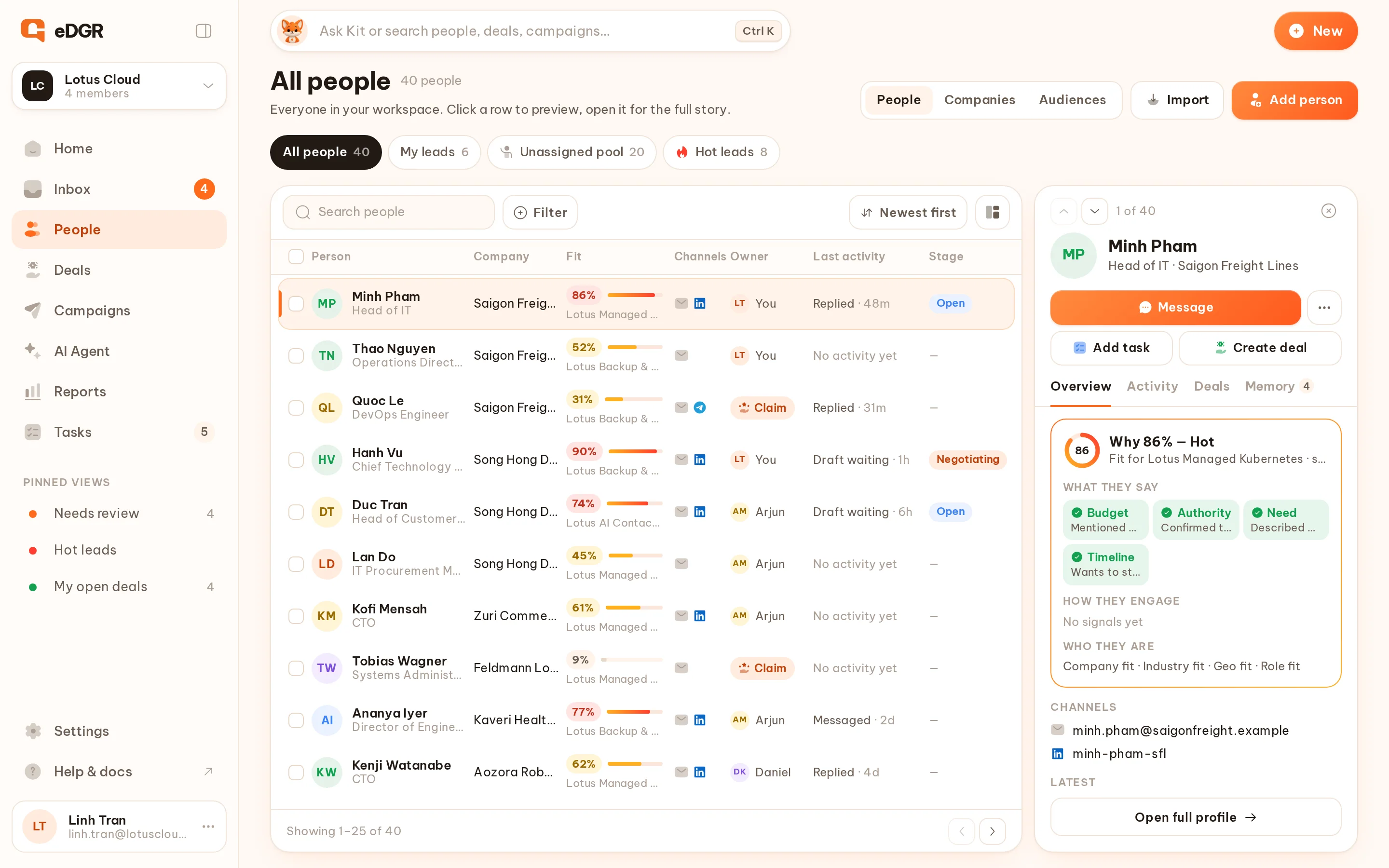
- 1 People, Companies and Audiences.
- 2 Import a CSV, or add one person by hand.
- 3 Views, each with its count.
- 4 Search by name, email or company.
- 5 Filter by fit, tag or audience.
- 6 Columns and Export CSV, after the sort menu.
- 7 A person nobody owns has Claim in the Owner column.
- 8 The preview of the selected row.
Views
The four tabs above the table are fixed views, each with the number of people it holds.
| View | Who is in it |
|---|---|
| All people | Everyone in the workspace. |
| My leads | People you have claimed. |
| Unassigned pool | People nobody owns yet. Imported people and people who write in first wait here until someone claims them. See Unassigned pool and claiming. |
| Hot leads | People with a fit score of 70% or more. |
Hot leads is also pinned in the sidebar under Pinned views. The view, the search, the filters, the sort and the page you are on are all kept in the address bar, so a copied link opens the same list for a teammate.
Search and filters
- The search box looks through names, channel addresses (email, LinkedIn, Telegram and phone) and company names and domains. It searches the view you are on.
- Filter adds one condition at a time, each shown as a chip you remove with its ×:
- Fit score: Fit is Hot (70% or more) or Fit is Warm or better (30% or more).
- Tag: people with one tag.
- Audience: everyone in one audience, both the people its rules match and the people added to it by hand.
- The sort menu orders the list Newest first, Oldest first or Name A–Z.
- Clear filters appears when nobody matches, and removes the search and the chips added with Filter.
- Hot leads shows its own Fit is Hot chip. Removing that chip switches to All people.
After an import, View the new people opens the list with an Imported from chip that shows only the people that file created.
Columns
Person (name and job title) is always shown. The Columns and export button at the right end of the toolbar switches the others on and off, and this browser remembers your choice.
| Column | Shows | On at first |
|---|---|---|
| Company | The company the person works at. | Yes |
| Fit | Their best fit score across your products, with the product’s name. | Yes |
| Channels | An icon for each channel you can reach them on. A red envelope means a channel was stopped (it bounced or they opted out). | Yes |
| Owner | The teammate who owns them, You, or a Claim button when nobody does. | Yes |
| Last activity | The latest thing that happened, such as Replied · 3h or Opened · 2d. | Yes |
| Stage | The stage of their most advanced open deal: Negotiating before Open. | Yes |
| Tags | The first two tags, then +N. | No |
| Location | Their location. | No |
| Industry | Their industry. | No |
The same popover holds Export CSV, described in Import and export.
The preview panel
On a wide screen, clicking a row opens the person in the panel on the right without leaving the list. On a smaller screen the click opens their page.
- The panel shows the person’s name, title and company, then Message, the More actions menu, Add task and Create deal.
- Its tabs are Overview (fit, channels and the latest four events), Activity, Deals and Memory, which is what Kit remembers about them.
- ↑ and ↓, or K and J, move to the previous or next person, across pages too.
- Open full profile at the bottom opens the person’s page.
Clicking a name in the table opens the person’s page straight away. That page keeps the list you came from: the crumbs read People › Hot leads › the person’s name, and the pager says, for example, “3 of 38 in Hot leads” (A person’s page covers the rest).
Add a person
-
Open the form
Choose Add person at the top right of People.
-
Fill in what you know
Full name is the only required field. Job title, Company, Location, Industry and About help Kit score them. Typing a company that does not exist yet creates it.
-
Add a way to reach them
Under How to reach them, pick Email, LinkedIn, Telegram or Phone and paste the address, profile link or handle. Telegram takes an @username, a t.me link or a numeric id. A phone number is kept for your team only: eDGR cannot call or text, so campaigns and Kit never use it.
-
Tags, audiences and owner
Type tags and audiences separated by commas; new ones are created. Claim them for me is on by default. Turn it off to put the person in the unassigned pool.
-
Save
Choose Add person.
To bring in a whole list from a spreadsheet, use Import CSV.