

Replying and new conversations
Replying from the right account, attaching up to three product documents, and starting a conversation with someone in People or a new address.
Reply in a thread
The reply box sits at the bottom of the conversation. When Kit has a draft waiting, the draft takes its place until you send or discard it; see Kit’s drafts and hand-offs.
-
Write the message
Type in the box. Ctrl Enter (⌘ Enter on a Mac) sends it.
-
Check the account it goes from
The account picker beside Attach lists only accounts on channels this person has. When the thread already has a message sent or received on one of those accounts, it starts on Same as last time, the account last used in this thread, so the person keeps hearing from the same mailbox or profile. Otherwise it starts on the first account in the list. Pick another account to send from it instead.
-
Attach documents, if any
Attach opens your product documents. Tick up to three; a picked document shows as a chip above the text, and the × on it takes it off.
-
Send
Choose Send. A message with documents attached can go without text.
- If the person has no channel your workspace has an account on, the box says You don’t have a connected account on any channel this person uses. An administrator adds accounts in Channels.
- An address the person opted out of is skipped. If every address they have on that channel opted out, the send fails and says why.
- Replying yourself does not turn Kit off for this person. Use Kit replies for that.
Attachments
The picker lists the documents on every product under AI Agent › Knowledge. A file goes out as the file. A note written in the app has no file, so it goes out as a Markdown (.md) file holding its text. With no documents yet, the picker points you to AI Agent › Knowledge.
The limit of three documents applies to every message from the Inbox, including a draft of Kit’s you send.
Start a new conversation
New conversation is the pen button beside the Inbox title, or above the list on a narrower screen. New in the top bar and ⌘K open it too.
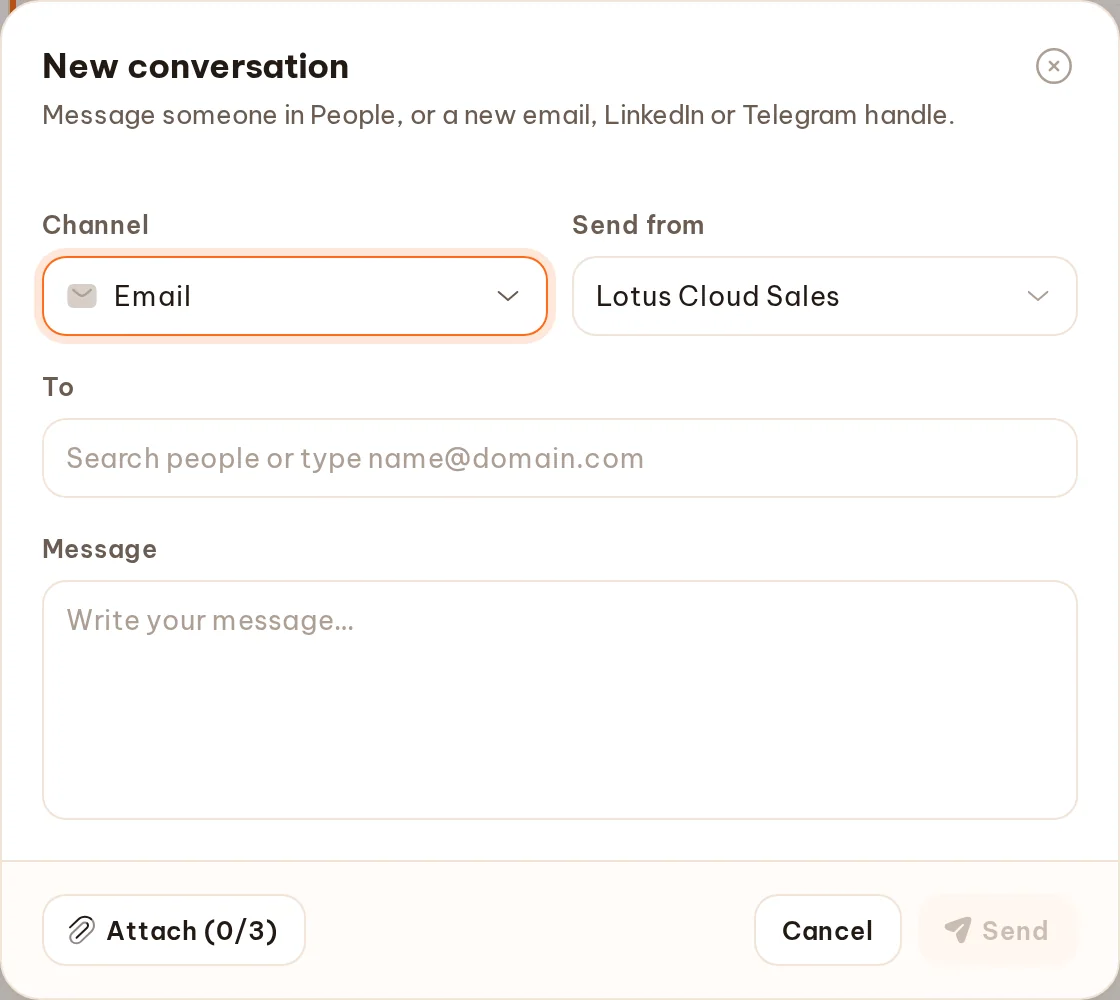
- 1 Channel: Email, LinkedIn or Telegram.
- 2 Send from: your workspace's accounts on that channel.
- 3 To: someone in People, or a new address or handle.
- 4 Message.
- 5 Attach: up to three product documents.
- 6 Send.
-
Pick the channel and account
Channel starts on Email. Send from lists your workspace’s accounts on that channel. With none, the dialog says so and links to Connect one.
-
Pick who it goes to
Type in To. People whose name matches and who have that channel show with their address or handle. To write to someone who is not in People yet, type their address in full and choose Send to “…” under the matches.
-
Write, attach and send
Write the message, attach up to three documents with Attach, and choose Send. The new thread opens.
What To accepts on each channel:
| Channel | Accepts |
|---|---|
An address, such as name@domain.com. | |
A profile link (linkedin.com/in/username) or the username alone. | |
| Telegram | An @username, a t.me link, or the numeric Telegram id. |
Sending to a new address creates the person in People, named after the address as you typed it, and opens a thread with them. If the send fails, the new person is removed again. An address that opted out of your messages cannot be written to from here.