

Knowledge
Products and the files and notes Kit answers from, the formats it reads, what each file status means, and testing what Kit would find.
Kit answers only from what you add under AI Agent › Knowledge. Knowledge is kept per product: each product you sell has its own files and notes, and its own lead-scoring rules.
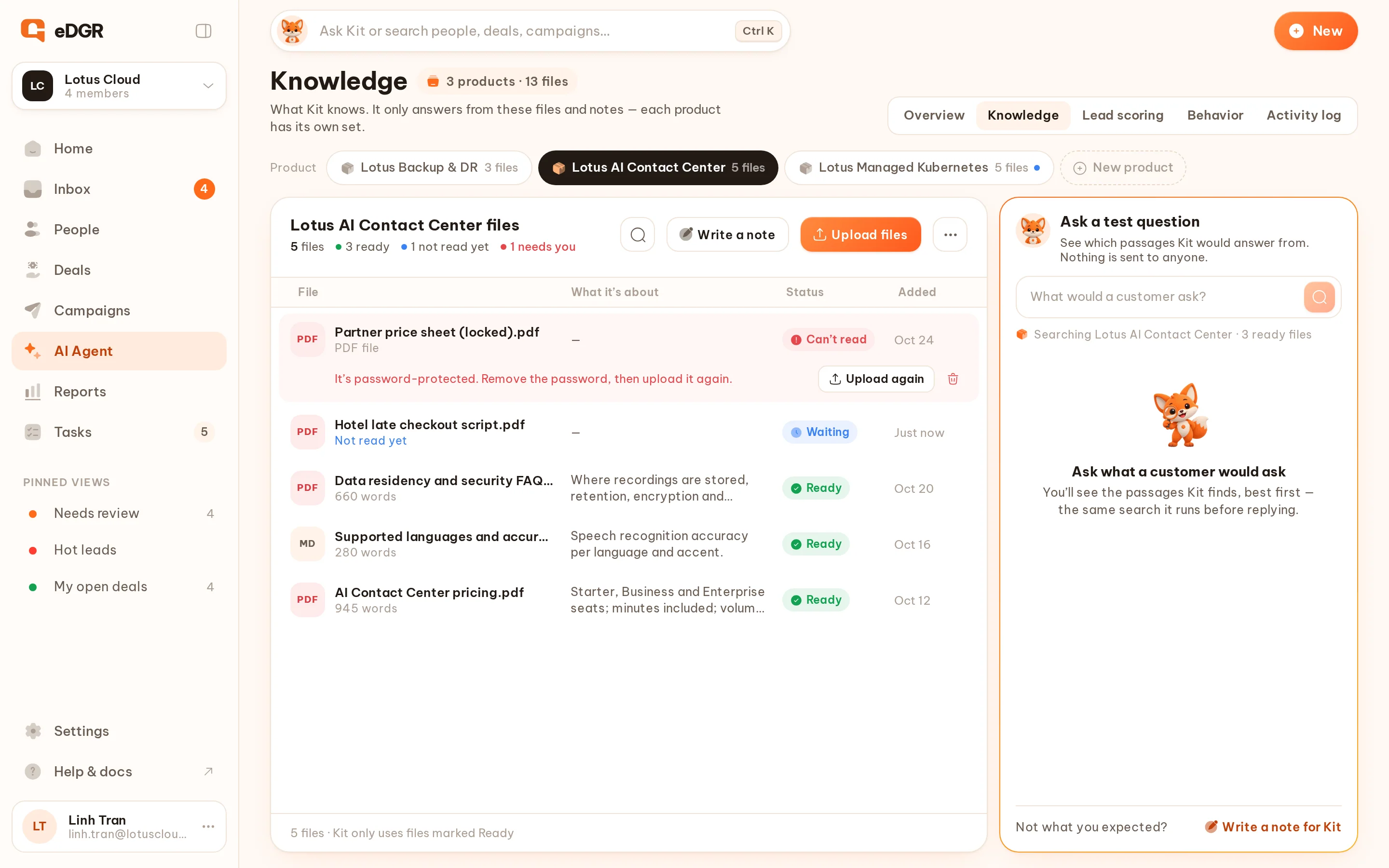
- 1 Products, each with its number of files. New product adds one.
- 2 Write a note and Upload files.
- 3 Product options: rename, channels and AI model, remove.
- 4 Each file's status. Kit answers from Ready files only.
- 5 Ask a test question: the passages Kit would find.
Add a product
-
Open New product
Choose New product at the end of the product row. With no products yet, the page offers Add a product.
-
Name it
Give it a Name, and under What it is a line or two about what it is and who it is for.
-
Choose a model and accounts, if needed
AI model and Sends from are optional; see Products and channels. Leave them empty to use the workspace model and answer on every account.
-
Add product
Choose Add product. The product starts with a set of lead-scoring criteria you can tune later.
Upload files
-
Pick the files
Open the product, then choose Upload files, or drop files onto the file list.
-
Write a note for each file
Each file gets a box: What is this file? When should Kit use it? For example: “Pricing for Team and Enterprise. Use for price questions.” Kit reads the note to decide when the file applies. A file without a note cannot be added.
-
Add the files
Choose Add 3 files. Each file is uploaded on its own, and one that fails shows its error in the list while the others go through. Kit reads new files in about a minute.
| Kind | Formats |
|---|---|
| Documents | PDF, DOCX, HTML, Markdown, TXT, JSON |
| Images | PNG, JPG, WEBP, GIF |
- Each file can be up to 15 MB.
- Kit describes an image in words and answers from that description. A scanned PDF has no text to read, so upload the pages as images.
- A file with a password cannot be read. Remove the password and upload it again.
Write a note
A note is text you write in the app, for short answers Kit can quote: frequent questions, objections, how your team usually replies. Write a note asks for a Title, such as the question it answers, and the Note itself. Add note saves it, and Kit reads it in about a minute.
A note can also be attached to a message from the Inbox; it goes out as a Markdown file.
File statuses
| Status | Means | What to do |
|---|---|---|
| Ready | Kit has read the file and answers from it. | Nothing. |
| Reading… | Kit is reading it. This takes about a minute. | Wait. |
| Waiting | Still not read after 10 minutes, shown as Not read yet under the name. Usually no model is set up to read it. | Check Reply model and Knowledge search in Settings › AI model. |
| Can’t read | Reading failed. The line under the row says why and what to do. | Upload again for a file, Edit & try again for a note, or remove it. |
Files with a problem are listed first, then the newest. The line under each name gives the word count, Kit described this image, or Written note with its word count. What it’s about shows Kit’s summary, or your note until the summary is ready.
Upload again opens the file picker; the new file replaces the one that failed. Edit & try again opens the note with its text, and saving adds it again and removes the copy that failed.
Check what Kit understood
Choose a file’s row to open it.
- Your note is the note you wrote when you added the file. It cannot be changed afterwards.
- What Kit understood is Kit’s summary of the file.
- Open file shows the file or image.
- Edit name & summary changes the file’s name and Kit’s summary. The summary is what your team reads in the list.
- Delete removes the file after you confirm, and Kit stops answering from it.
Find a file filters the list by name.
Ask a test question
Ask a test question, beside the files, runs the same knowledge search Kit runs before it replies. Nothing is sent to anyone.
-
Ask
Type what a customer would ask, such as “Can it run on our own AWS account?”, and press Enter.
-
Read the passages
Up to five passages come back, best first, each with its file, its part number and Strong match, Good match or Partial. Words from your question are marked in the text.
-
Fill the gap
Nothing matched means Kit would hand this question to you. Write a note for Kit opens a new note with your question as its title.
The search covers the product you have open and only its Ready files; a warning names the files that were skipped. Asked before keeps your last questions to run again.
Products and channels
Product options › Channels & AI model sets two things for a product.
Sends from links the product to channel accounts:
- Messages that come in on a linked account are answered from this product’s files only. An account linked to no product answers from every product.
- When the person is in a campaign for some of the products an account answers from, Kit narrows further to those products.
- Emails Kit sends on its own for this product go out from its email account. Replies stay on the channel the message came in on.
AI model picks a model for this product. Kit uses it instead of the workspace model when a conversation is about this product alone, and for lead scoring when this is your only product. Workspace model keeps the workspace’s choice.
Rename or remove a product
Product options holds Rename product and Remove product. Removing a product deletes its files and its lead-scoring rules, and affects campaigns that use it. It cannot be undone.