

Reading a conversation
The conversation header and its actions, how messages, channel changes and email events show in the timeline, Kit's steps, and the person panel.
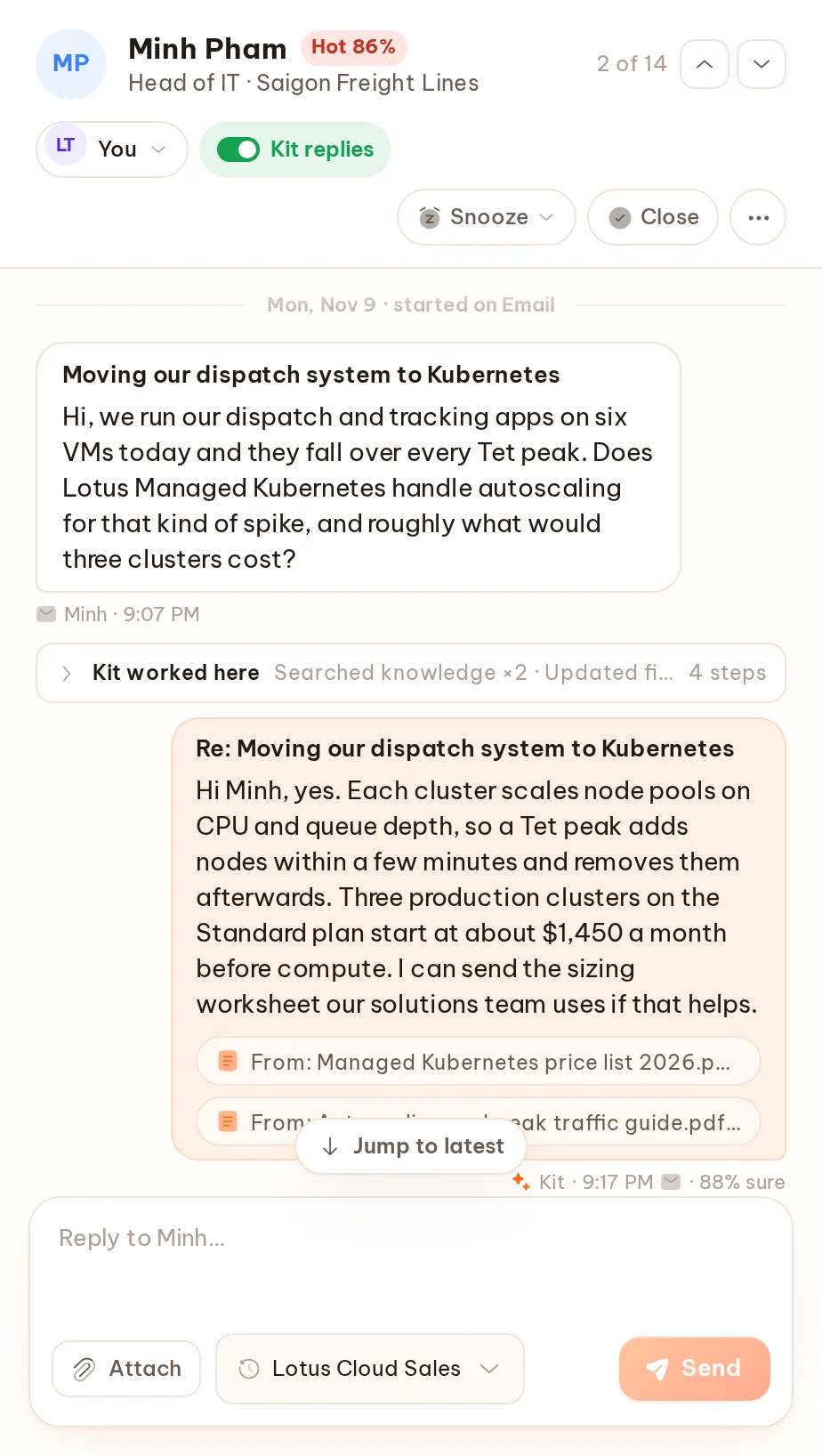
- 1 Owner: assign the person to yourself or let them go.
- 2 Kit replies: on when Kit answers this person on its own.
- 3 Snooze and Close.
- 4 More actions: Create deal, Open profile, and showing or hiding Kit's steps.
- 5 Kit's steps for one turn, folded into one line.
The header
The top line shows the person’s name, their best fit score with its tier (for example Hot 82%), and a chip when the thread is not open: Snoozed until tomorrow 9:00 AM or Closed. Under the name are their job title and company. On the right, 3 of 18 gives the thread’s place in the view, with arrows to the previous and next thread.
The row under it holds the actions:
| Control | Does |
|---|---|
| Owner | Shows No owner, You or a teammate’s name. Assign to me makes you the owner of a person nobody owns; Unassign me lets go of a person you own. A person another teammate owns can only be released by that teammate. |
| Kit replies | Kit’s switch for this person. See Turn Kit off for one person. |
| Snooze, Close | Park or close the thread. On a snoozed thread the button reads Unsnooze, on a closed one Reopen. See Snooze, close and live updates. |
| More actions | Create deal, Open profile, and Hide Kit’s steps or Show Kit’s steps. |
Messages
- The person’s messages sit on the left in white cards, yours on the right. The line under each gives the channel, the sender’s first name and the time.
- A message Kit wrote has a star in front of the sender, reads Kit as the sender, shows the channel mark after the time, and adds how sure Kit was, such as
82% sure. - An email shows its subject in bold above the body. HTML emails show as they were written.
- From: Pricing 2026.pdf · p.4 chips under a message from Kit name the knowledge passages the reply drew on. A file without pages shows its name only.
- Attached images show a preview. Other files show as a chip with name and size; choose it to download the file.
- Day lines split the timeline: Today, Yesterday, then the date. When the day’s first message is on a different channel from the message before it, the line says so, such as Yesterday · moved to email. The first day of the thread reads started on LinkedIn.
- Email and LinkedIn events sit in a small pill between messages: Opened email, Clicked a link (choose it to open the link), Unsubscribed, Accepted your invite, Email bounced, sending stopped and Marked as spam, sending stopped. Events in a row share one pill, and repeats show a count such as
×4.
The thread opens at the newest message. Scrolling to the top loads older messages. When you have scrolled up, Jump to latest takes you back down; it turns orange and reads New messages when something arrived below.
Kit’s steps
Each time Kit works on a thread it calls tools: it searches your knowledge, recalls what it knows about the person, adds tags, updates the fit score. A turn’s steps fold into one line, Kit worked here, with a summary such as Searched knowledge ×2 · Added tag · +1 more and the number of steps. A step that did not work adds 1 failed in red.
Choose the line to list every step with its time and what it acted on, such as the search words or the tag name. The step that wrote the reply does not show as a step, since the message it wrote is already in the timeline with Kit’s mark.
Hide Kit’s steps in More actions takes the step lines out of every thread. Kit’s mark on messages stays. The choice is kept in this browser.
While Kit is working on the thread you have open, a chip at the end of the timeline says what it is doing, such as Kit · Searching knowledge…. See Live updates.
The person panel
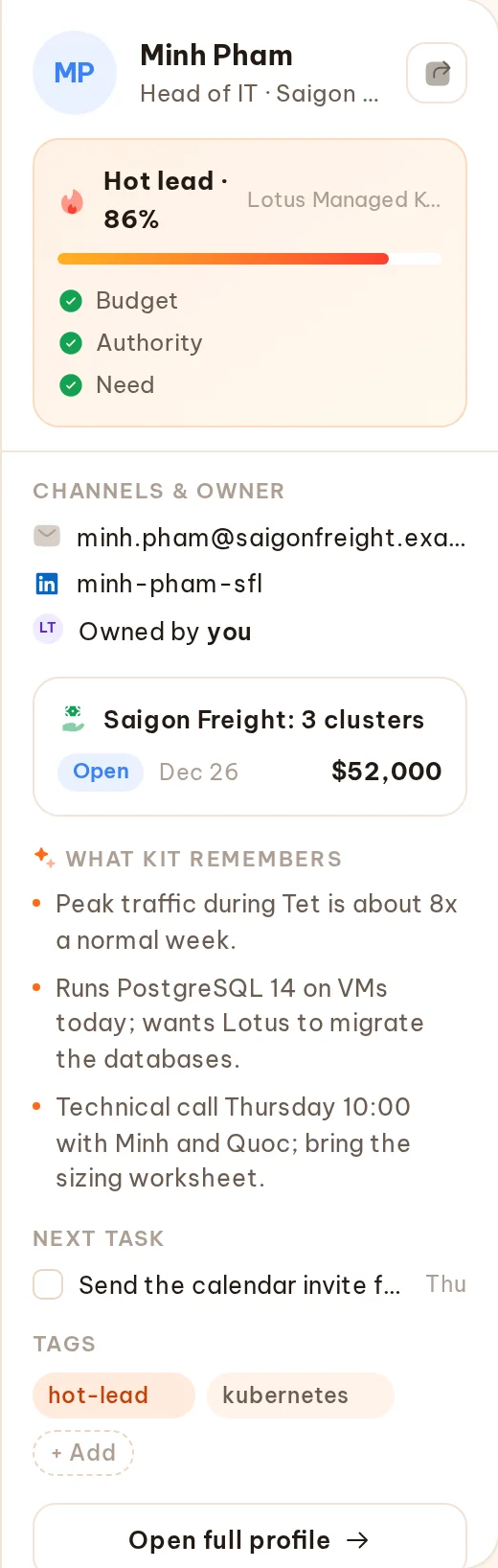
- 1 Fit for their best product, with the criteria that raised it most.
- 2 Every channel the person has, and their owner. Stopped marks a channel they opted out of.
- 3 What Kit remembers about them. Their open deal, or Create deal, sits just above.
- 4 Their next open task. Tick the box to mark it done.
- 5 Tags. + Add puts a workspace tag on them.
- 6 Open full profile opens the person in People.
| Part | Shows |
|---|---|
| Fit card | The tier and percentage for the product the person fits best, that product’s name, and up to three criteria that raised the score most. Rest the pointer on a criterion to read Kit’s reason. Not scored yet when Kit has too little to go on. See Lead scoring. |
| Channels & owner | Each email address, LinkedIn profile, Telegram handle or phone number on the person, with Stopped on one they opted out of, and who owns them. |
| Deal | Their open or negotiating deal, or else their most recent deal, with stage, expected close date and amount. With no deal at all, Create deal opens the new-deal form for this person. |
| What Kit remembers | Up to three facts and plans Kit saved about the person while talking to them. |
| Next task | The open task due soonest. The box marks it done. |
| Tags | The person’s tags. + Add adds one from your workspace tags; the × on a tag removes it. |
Open full profile at the foot opens the person in People.