

Audiences
Groups of people a campaign sends to, filled by rules, by hand or from a CSV, and the rule fields the builder offers.
An audience is a group of people you send a campaign to. Audiences, next to People and Companies at the top of People, lists them.
Rules and by hand
People get into an audience in two ways, and one audience can use both.
| Way in | How it behaves |
|---|---|
| Rules | You describe who belongs, such as “Job title contains CTO and Location is Vietnam”. People join and leave by themselves as their profile changes. |
| By hand | You add people from People, a person’s page or a company page, or a CSV import, a campaign step or Kit adds them. They stay until you remove them, even when they do not match the rules. |
The list shows which an audience uses in How people get in: Rules, By hand or Rules + hand. Everyone in it is the people its rules match plus the people added by hand.
A campaign takes the list at Launch. People who join the audience later are not in that run; they are in the next launch.
The Audiences list
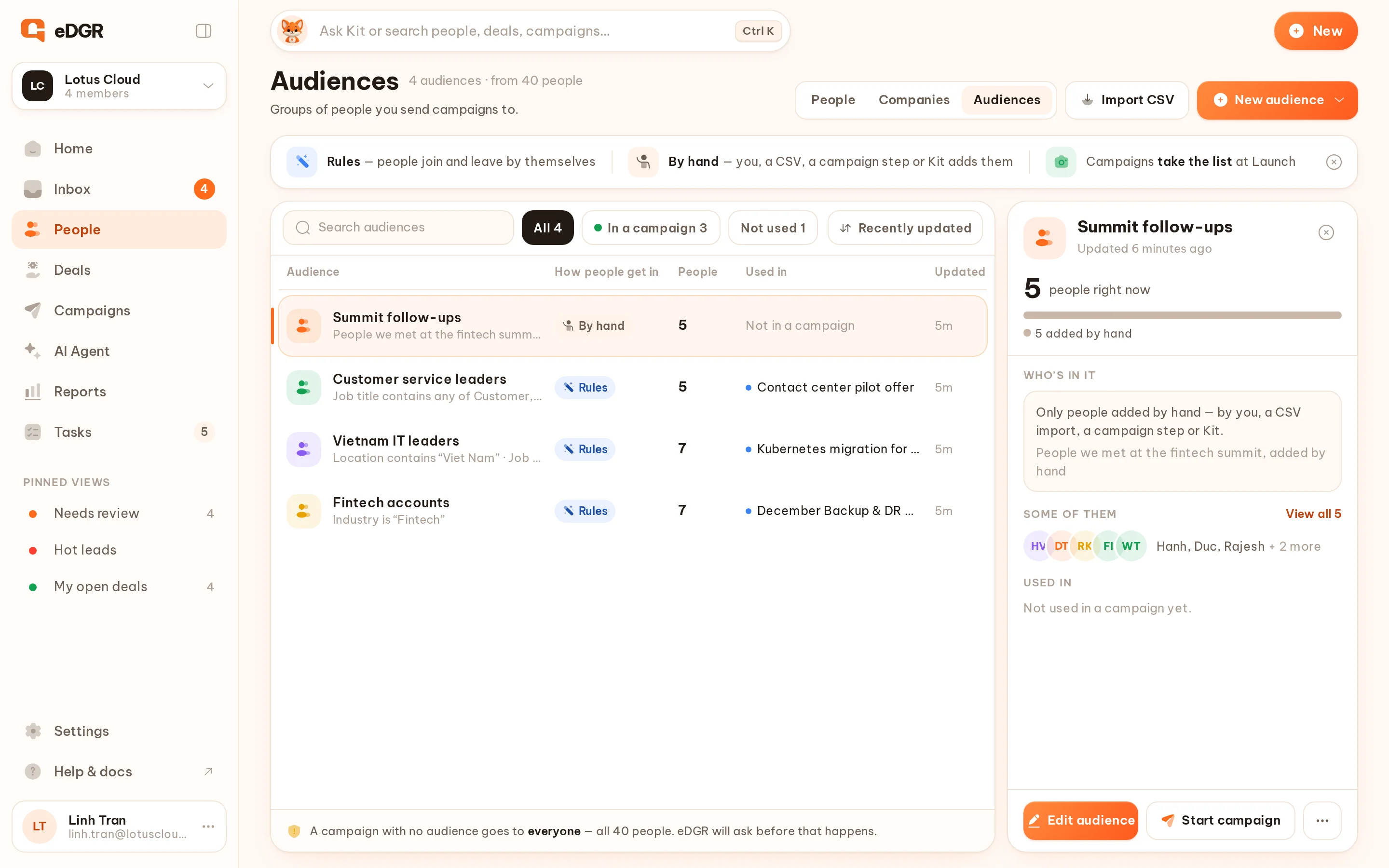
- 1 New audience.
- 2 Search, and the All, In a campaign and Not used chips.
- 3 How people get in.
- 4 Used in: the campaigns that use it.
- 5 The preview: who is in it, some of them, and where it is used.
- The chips All, In a campaign and Not used narrow the list. The sort menu offers Recently updated, Name A–Z and Most people.
- People is the count right now. It turns red, with No one matches yet, when an audience has rules and nobody matches them.
- Used in names the campaigns using the audience, or another audience whose rules include or exclude it.
- Clicking a row opens its preview on the right: the count, split into match rules and added by hand, the rules in words, a few of the people with View all, and where it is used. Double-clicking a row opens the audience.
- The preview’s buttons are Edit audience, Start campaign and More actions, which holds Delete audience, and Open in People for an audience without rules. Deleting removes the group and keeps the people. An audience used in a campaign cannot be deleted, because the campaign would then send to everyone.
The line under the list says that a campaign with no audience goes to everyone in the workspace, and that eDGR asks before it sends to everyone.
Create an audience
New audience offers three starts:
- Match rules opens the builder on an empty rule set.
- Pick people by hand opens the builder with the people search open.
- Import a CSV opens Import. Switch on Add everyone to an audience in the second step and name the audience there. See Import and export.
The first two ask for a Name, which no other audience may have, and optionally What it’s for.
You can also create an audience from any audience picker (the bulk bar, a person’s page, the add-person form) by typing a new name.
The audience builder
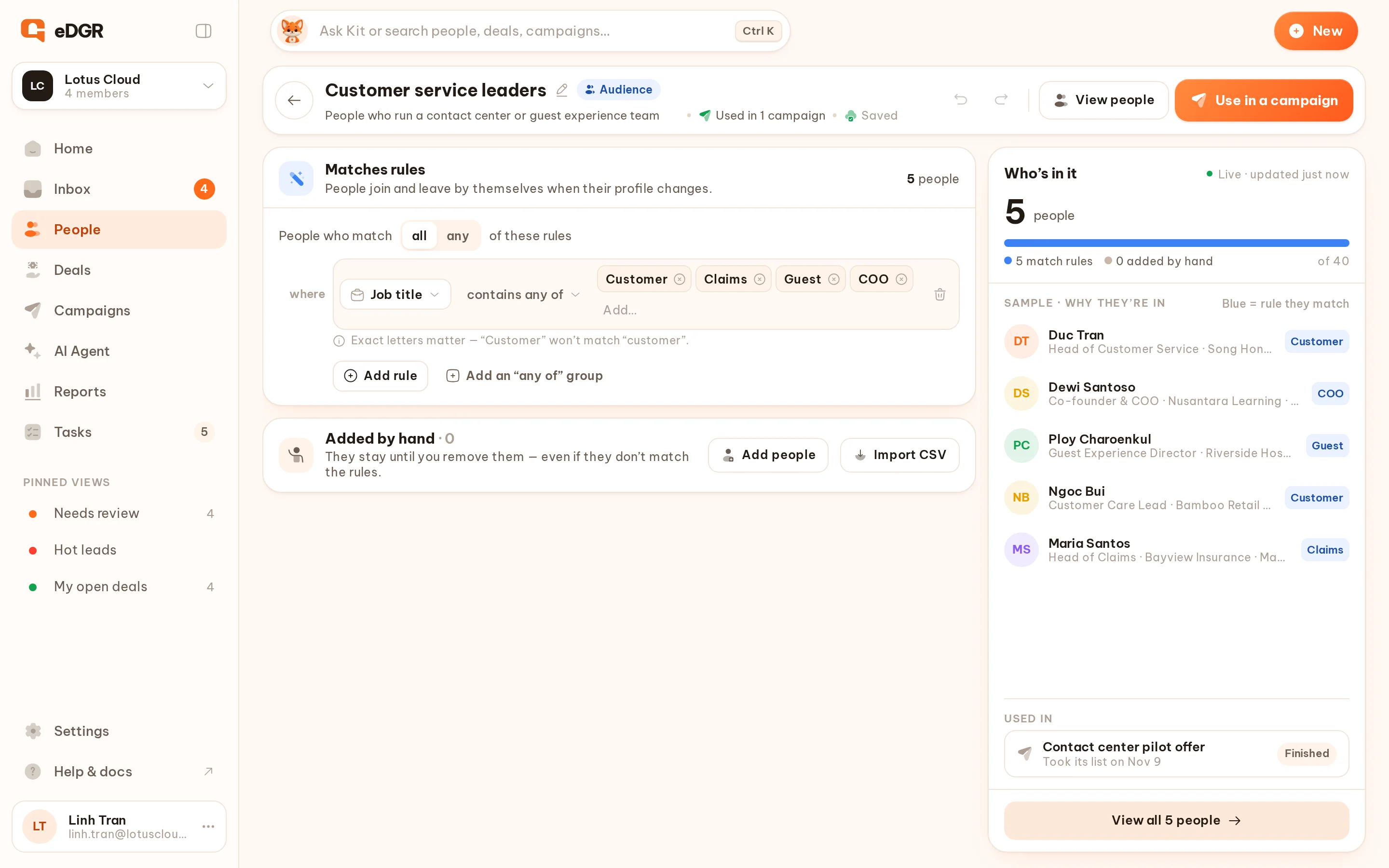
- 1 Name and description, click to edit.
- 2 Saved, undo and redo.
- 3 Use in a campaign.
- 4 All or any.
- 5 A rule: field, operator and values.
- 6 Add a rule or a group.
- 7 People added by hand, Add people and Import CSV.
- 8 The live count.
- 9 A sample, with the rule each person matches.
The builder saves as you go. The header shows Saving…, then Saved, or Not saved · Retry when the save failed, and Undo and Redo step through your last 50 changes.
Rules
The rules read as a sentence: “People who match all of these rules, where Job title contains CTO and Location is Vietnam”. The all and any switch decides whether every rule must match or one is enough.
Each rule is a field, an operator and one or more values.
| Group | Field | Operators |
|---|---|---|
| About the person | Name, Job title, Location, Industry, Description | is, is not, contains, starts with, ends with |
| Company | Company name | the same five |
| Membership | Has a tag | has, doesn’t have |
| Membership | Is in another audience | is in, isn’t in |
- Type a value and press Enter, a comma or Tab to add it. Backspace in the empty box removes the last value. Tags and audiences are picked from a list.
- Several values on one rule mean any of them: “Job title contains any of CTO, Head of”. On is not and doesn’t have they mean none of them.
- Text rules ignore upper and lower case. The spelling must match. is and is not with several values (is any of, is none of) also match the case exactly.
- Is in another audience counts everyone in that audience, through its rules and by hand.
- Add an “any of” group (or “all of”, whichever is the opposite of the top switch) adds a box of rules joined the other way, one level deep. “All of: Industry is SaaS, and any of: Location is Vietnam, Location is Singapore” is built this way.
- A rule without a field or a value is outlined in orange and is not applied until it is complete.
Rules set up outside the builder keep working, and the builder shows them as they are stored, with Replace with new rules.
People added by hand
The Added by hand card shows how many people were added and a few of their faces. Add people searches by name, email or company; Import CSV opens Import with this audience chosen.
Live preview
The right column shows how many people are in the audience right now, how that changed since your last edit, and how many match the rules or were added by hand, out of everyone in the workspace. Sample · why they’re in lists a few of them with the rule values they match in blue, or Added by hand.
View people in the header, or View all N people under the sample, opens the full list in a drawer with two tabs, Everyone and Added by hand. On Added by hand, Remove takes a person out. An audience without rules has View in People in the header instead, which opens People filtered to it.
Use an audience in a campaign
Use in a campaign in the builder, or Start campaign in the list’s preview, opens a new campaign with the audience chosen. When a campaign using the audience is running, the builder says so, and your changes count from that campaign’s next launch, as described in Campaigns.
You can also filter People to an audience with Filter › Audience, and export it from Columns and export.