

Templates
Save emails and text messages to reuse in campaigns, fill them with variables, test them, and adjust the AI prompts Kit follows.
Templates, next to Campaigns at the top of the Campaigns page, holds the messages you write once and reuse: emails, text messages for LinkedIn and Telegram, and the AI prompts Kit follows.
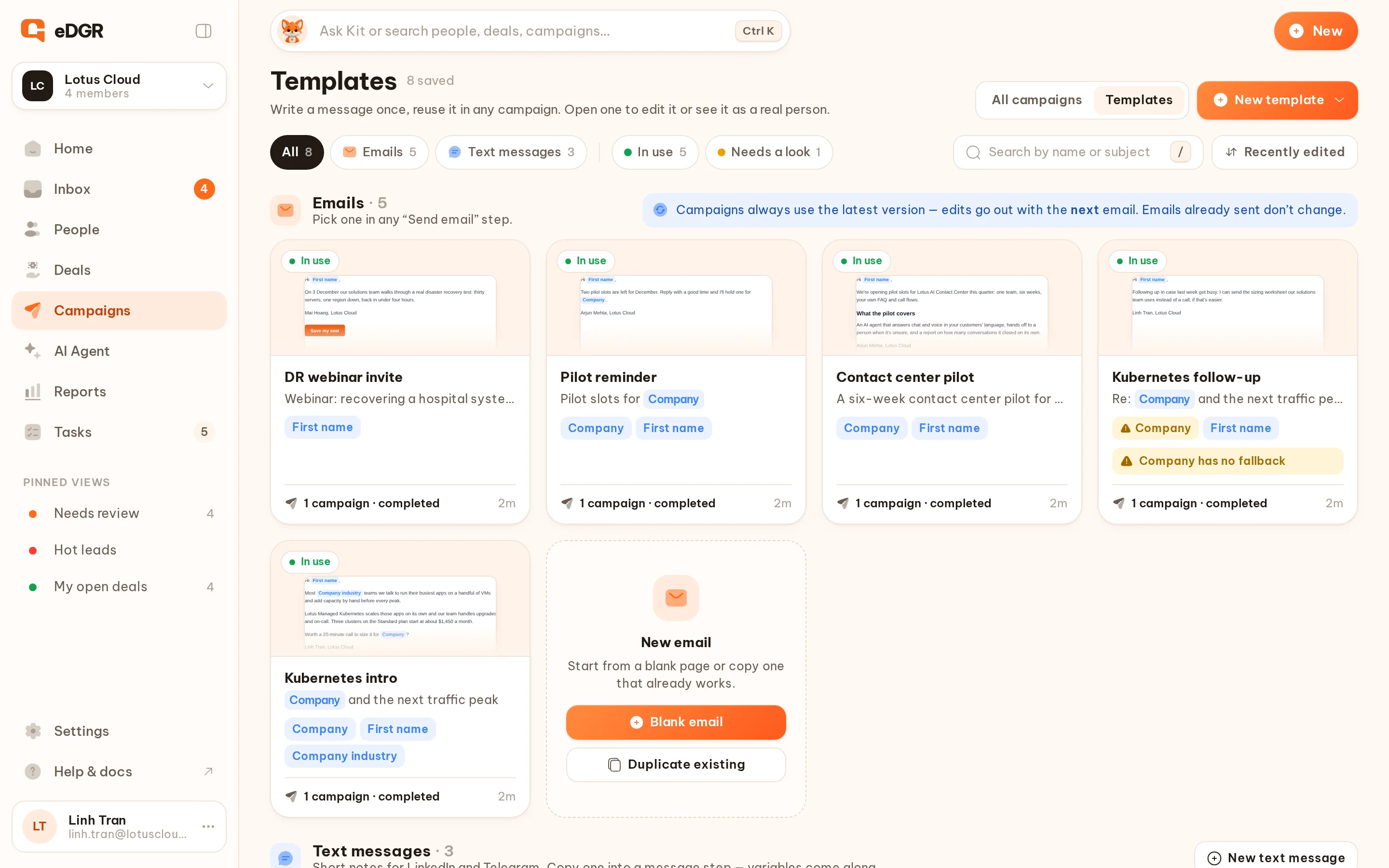
- 1 New template — email, text message or a copy.
- 2 Filter by type.
- 3 In use — emails a campaign sends.
- 4 Needs a look — variables without a fallback.
- 5 Search by name or subject.
- 6 Campaigns always send an email's latest version.
The Templates page
- New template offers Email, Text message and Duplicate existing.
- The chips filter by Emails or Text messages, by In use (emails a campaign step links) and by Needs a look (emails with a variable that has no fallback). Search by name or subject searches; / jumps to it. The sort is Recently edited or Name A–Z.
- An email card shows a thumbnail, the subject, and which campaigns use it, such as 2 campaigns · 1 running.
- A text message card shows the message and Copy text.
- The ⋯ on a card has Duplicate and Delete. An email a campaign still sends can’t be deleted; remove it from the step first.
Create a template
-
New template
Choose New template, then Email or Text message. Duplicate existing asks which template to copy from.
-
Name it
Give it a name your team will recognise in a campaign step. The name can’t contain / or , must be unique among templates of its type, and can’t be changed later, because campaign steps find the template by name. What it’s for is optional.
-
Create
Create (or Duplicate) opens the new template’s editor.
Email templates
An email template has a subject, a preview text and a body built from blocks. The editor saves on its own a second after you stop typing; the header reads Saving…, then Saved.
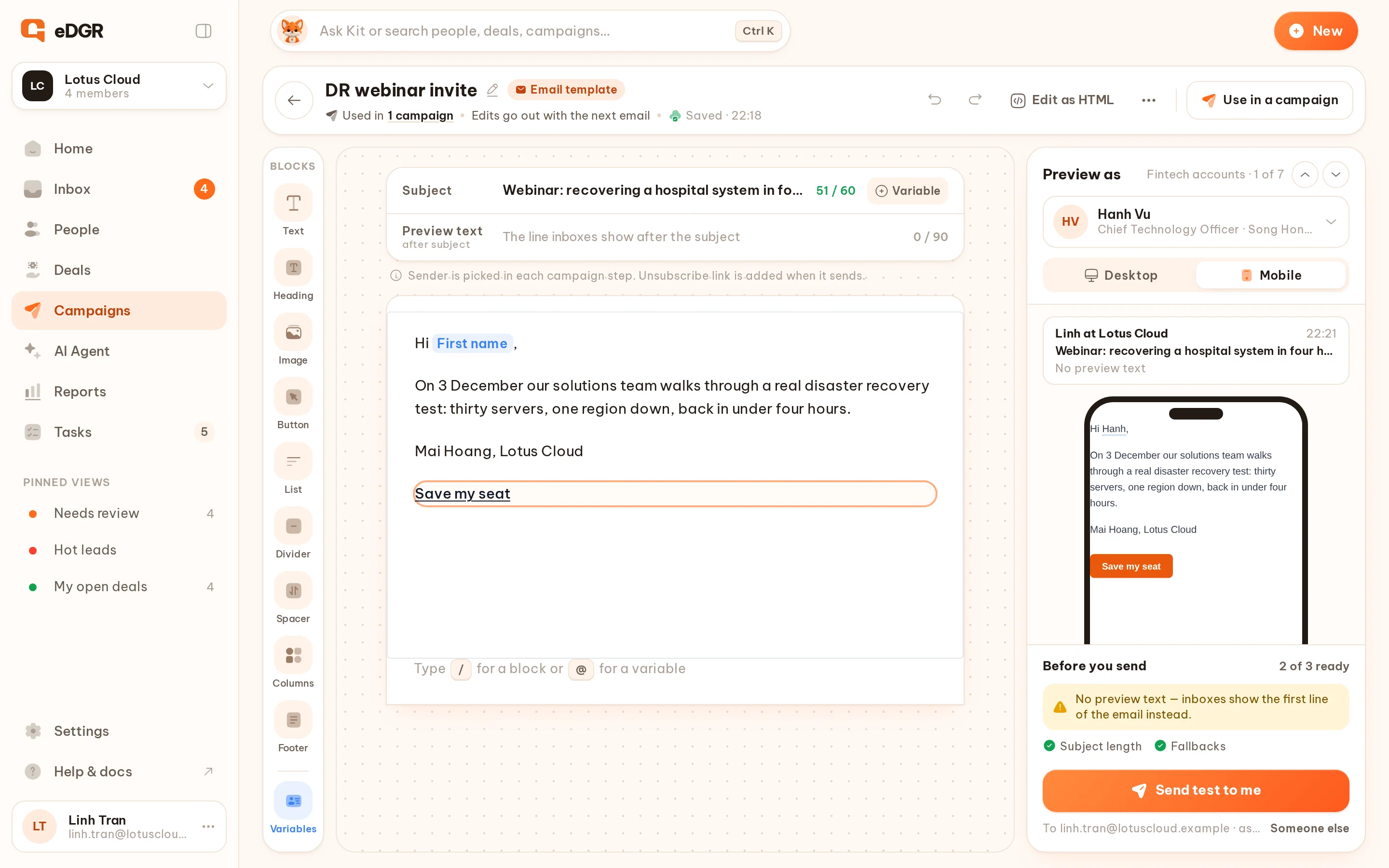
- 1 Blocks — click to add one.
- 2 Variables — insert a person's detail.
- 3 Subject.
- 4 Preview text — the line inboxes show after the subject.
- 5 Edit as HTML.
- 6 Preview as — the email as one real person sees it.
- 7 Send test to me.
- The Blocks rail adds Text, Heading, Image, Button, List, Divider, Spacer, Columns and Footer. In the body, / opens the block menu and @ opens the variables.
- Images can be JPEG, PNG, GIF, WebP or SVG, up to 5 MB.
- Edit as HTML switches the body to its HTML. Back to blocks replaces your HTML changes with the block version, after a confirmation.
- The sender isn’t part of the template. Each campaign step picks its own.
- The ⋯ menu has Revert to when you opened it, Duplicate and Delete. Use in a campaign starts a new campaign, where you pick the email in a Send email step.
Variables
Variables fill in a person’s details when the message sends. The Variables button, the Variable button by the subject, and @ in the body list the Contact, Customer, Company and Organization details listed in the builder. An email written inside a campaign step can also use the outputs of earlier steps.
A variable can carry a fallback for people who don’t have that detail, written as {{customer.firstName | default: "there"}}. The Preview as panel lists every variable without one under Before you send, and Add fallback sets it everywhere that variable appears in the email.
Preview and test send
Preview as shows the email with one person’s details filled in. Search for a person by name or company, or step through people with the arrows; with nobody in People yet, variables show their names. Desktop and Mobile switch the width. A detail that is empty for that person is marked in yellow.
Before you send checks:
| Check | Passes when |
|---|---|
| Subject length | There is a subject of 60 characters or fewer. Phones cut longer ones. |
| Preview text | Preview text is set. Otherwise inboxes show the email’s first line. |
| Fallbacks | Every variable has a fallback. |
| Button link | Every button has a link. Shown when the email has buttons. |
| Images have alt text | Every image has alt text. Shown when the email has images. |
Send test to me sends the email, as the previewed person, to your own address through your first connected email channel. Someone else opens Send test email, where you pick the sending channel and type any address. A test without a previewed person uses sample values (Alex Nguyen, Acme Corp). Tests don’t touch anyone in People.
Text messages
A text message is a short note for LinkedIn and Telegram steps. Write it under Message, using @ for variables, then press Save; text messages don’t save on their own, and Discard changes drops unsaved edits. Variables that don’t exist are listed in a warning, since they would come out blank.
Message steps don’t link text templates. Copy text on the card copies the message, variables included, to paste into a LinkedIn or Telegram step. Later edits to the template don’t reach steps you pasted into.
AI prompts
Advanced · AI prompts, at the bottom of the page and marked For admins, holds the instructions Kit follows behind the scenes:
| Prompt | Used |
|---|---|
| How Kit scores leads | Every time a person’s fit score updates. |
| How Kit drafts a campaign | When you describe a campaign to Kit. |
| How Kit summarizes documents | When you add knowledge to a product. |
| How Kit reads images | For images and scans in your knowledge. |
A prompt has a Fixed part, which the AI provider caches, and a Per-request part filled in each time. Show preview shows the two together. Press Save to keep changes. An edited prompt shows Customized; Reset or Reset to default brings back the built-in version. Older prompts eDGR no longer reads are hidden from this list.