

Review and launch
The checks Review & launch runs before a campaign reaches real people, and how to launch now or at a set time.
Review & launch opens a sheet that checks the saved flow against your workspace. Open it from the builder header, from Review in a draft’s preview on the Campaigns list, or from Run again on the report. In the builder, your latest edits are saved before the sheet opens.
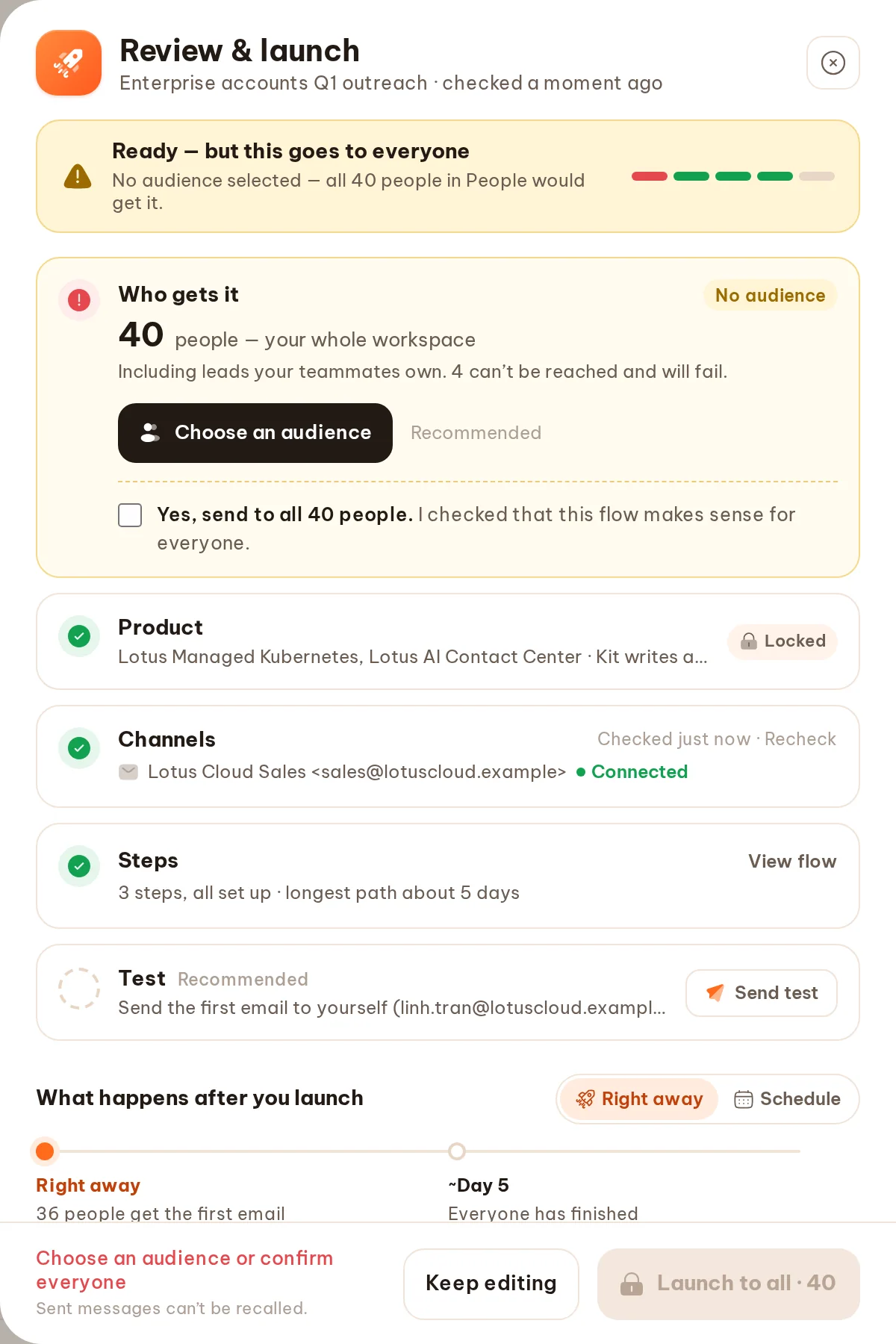
- 1 Who gets it — the audience and how many can be reached.
- 2 Product — locked once linked.
- 3 Channels — each sender is tested.
- 4 Steps — issues, each with Fix.
- 5 Test — send the first email to yourself.
- 6 Right away or Schedule.
- 7 Launch — locked until every blocker is cleared.
The banner at the top says whether the campaign is ready and counts what’s left to fix. The bars beside it show how many of the five checks are ready.
The checks
| Card | What it checks | Blocks launch when |
|---|---|---|
| Who gets it | The audience, how many people can be reached on the channel of the first message, how many opted out, and how many have no contact on that channel. | The audience is empty, nobody in it can be reached, or there is no audience and you haven’t confirmed everyone. |
| Product | The product linked to the campaign. Pick one and press Link if there is none. | No product is linked. |
| Channels | Every sender the flow uses gets a real connection test (Connected or Can’t connect — messages may fail). Recheck runs the tests again. | A message step has no sender picked. A failed test is a warning only. |
| Steps | The same issues the builder lists, one row per step, each with Fix. | Any issue is open. |
| Test | Whether you sent yourself the first email. | Never. It’s recommended. |
Fix closes the sheet and opens that step in the builder. From the list or the report, it opens the builder on that step.
Audience
- With an audience, the card shows the number who can be reached, a bar of reachable, opted-out and no-contact people, and View people. Change picks another audience.
- People who can’t be reached still start the run and fail at their first message. The footer counts them: N can’t be reached and won’t receive it.
- The list is fixed when you launch. People added to the audience later don’t join this run.
Product
A campaign needs one product before its first launch. Kit writes and answers from its documents. Once linked, the card shows Locked and the product can’t be changed or removed. In the builder header, Link a product opens the same choice and lets you link more than one.
Test send
Send test sends the first email step of the flow to your own address through its sender, with sample details in place of variables. It needs the step’s sender, subject and body. To test another email step, use Send me a test in that step’s panel in the builder.
Launch now or later
What happens after you launch shows a timeline: who gets the first message, the days later messages go out and on which route, and roughly when everyone has finished.
-
Pick when to start
Right away, or Schedule and set Start on to a date and time in your own time zone, at least a minute ahead.
-
Launch
The button reads Launch now · N people (or Schedule · N people). It stays locked until every blocker is cleared; resting the pointer on it lists them. Launching opens the campaign’s report as people start.
A scheduled launch starts on its own, even with the app closed, and reads the audience again at that time. The Campaigns list shows Starts and the date under the status. To change it, open Review & launch again: Reschedule saves a new time and Cancel schedule removes it.
One run at a time
While a run is going, the sheet reads This campaign is already running and launching is blocked. Stop the run from the report or the list, or wait until it finishes.
You can still schedule a launch while a run is going. If that run hasn’t finished when the scheduled time comes, the scheduled launch doesn’t start, and the app doesn’t say so. Check the Campaigns list after the time you set.