

Companies
The company list, how people join a company by email domain, and a company's page with its people, deals and research.
Sales reps Managers How-to 4 min read
A company groups the people who work at the same place. Companies, next to People and Audiences at the top of People, lists every company in the workspace, sorted by name.
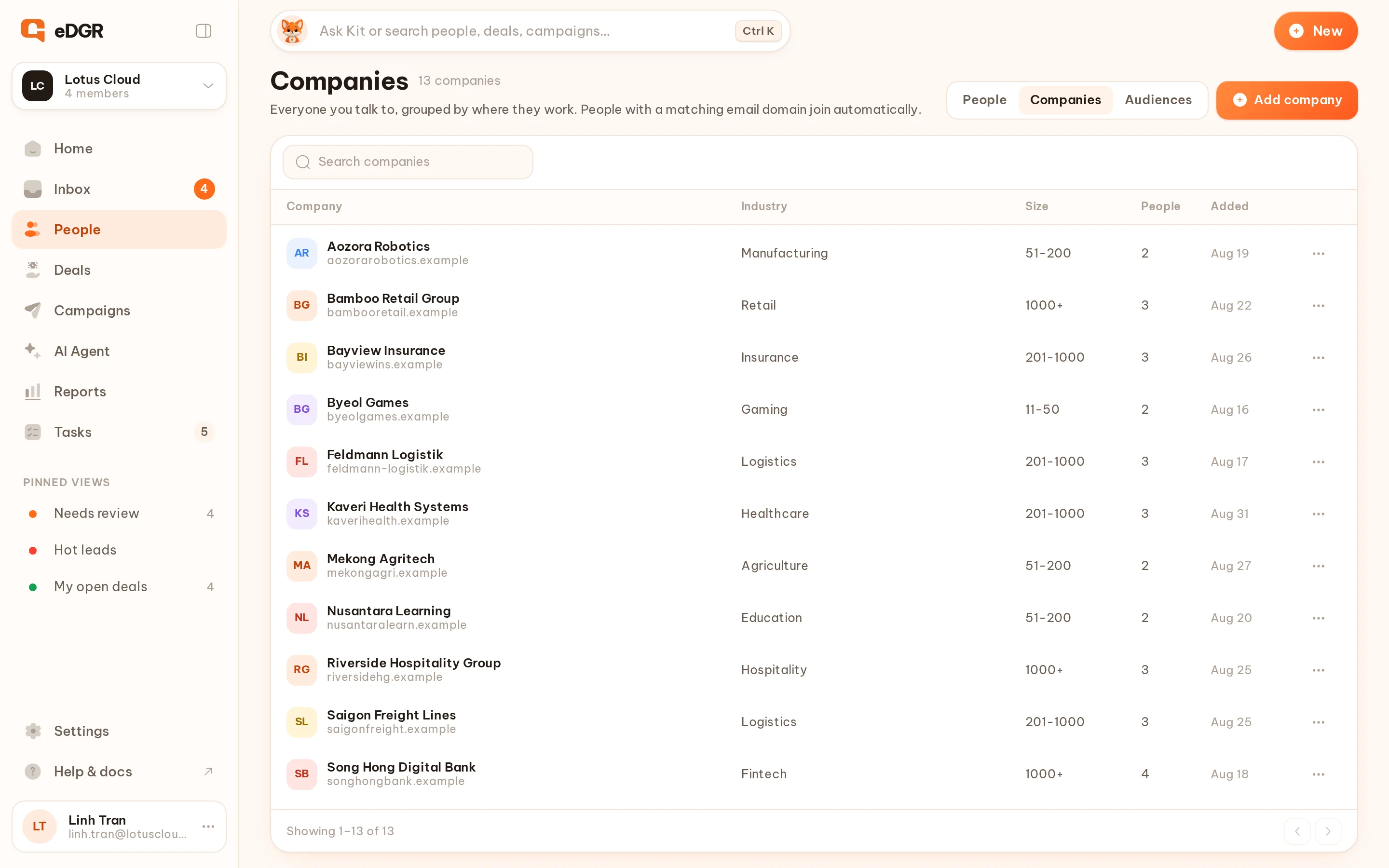
- 1 People, Companies and Audiences.
- 2 Add company.
- 3 Search companies by name.
- 4 A company and its domain. The row goes on with industry, size, people and the date it was added.
- 5 Edit or delete.
Where companies come from
- Adding a person with a company name that does not exist yet creates the company. So does an import row with a new company.
- Add company creates one by hand: Name is required, Domain, Industry, Size and Description are not.
- A company with a domain collects people by email. When a company gets the domain
acme.com, everyone with an@acme.comemail who has no company joins it, and the message after saving says how many joined. New people with that email domain join it from then on. Two companies in a workspace cannot share a domain, and a free email domain such as gmail.com is refused.
The list
Each row shows the company’s name and domain (or No domain), Industry, Size, how many People work there and when it was Added. Clicking a row opens the company’s page. The menu at the end of the row holds Edit and Delete.
Deleting a company keeps its people, who only lose the link to that company.
A company’s page
The page has the same three columns as a person’s page.
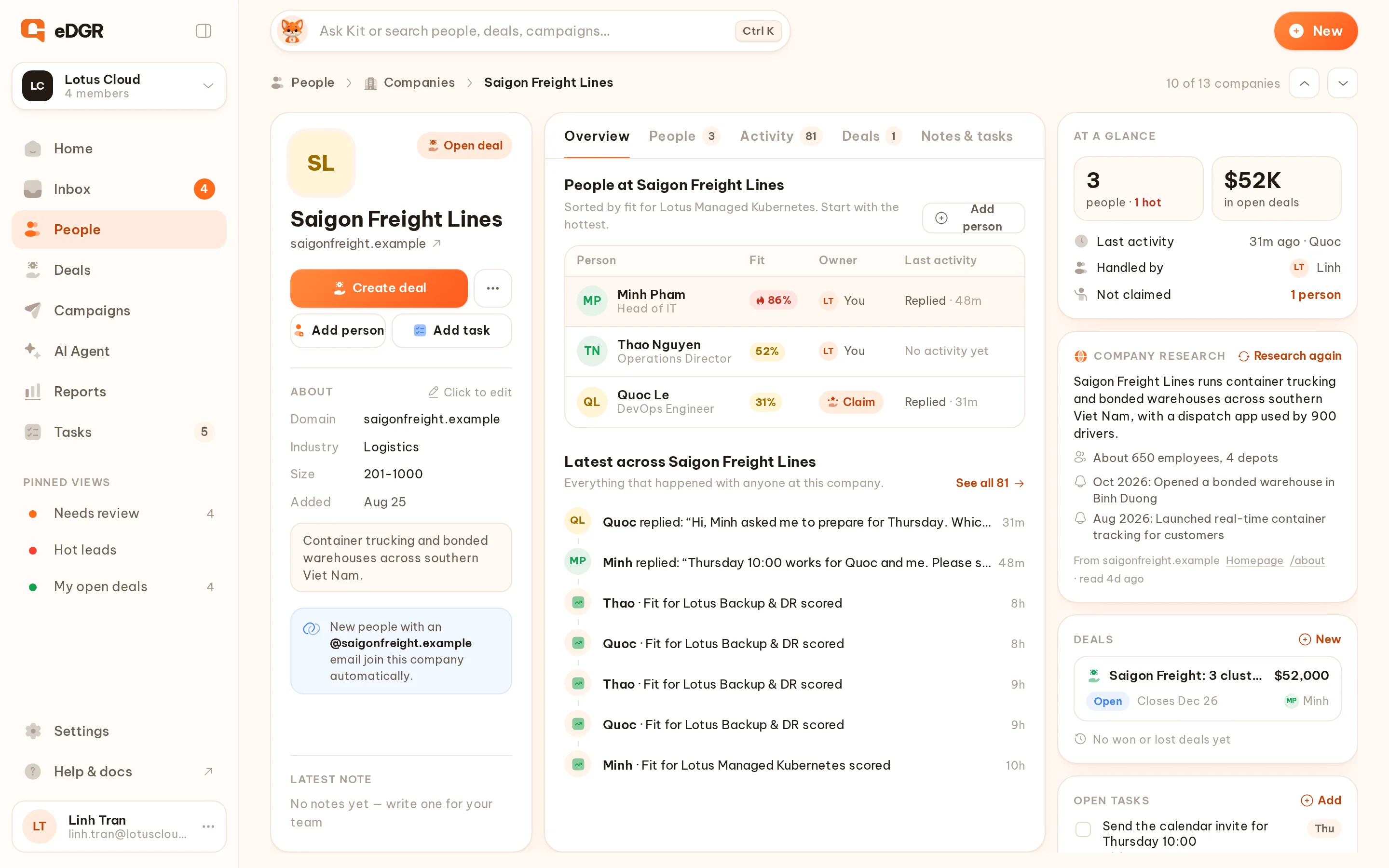
- 1 Create deal, Add person and Add task.
- 2 About, with Click to edit.
- 3 People with this email domain join automatically.
- 4 Overview, People, Activity, Deals, and Notes & tasks.
- 5 At a glance: people, open deal value, last activity, who handles them, who is not claimed.
- 6 Company research.
Left column
- The company’s name, a link to its website, and an Open deal badge (or N open deals) while it has open deals.
- Create deal opens a new deal for the person at the company with the highest fit. It is greyed out until the company has a person, because every deal belongs to a person.
- Add person opens the add-person form with the company filled in. Add task adds a task about the company.
- More actions holds Edit company and Delete company.
- About shows Domain, Industry, Size and Added. Click to edit opens the same form as Edit company.
- Latest note shows the newest note about the company.
Middle tabs
| Tab | Shows |
|---|---|
| Overview | The people at the company, sorted by fit, and the latest activity across all of them. |
| People | Everyone at the company with Person, Fit, Owner and Last activity. |
| Activity | What happened with anyone at the company: messages, opens and notes. |
| Deals | Every deal with someone at the company. |
| Notes & tasks | Notes about the company, and its tasks. |
Right column
- At a glance: how many people (and how many are hot), the value of open deals, Last activity, Handled by (the owners of its people) and Not claimed.
- Company research: Kit’s summary of the company’s website. Research now needs a domain and a reply model.
- Deals: the open deals, and how many have closed.
- Open tasks: tasks about the company and about its people.
- In audiences: the audiences its people are in, as “3 of 5”.
- When two or more people work there, Reach more of the team with Add N to audience puts all of them in one audience, so one campaign can reach them together.