

Tasks
Your day's to-dos, the tasks Kit makes when it needs a person, the Unassigned pool and the board, with quick add and keyboard shortcuts.
Every task belongs to a person, a deal or a company, and has an assignee or sits in the Unassigned poolUnassigned poolUnassigned poolPeople who have no owner yet, and open tasks nobody is assigned to. Anyone on the team can take a person from the pool with Claim, or a task with Take it.Open in glossary. Tasks opens on My day; the badge on Tasks in the sidebar counts your tasks still to do.
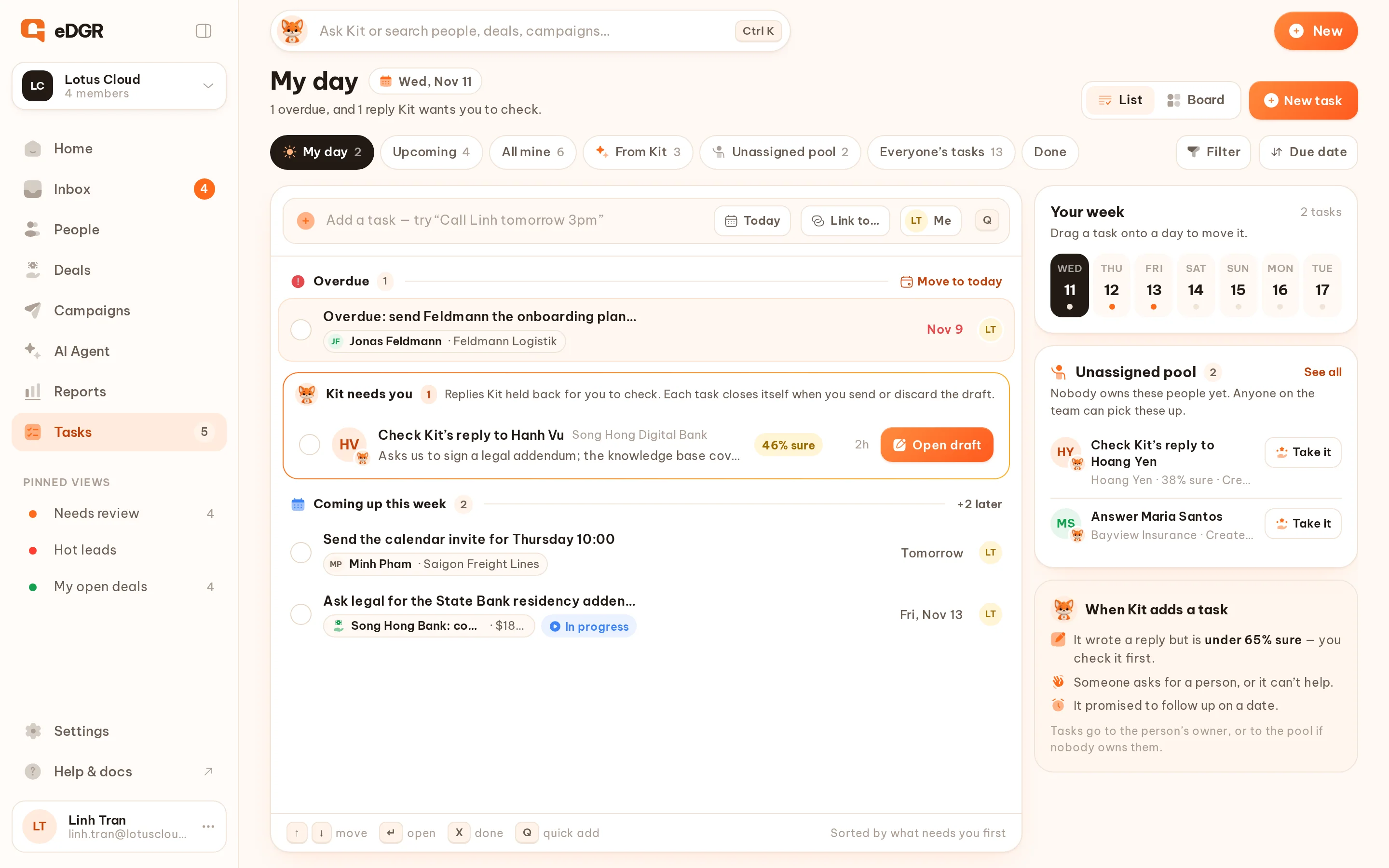
- 1 My day — overdue, due today and Kit's tasks.
- 2 From Kit — tasks Kit made for a person.
- 3 Unassigned pool — tasks nobody owns.
- 4 Quick add — type a task and press Enter.
- 5 List or Board.
- 6 New task — the full form.
- 7 Your week — drag a task onto a day.
- 8 The pool — take a task.
- 9 When Kit adds a task.
Views
| View | Shows |
|---|---|
| My day | Your tasks that are overdue, tasks from Kit, tasks due today, then what’s coming up this week, your tasks with no date, and what you finished today. The line under the title counts the overdue, due-today and Kit tasks. |
| Upcoming | Your tasks with a date after today, grouped by day. |
| All mine | Everything open that’s assigned to you. |
| From Kit | Tasks Kit made, under Waiting for you and Nobody has taken these yet. |
| Unassigned pool | Open tasks nobody owns. |
| Everyone’s tasks | Open tasks across the team. |
| Done | What was finished today, yesterday and earlier, and the canceled tasks. |
Filter narrows a view to tasks linked to People, Deals or Companies. The sort menu orders them by What needs you first, Due date or Newest first.
In My day, the overdue group has Move to today, which moves all of them to today and keeps each one’s time.
Add a task
-
Type it
In the box at the top of the list, write the task with its date in plain words, such as Call Linh tomorrow 3pm. eDGR reads the date out of the text and shows it on the date chip.
-
Link it
Choose Link to… and pick a person, a deal or a company. A task can’t be saved without a link; if you press Enter before linking, the picker opens and the chip reads Link it first.
-
Press Enter
The task goes to you unless you pick someone else on the assignee chip. In My day it’s due today unless the text says otherwise.
Quick add understands today, tonight (8 PM), tomorrow or tmr, next week (next Monday), in 3 days, weekday names such as fri, and a time such as 3pm, 15:30 or at 9. An hour from 1 to 7 without am or pm means the afternoon.
New task, or Task in the New menu, opens the full form: What needs doing, Linked to, Assignee, Due, Status and Notes.
Work through the list
- Tick the circle to mark a task done; tick it again to reopen it.
- Select a task to open it on the right. There you can rename it, set its status (To do, In progress, Done, Canceled), change the assignee, set or remove the date and add notes. Copy link copies a link to the task.
- In an open task, choosing Nobody — unassigned pool as the assignee, or Put back in the pool in its ⋯ menu, puts it back in the pool. The same menu has Cancel task.
- Delete, also in the ⋯ menu, removes the task for everyone on the team, after you confirm.
- On a wide screen, on the right of the list, drag a task onto a day of Your week to move it there, and use Take it on the pool card to make a task yours.
| Key | Does |
|---|---|
| ↑ ↓ (or J K) | Move between tasks |
| Enter | Open the selected task |
| X | Mark it done |
| Q | Jump to quick add |
The keys work in the list while no task is open. With a task open, ↑ and ↓ step to the previous and next task.
Tasks from Kit
Kit adds a task when:
- it wrote a reply but is less sure than your workspace’s threshold (60% unless changed under AI Agent › Behavior), so a person checks it first;
- someone asks for a person, or Kit can’t help;
- a person who opted out of all messages writes in, so a person decides what to do;
- its reply failed Kit’s safety check, or Kit hit an error and couldn’t reply;
- it schedules a follow-up for a later date.
The task goes to the owner of the person who wrote, or to the pool when nobody owns them. A follow-up is an ordinary task with the title and date Kit gave it. The others come with Kit’s draft or hand-off and are listed under From Kit. Their title reads Check Kit’s reply to … when there is a draft, and Answer … when Kit handed the conversation over without one. The task for an opted-out person is titled Suppressed contact re-engaged.
Open one to see why Kit held back, how sure it was, the message it answered, its draft and the steps it took. Open draft in Inbox (or Reply in Inbox) takes you to the thread.
| You | The task |
|---|---|
| Send Kit’s draft | Finishes by itself. |
| Discard the draft | Is canceled. |
| Answer a hand-off in the Inbox yourself | Stays open; tick it done once you’ve answered. |
See Kit’s drafts for reviewing and sending a draft.
The board
Board lays the same view out in three columns: To do, In progress and Done. Drag a card to change its status, or use + at the top of a column to add a task with that status. Done holds what was finished today. Canceled tasks are hidden there until you choose Show. Finished and canceled cards are locked, and you reopen one with its circle or in the task. Kit’s tasks finish themselves when you send or discard the draft.
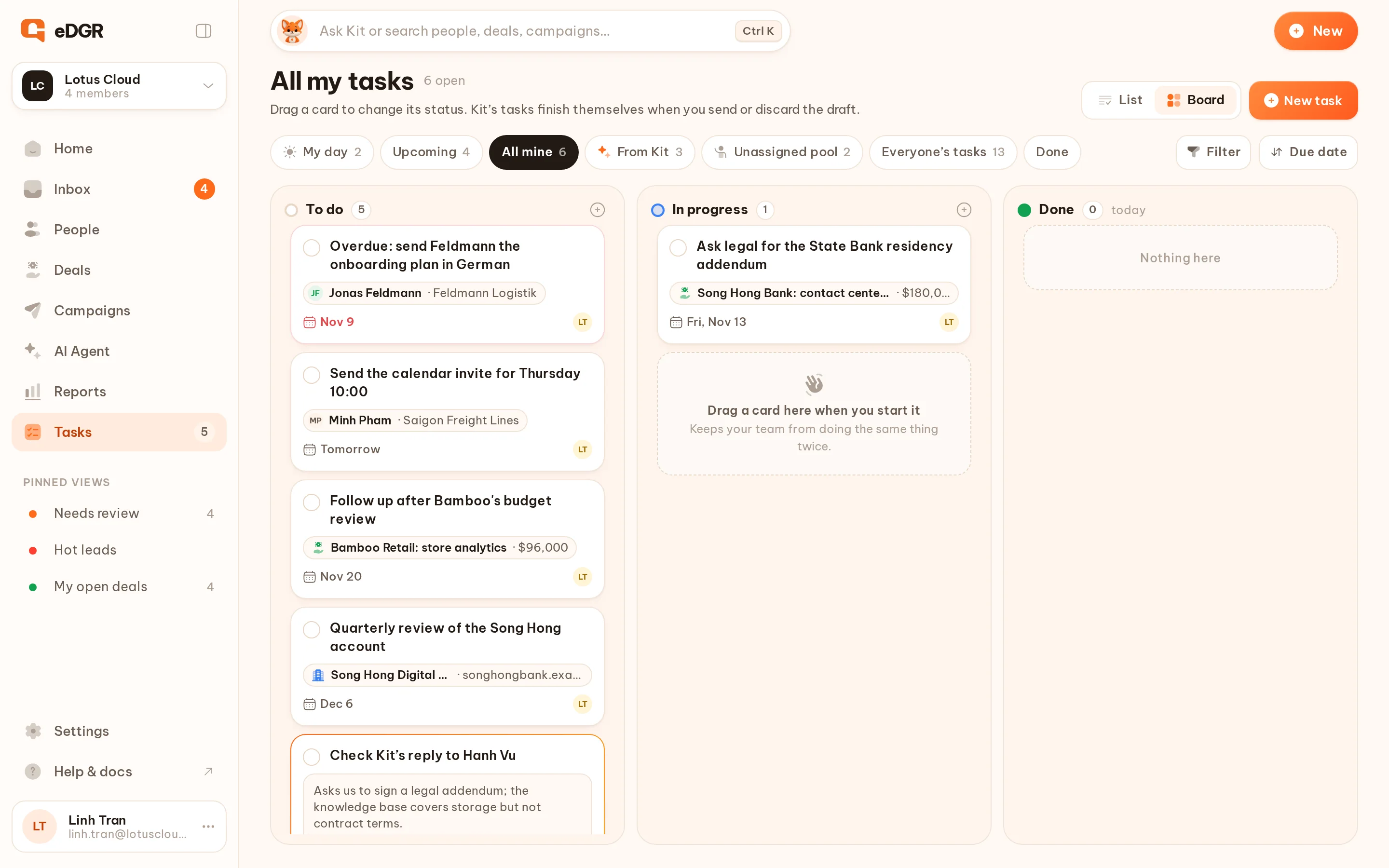
- 1 Board — the same view as columns.
- 2 To do.
- 3 In progress — drag a card here when you start it.