

Home
Your day on one page, with Kit's drafts, the tasks due today, campaigns that need a look, hot leads nobody owns and this week's numbers.
Home is the page eDGR opens after you sign in. It lists what is waiting for you, oldest first, and this week’s numbers.
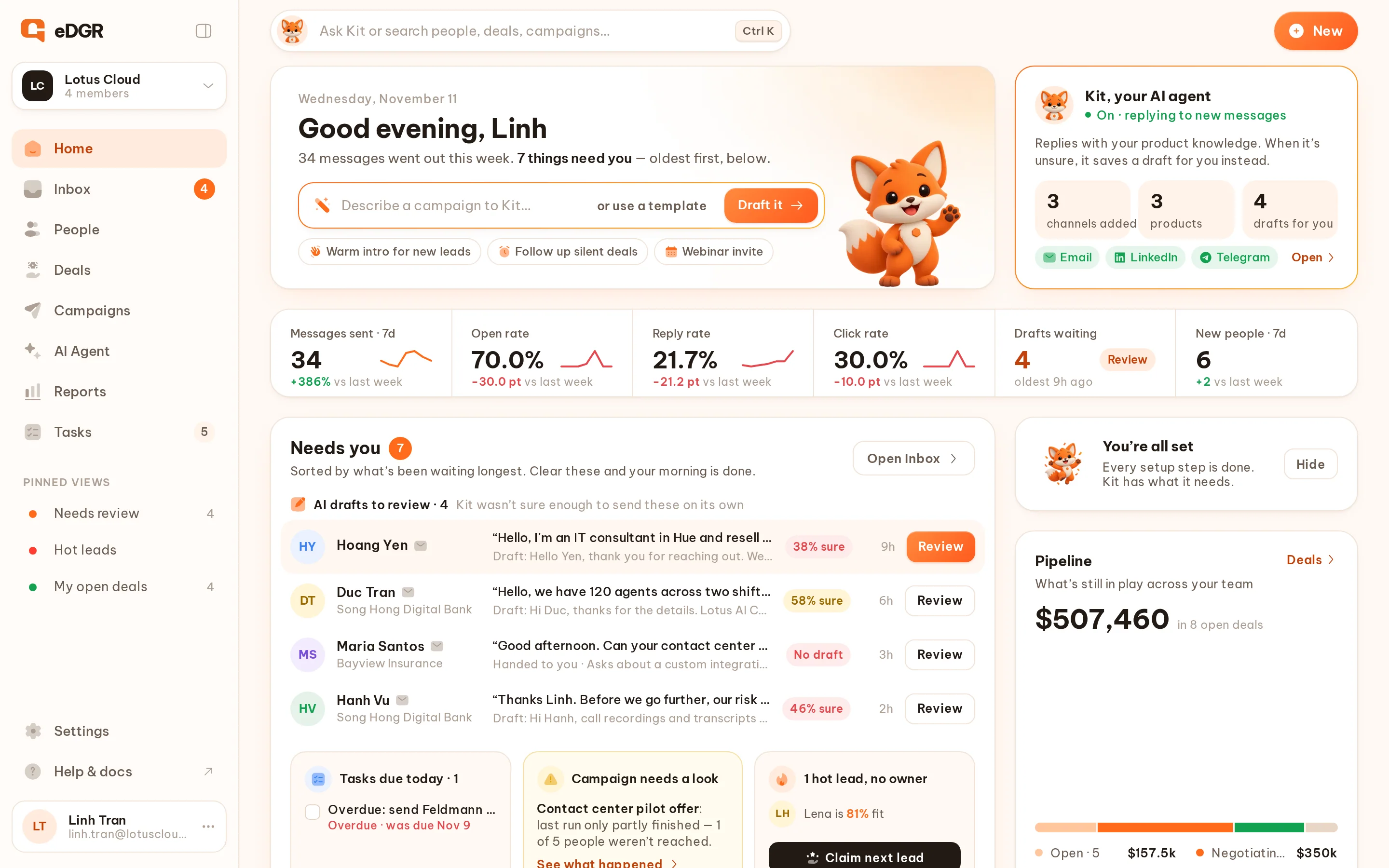
- 1 Greeting — and how many things need you.
- 2 Describe a campaign — Kit drafts the steps.
- 3 Kit's status.
- 4 This week's numbers.
- 5 Needs you — Kit's drafts, oldest first.
- 6 Pipeline — deals still in play across the team.
The top row
The greeting says how many messages went out this week and how many things need you.
Under it, Describe a campaign to Kit takes a sentence such as “Email new leads about our webinar, then remind them the day before”. Draft it opens a new campaign with Kit’s steps for you to review; nothing is saved or sent from Home. The chips below are ready-made briefs, and or use a template starts from a template instead. Drafting needs an AI model; without one, Home says so and links to Settings › AI model. See Campaigns.
The card on the right is Kit’s status:
| The card reads | Means |
|---|---|
| On · replying to new messages | Kit has an AI model and at least one channel. The card counts channels added, products and drafts for you, and Open goes to the AI Agent page. |
| Off · needs a channel, Off · needs an AI model or Off · not set up yet | Kit isn’t replying. The card lists what’s missing, each line linking to its setup step. |
This week’s numbers
Six numbers for the last 7 days, today included. All of them except Drafts waiting are compared with the 7 days before:
| Number | What it counts |
|---|---|
| Messages sent · 7d | Messages that went out on every channel. |
| Open rate, Reply rate, Click rate | Each person counts once. Opens and clicks are among people an email reached; replies among people any channel reached. |
| Drafts waiting | Kit’s drafts still waiting, and how long the oldest has waited. |
| New people · 7d | People added to the workspace. |
Select a number to open the page behind it. Reports has the same numbers over longer ranges.
Needs you
Needs you holds the work waiting for you. Its count adds up the drafts, your tasks due today or overdue, a campaign that needs a look and the hot leads nobody owns.
AI drafts to review
Up to four people whose message Kit answered with a draft instead of sending, oldest first. Each row shows the question they asked, the start of Kit’s draft and how sure Kit was, such as 54% sure. No draft means Kit handed the conversation to a person without writing a reply. Review opens the thread in the Inbox; Open Inbox opens all of them. See Kit’s drafts.
The three tiles
| Tile | What it shows | What you can do |
|---|---|---|
| Tasks due today | Your overdue tasks, then the ones due today, and their count. | Tick a task to mark it done, or open it. |
| Campaign needs a look | The latest campaign whose last run failed or only partly finished, and how many people it didn’t reach. When there is none, the tile reads Campaigns look fine, or No campaigns yet in a workspace without campaigns. | See what happened opens the campaign’s report. |
| Hot leads, no owner | How many people with a Fit score of 70% or more nobody owns, and the best fit among them. | Claim next lead makes the best fit yours. With no hot leads waiting, it takes the next person in the Unassigned poolUnassigned poolUnassigned poolPeople who have no owner yet, and open tasks nobody is assigned to. Anyone on the team can take a person from the pool with Claim, or a task with Take it.Open in glossary. |
The right column
- Finish setting up shows the setup steps left and how many minutes they take; each button opens that step of the wizard. When every step is done the card reads You’re all set, and Hide removes it.
- Pipeline shows what’s still in play across the team: the total of open and negotiating deals, and a count for each of Open, Negotiating, Won and Lost. Sums use the currency most of your deals are in; deals in other currencies are counted but left out of the totals. See Deals.
A brand-new workspace
Until the workspace has a channel, a product or a person, Home shows the first-run layout instead.
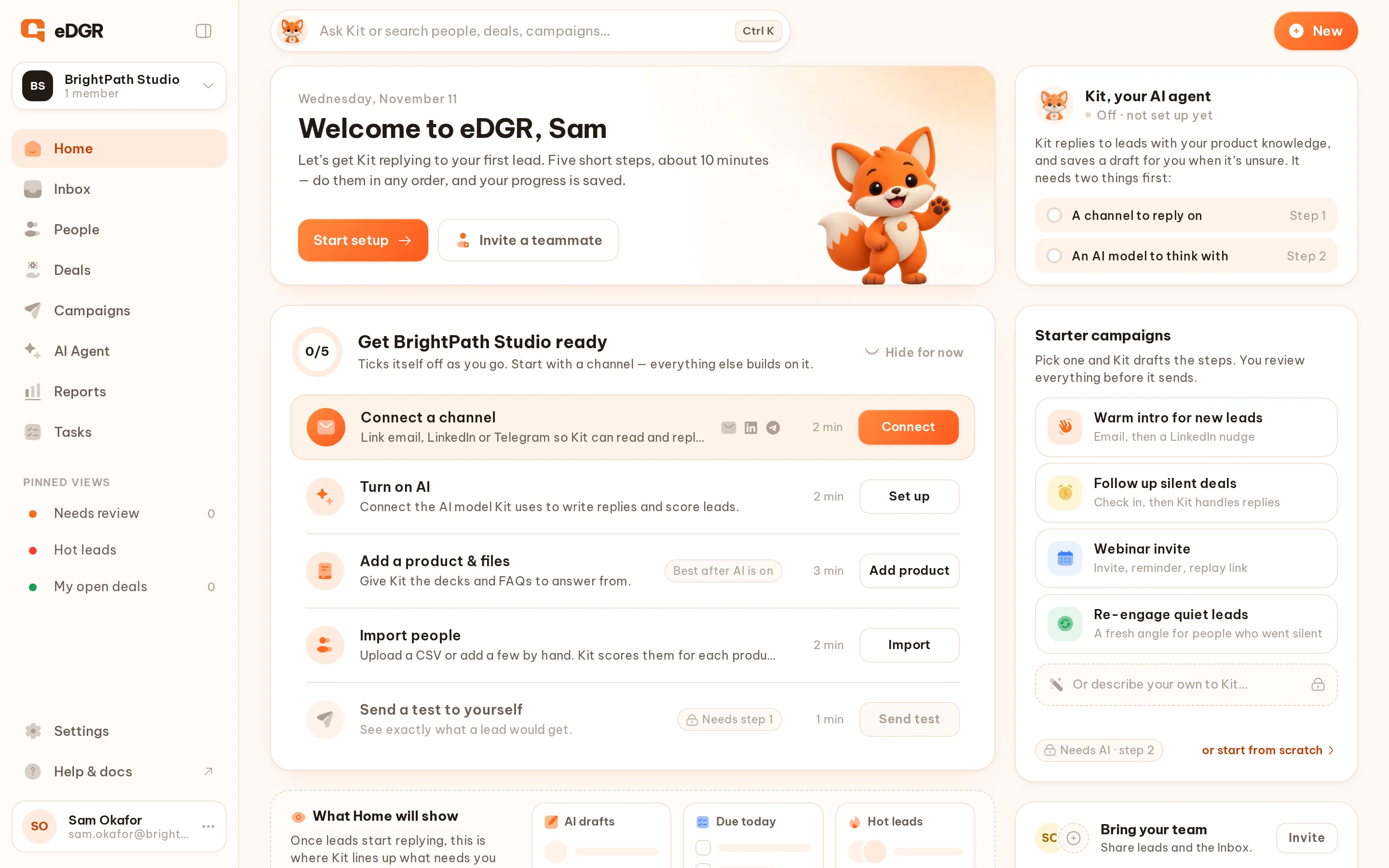
- 1 Start setup — opens the next unfinished step.
- 2 The setup checklist — ticks itself as you go.
- 3 What Home will show once leads reply.
- 4 Starter campaigns.
- 5 Bring your team — the owner's invite card.
- Start setup opens the first step you haven’t done. An owner also sees Invite a teammate.
- The checklist marks steps that wait on another: the test email needs a channel, and files are best added after AI is on. Hide for now folds it into one line with Show setup. Hiding is remembered in this browser only.
- Starter campaigns hands one of four briefs to Kit. Its box for your own description unlocks once AI is on, and or start from scratch opens an empty campaign.
- Bring your team appears for an owner who is still alone in the workspace. The invite link it makes works for 7 days.
See the Quick start for the setup steps themselves.
When a part doesn’t load
Each card loads on its own. A card that fails says so and offers Try again; the rest of Home stays usable. If the whole page shows Home didn’t load, check your connection and choose Try again.