Quick start
Create a workspace or join one from an invite, then connect a channel, turn on AI, add your product files, import people and send yourself a test.
Setup takes about 10 minutes. The person who creates the workspace usually runs it once; teammates who join from an invite land straight on Home.
Before you start
- A desktop browser: Chrome, Edge, Safari or Firefox.
- Your work email address.
- For email: the SMTP details of the mailbox you send from (and IMAP, if replies should come back to the Inbox).
- For AI: an Amazon Bedrock, OpenAI or Anthropic account with an API key.
Get into eDGR
Use this when your team isn’t on eDGR yet. Signing up makes a new, empty workspace that you own.
- Open eDGR and choose Create a workspace under the sign-in form.
- Fill in Your name, Work email, a Password of at least 8 characters and a Workspace name, usually your company or team.
- Choose Create workspace. eDGR signs you in and opens the setup wizard.
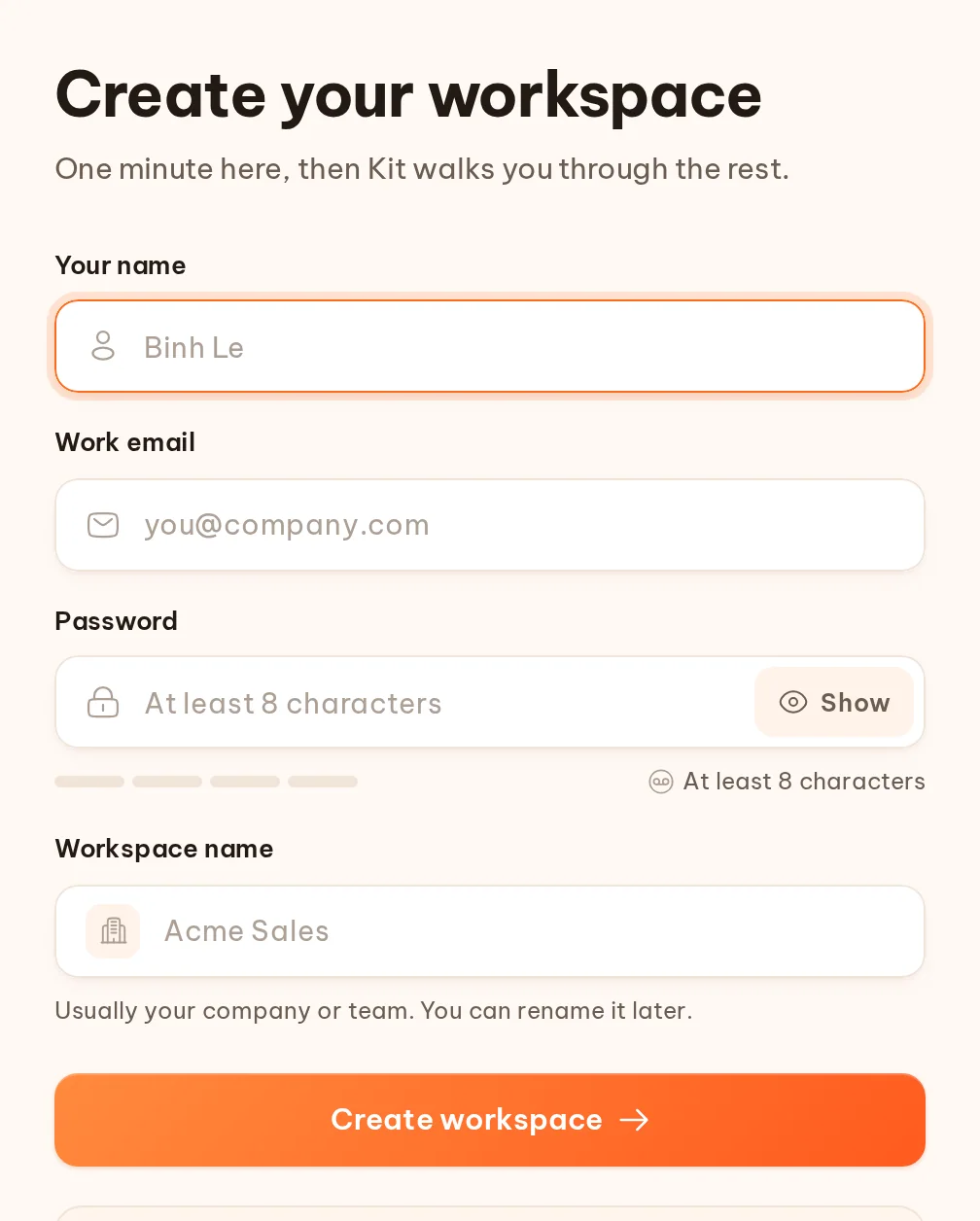
- 1 Your name — what your teammates see.
- 2 Work email — you sign in with it.
- 3 Password — at least 8 characters.
- 4 Workspace name — you can rename it later in Settings.
- 5 Create workspace — creates the account and opens setup.
If the form says there’s already an account for this email, choose Sign in instead. You can rename the workspace later under Settings › Workspace.
Use this when a teammate invited you. The invite adds you to their workspace; signing up from the sign-in page would make a separate, empty one.
- Open the link from the invite. The page names the workspace, your role (Owner or Member), the address the invite is for and when it expires.
- If you have no eDGR account yet, fill in Your name and Create a password, then choose Join followed by the workspace name. The email is fixed to the invited address.
- If you already have an account with that address, choose Sign in to accept, sign in, then choose Accept & open workspace.
eDGR opens the workspace on Home. An invite works for 7 days and only for the address it was sent to. If the page says you’re signed in as someone else, choose Sign in with the right email.
Set up the workspace
The wizard has five steps. Its left column shows how many are done and roughly how many minutes are left, and you can open any step from there. Each step ticks itself when the work is done anywhere in eDGR, so a channel a teammate connects in Settings counts too.
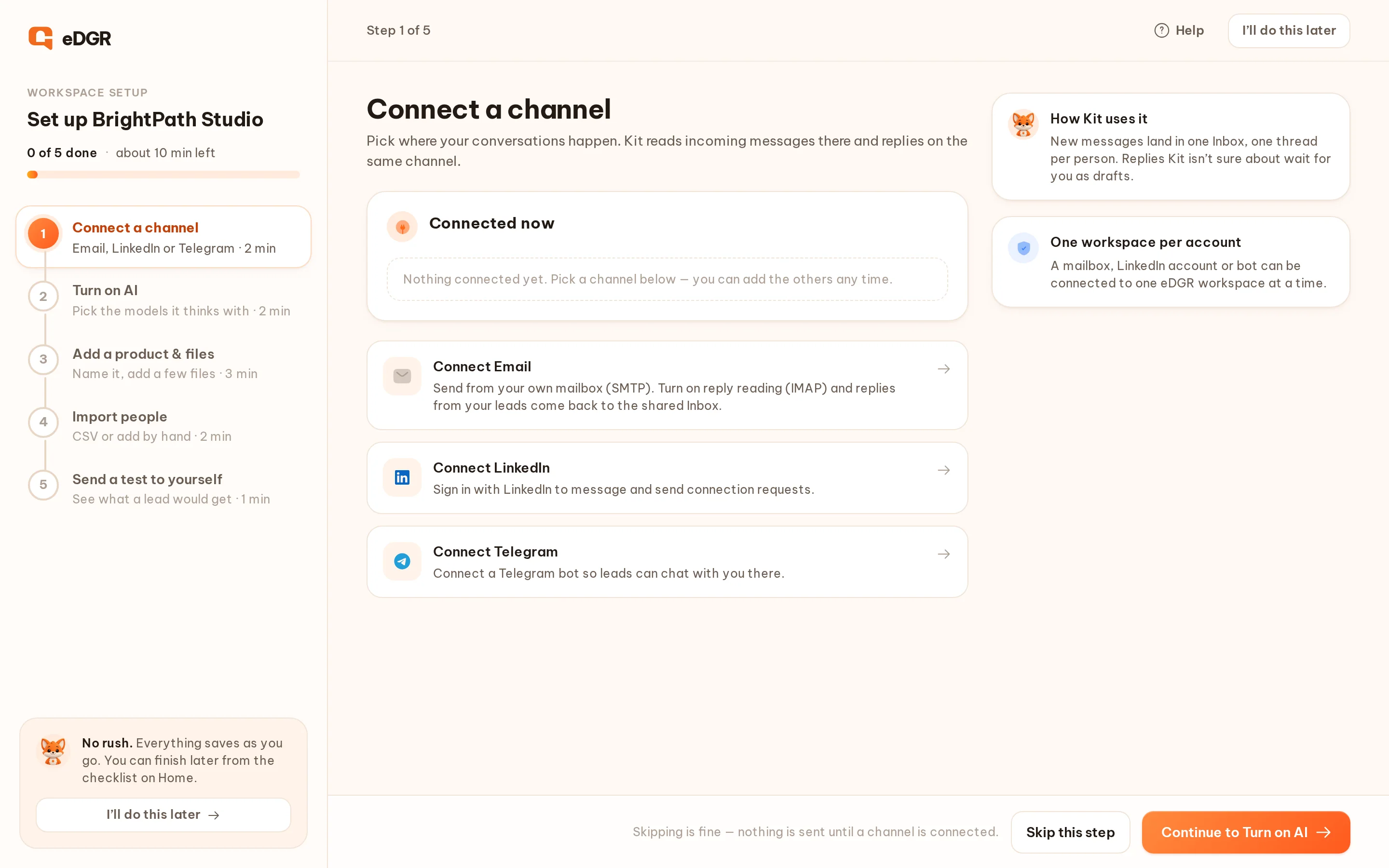
- 1 Your progress — steps done and minutes left.
- 2 The five steps — open any of them, in any order.
- 3 The step you're on.
- 4 I'll do this later — back to Home; progress is kept.
- 5 Skip this step — go on without it.
- 6 Continue to Turn on AI — the next step.
-
Connect a channel
Pick where your conversations happen: Connect Email, Connect LinkedIn or Connect Telegram. Each one opens Settings › Channels, where the connection is made. Back in the wizard, Connected now lists what you added and shows Connected once the account passes its check.
For email, turn on reply reading (IMAP) as well, or replies from leads won’t reach the Inbox. A mailbox, LinkedIn account or bot can belong to one eDGR workspace at a time. See Channels.
-
Turn on AI
Choose Connect an AI account and add an Amazon Bedrock, OpenAI or Anthropic key, then Pick the models. Kit needs two:
Model What it does Writing model Drafts replies and campaign steps, and scores leads. Any of the three providers works. Search model Finds the right passage in your product files. Needs Bedrock or OpenAI; Anthropic has no search models. Both rows read Ready when the step is done. Do this before you add files: files are read with the search model. See AI model.
-
Add a product and its files
Give your product a Name and one sentence under What is it, in one sentence?. Then drop the files your team already sends: PDF, Word, HTML, text or images. Fill in What are these files about? so Kit knows when to use them; the upload waits until you do. To add an answer without a file, choose or paste text instead.
Each file shows Reading for about a minute, then Ready. Use Try what Kit learned on the right to ask a question a lead would ask; it shows the passages it found and which file they came from, and sends nothing.
-
Import people
Choose Import a CSV to upload a spreadsheet of names, emails and companies, or Add a person by hand. Adding yourself is a good first test. See People.
-
Send a test to yourself
Choose Send a test email. A short intro email goes from your mailbox to your own address, which you can change first, with sample values where a lead’s name and company would go. It doesn’t touch anyone in People and doesn’t count in Reports. This step needs an email channel from step 1.
Choose Finish setup on the last step to open Home.
If you skip a step
Nothing breaks. Skip this step and I’ll do this later keep your progress, and Home shows a setup checklist until every step is done. What waits on each step:
| Skipped step | What can’t happen yet |
|---|---|
| Connect a channel | Nothing is sent or received, and Kit has nowhere to reply. |
| Turn on AI | Kit doesn’t draft replies, campaign drafting is off, and files can’t be read. |
| Add a product and its files | Campaigns can’t run; each one needs a product. |
| Import people | You have nobody to send to yet. |
| Send a test to yourself | Nothing; run it whenever you like. |
Signing in next time
Sign in with your email (or username) and password. eDGR has no password reset yet: Forgot password? shows the support address to write to from your work email, or ask your workspace owner to contact support for you.