

Workspace & members
Rename the workspace, invite people with links, change roles and remove people.
Settings › Workspace lists everyone in the workspace. Owners also see the invite box, Pending invites and an editable workspace name. The badge in the page header says whether you are an owner or a member.
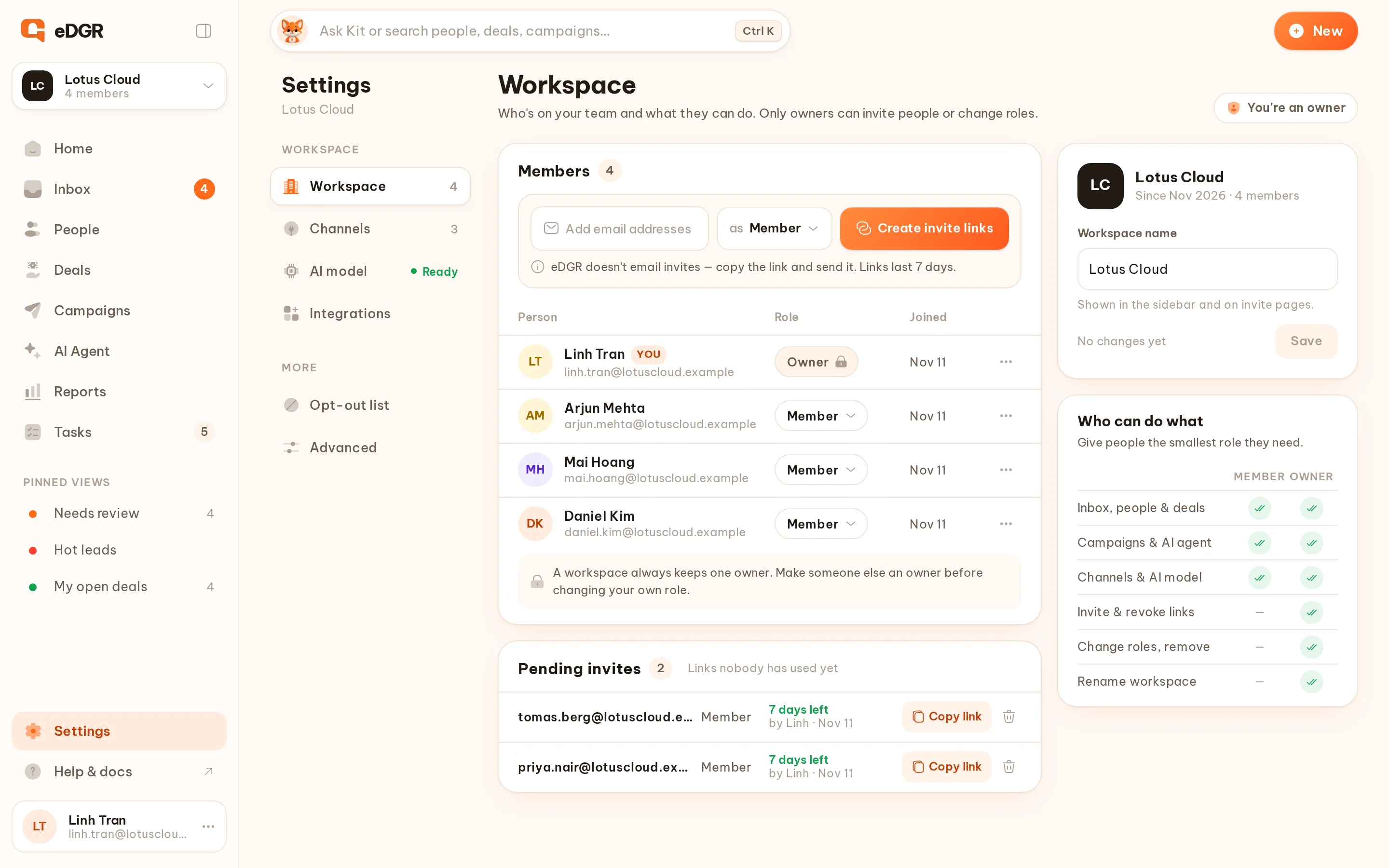
- 1 Email addresses to invite
- 2 The role the invite links give
- 3 Create invite links
- 4 A member's role. Owners open it to change the role or remove the person
- 5 Links nobody has used yet
- 6 The workspace name
Invite people
eDGR does not send invite emails. It makes one link per address, and you send the link yourself over email, chat or anything else.
Before you start
- The person’s email address. They must sign in or sign up with exactly that address.
-
Add the addresses
Type or paste one or more addresses into the invite box. A space, comma, semicolon or Enter turns each into a chip. An address that is not a valid email turns red and blocks the button.
-
Pick the role
The button beside the box reads as Member. Open it to pick Owner instead. Every link you create in this batch gets that role.
-
Create the links
Select Create invite links. eDGR creates the links and copies them to your clipboard, one per line. An address that already belongs to a member, or already has a pending invite, fails with its own message and stays in the box.
-
Send them
Paste each link to its person. A link works for 7 days.
Home’s Invite a teammate opens this page with the cursor in the invite box.
Pending invites
Pending invites lists links nobody has used yet: the address, the role, who created it and when, and how long it has left. The time turns amber when 2 days or fewer are left.
| Action | What it does |
|---|---|
| Copy link | Copies the link again |
| New link | Shown once a link has expired. Replaces it with a fresh 7-day link for the same address and role, and copies it |
| Revoke link (bin icon) | The link stops working at once. You can create a new one for the address any time |
An address can have one pending invite at a time.
What the invited person sees
The link opens Join your team on eDGR with the workspace name and the role.
- Without an eDGR account, they enter their name and a password of at least 8 characters, then select Join followed by the workspace name. The new account joins your workspace and gets no workspace of its own.
- With an eDGR account but signed out, they select Sign in to accept, sign in with the invited address, and land back on the invite.
- Signed in with the invited address, they select Accept & open workspace.
- Signed in with a different address, eDGR names both addresses and offers Sign in with the right email. An invite works only for the address it was made for.
- An expired, revoked or used link shows This invite link doesn’t work anymore.
Someone in more than one workspace switches between them from the workspace card at the top of the sidebar, under Switch workspace.
Roles
| Member | Owner | |
|---|---|---|
| Inbox, People, Deals, Tasks, Reports | Yes | Yes |
| Campaigns and the AI Agent | Yes | Yes |
| Channels, AI model, Integrations, Opt-out list | Yes | Yes |
| Create and revoke invite links | No | Yes |
| Change someone’s role, remove someone | No | Yes |
| Rename the workspace | No | Yes |
The same table is on the page as Who can do what. The server enforces the owner-only rows and checks the role nowhere else. A member who tries one of them gets “Only workspace owners can perform this action”.
Key rules
- A workspace always keeps at least one owner. The only owner’s role pill shows a lock, and they cannot be demoted or removed until someone else is an owner.
- Nobody removes themselves. There is no leave button; another owner removes you.
- Removal takes effect within seconds. The person’s open tabs stop working and their next request is refused. To come back they need a new invite link.
Change a role
Select the person’s role pill, then Member or Owner, and the change saves at once.
Remove someone
Open the role pill and select Remove from workspace…, or use the same item in the row’s ⋯ menu, next to Copy email. Then confirm Remove. Their conversations, people and deals stay in the workspace.
The workspace name
The name shows in the sidebar and on invite pages. Owners change it in the side card under Workspace name, up to 64 characters, then select Save, or Discard to put the old name back. For members the field is greyed out with “Only owners can rename the workspace.”