

Email accounts
Connect a mailbox over SMTP for sending, and turn on reply reading over IMAP so answers reach Inbox.
eDGR sends email through your own mail server, so messages leave from your address. Replies reach Inbox only when Also read replies (IMAP) is on for the account.
Before you start
- The mailbox’s SMTP server, port, username and password.
- For Google Workspace: 2-Step Verification on the mailbox and an app password. The normal password is refused.
- For Microsoft 365: your IT admin has allowed Authenticated SMTP for the mailbox.
- For reply reading: IMAP allowed on the mailbox.
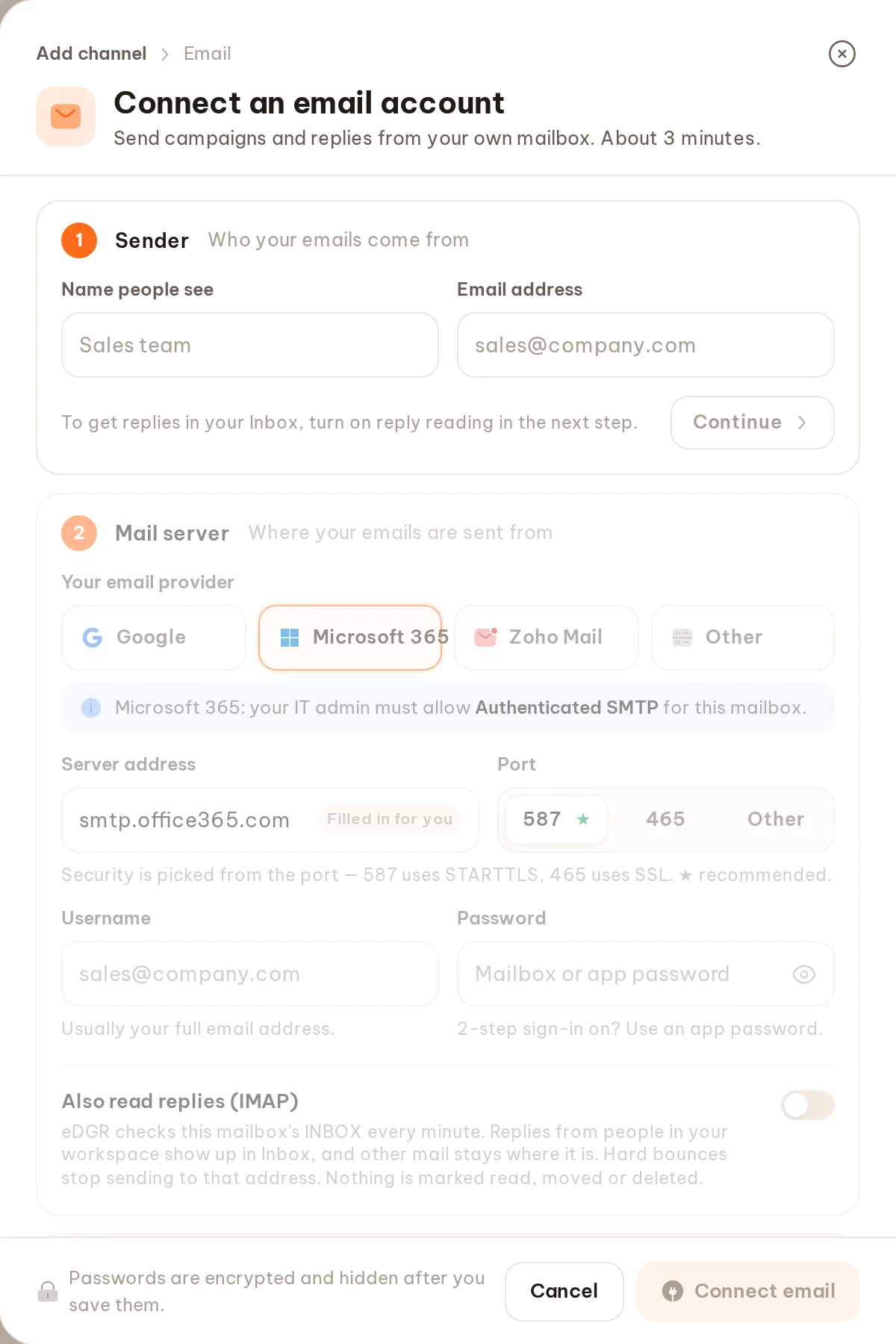
- 1 The name people see in their inbox
- 2 Your email provider fills in the server
- 3 Port. Security follows the port
- 4 Read replies over IMAP
Connect a mailbox
-
Open the drawer
Settings › Channels › Add channel › Email.
-
Sender
Name people see, such as “Sales team”, and the Email address you send from, then select Continue. The next sections stay greyed out until you do.
-
Mail server
Under Your email provider pick Google, Microsoft 365, Zoho Mail or Other. The first three fill in the Server address. Paid Zoho organisation accounts use
smtppro.zoho.cominstead. Pick the Port: 587 (recommended) uses STARTTLS, 465 uses SSL, and Other takes any port. Fill in Username, usually the full address, and Password. -
Reply reading
Turn on Also read replies (IMAP) to bring answers into Inbox, as described under Reply reading.
-
Test & save
Select Test. eDGR connects to the mail server and signs in, and with reply reading on it also signs in over IMAP and opens INBOX. A changed field resets the test. Optionally tick the products this account answers for. Keep Send a test email to … ticked to receive a real message once the account is saved, then select Connect email.
The test proves the server, port and password. The test email proves the server also accepts mail from this sender. If the test email fails, the account is saved and the toast gives the mail server’s reason.
Passwords are encrypted and hidden after you save them.
Reply reading
With Also read replies (IMAP) on, eDGR reads the mailbox’s INBOX every minute.
- The first read starts after the newest message. Older mail is never imported.
- Mail from people already in the workspace becomes a reply in Inbox. Mail from anyone else stays in the mailbox untouched.
- Auto-replies, mailing lists, bulk mail, mail daemons and copies the mailbox sent itself are skipped.
- A hard bounce report stops sending to the bounced address. It joins the Opt-out list as Bounced.
- eDGR marks nothing read, moves nothing and deletes nothing.
- Each message is read up to 2 MB. Text before a large attachment is kept.
The IMAP server is filled in from your provider, or from the SMTP address with smtp. changed to imap.. The Port is 993 (SSL, recommended), 143 (STARTTLS) or Other, where you pick the security yourself. Leave IMAP username and IMAP password empty to use the SMTP ones.
When reading fails later, the account’s row on Channels says “Can’t read replies:” and the reason.
Edit a mailbox
Edit mail server in the row’s menu opens the same drawer, titled Edit email account. The saved password never comes back to the browser, so any change to the sender, SMTP server, port or username needs the password again. A change to reply reading alone reuses the saved password. When nothing on the server changed, you can save without testing again.
Send me a test email in the row’s menu sends “Test email from eDGR” to your own sign-in address at any time.