

What's where
A tour of the eDGR screen, from the sidebar, pinned views and workspace card to ⌘K search, the New menu and Help.
Every page sits inside the same frame: the sidebar on the left, a top bar with search and New, and the page below.
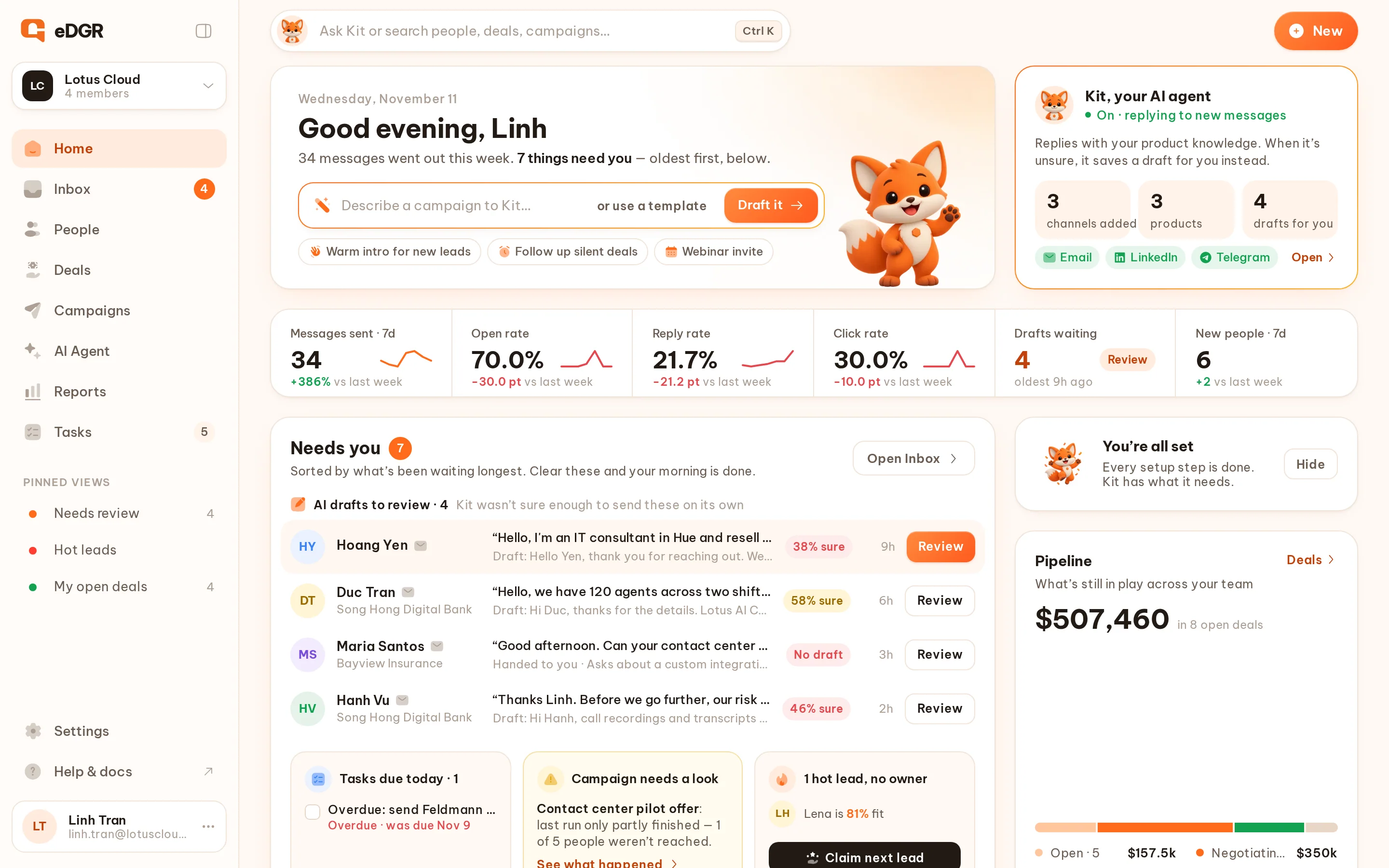
- 1 Workspace card — switch workspace, members and channels.
- 2 The pages, in a fixed order.
- 3 Pinned views — three shortcuts to filtered pages.
- 4 Settings — workspace, channels, AI model.
- 5 Help & docs — opens these docs in a new tab.
- 6 Your name — Settings and Log out.
- 7 Ask Kit or search (⌘K).
- 8 New — create anything from any page.
The sidebar
The pages are always in this order:
| Page | What’s there |
|---|---|
| Home | Today: Kit’s drafts, your tasks, campaigns that need a look and hot leads nobody owns. Read more |
| Inbox | Every conversation, one thread per person, across email, LinkedIn and Telegram. Its badge counts the people with a Kit draft waiting for review. Read more |
| People | Everyone you talk to, their companies and your Audiences. Read more |
| Deals | The deal board. Read more |
| Campaigns | Campaigns and, under them, Templates. Read more |
| AI Agent | Kit’s status, Knowledge, Lead scoring, Behavior and the Activity log. Read more |
| Reports | How your outreach is doing. Read more |
| Tasks | Your to-dos and the ones Kit made for you. Its badge counts your tasks still to do. Read more |
The button beside the logo hides the sidebar; the button at the top left of the page brings it back.
Pinned views
Under Pinned views sit three shortcuts that open a page already filtered:
- Needs review opens the Inbox on the people with a Kit draft waiting, with the same count as the Inbox badge.
- Hot leads opens People on everyone with a Fit scoreFit scoreFit scoreHow well a person matches a product, from their profile, their conversations (budget, authority, need, timeline) and how they engage. It shows as Hot, Warm, Neutral, Low fit or Not scored, with the reasons behind it.Open in glossary of 70% or more. It shows no count.
- My open deals opens Deals on your deals that are open or in negotiation, with their count.
Workspace card
The card at the top shows the workspace name and how many members it has. Its menu lists your other workspaces under Switch workspace, if you belong to more than one, and links to Workspace & members and Channels. Switching reloads eDGR on Home in the other workspace.
The foot of the sidebar
- Settings opens Workspace, Channels, AI model, Integrations, the Opt-out list and Advanced. A channel that fails its check shows a count beside Channels. See Administer.
- Help & docs opens these docs in a new tab.
- The card with your name and email opens Settings and Log out.
Search and ask (⌘K)
Select the bar at the top, or press ⌘K on a Mac (Ctrl K elsewhere), from any page. Inside an email editor ⌘K adds a link instead.
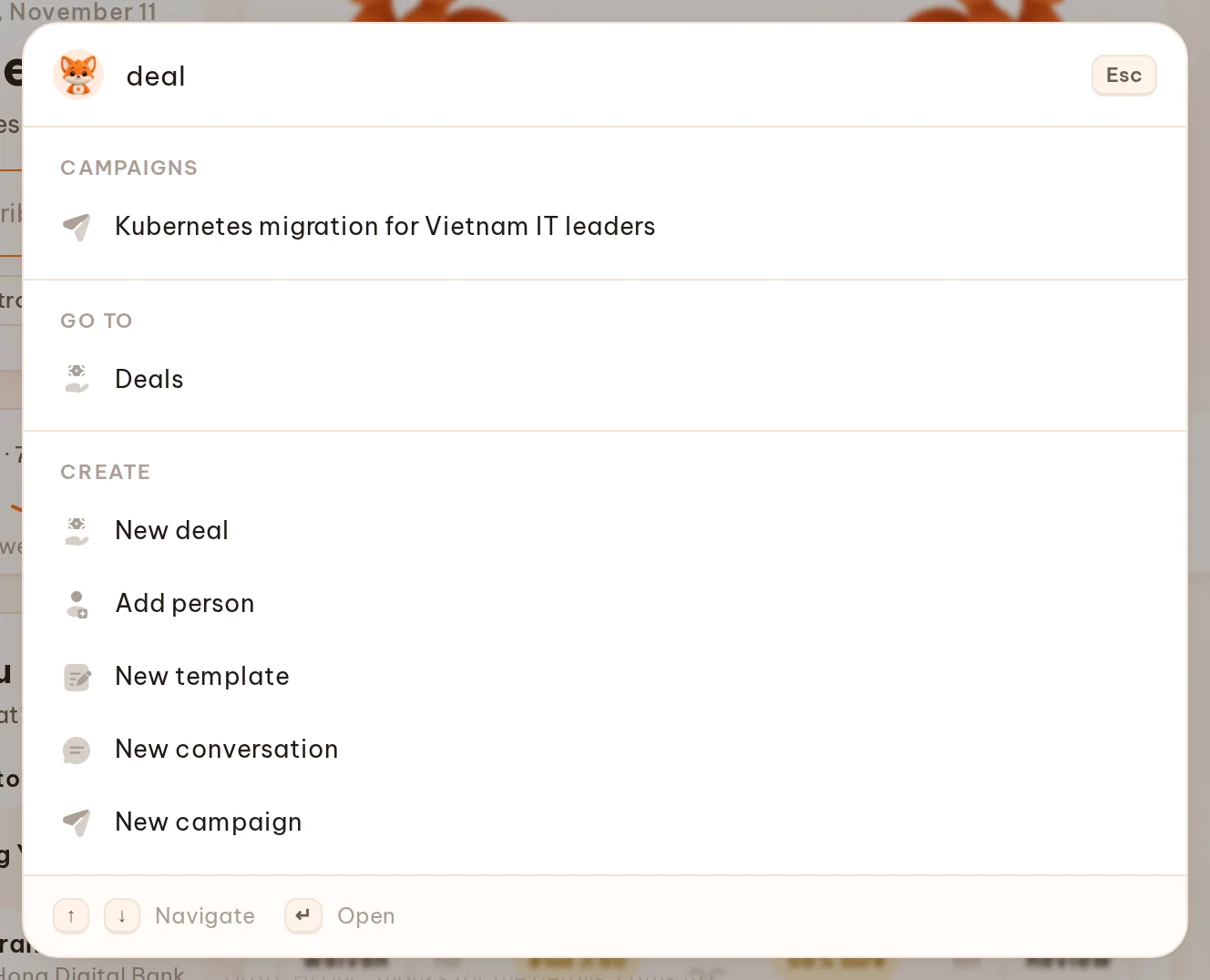
- 1 Type a name, a page or a question; press Enter to ask Kit.
- 2 Go to — jump to any page, including sub-pages.
- 3 Create — start something new.
What you type finds:
| Group | What it holds |
|---|---|
| Ask Kit | Press Enter right after typing to send your words to Kit as a question. Kit looks it up in your product files, people, deals and campaigns, answers with its sources and links to the people and deals it names. |
| People, Deals, Campaigns | Matches by name, once you have typed two letters. A deal also matches its company or person. |
| Go to | Every page, for example AI Agent · Lead scoring or Settings · Channels. |
| Create | The same list as the New menu. |
Kit can look things up here but can’t change anything or message anyone. It answers up to 10 questions a minute for each teammate, and needs an AI model; without one it offers Open AI model settings. Back to search, or typing again, returns to the results. Esc closes the palette.
The New menu
New at the top right creates, from any page: a Campaign, a Conversation on email, LinkedIn or Telegram, a Person, an Import people upload, a Deal, a Task or a Template.
On a phone
On a screen narrower than 768 pixels the sidebar moves into a drawer behind the menu button at the top left. Opening a page closes the drawer.