

Import and export
Bringing people in from a CSV file, reading the import result and its errors, and exporting people to CSV.
Import at the top of People opens Import people. It takes one CSV file at a time and walks three steps: Upload, Match & check and Import. Nothing is added until you press the import button in the second step.
The file
- A CSV with a header row and one person per row, up to 25 MB. In Excel or Google Sheets, save it with File › Download › CSV.
- Any column names work. You match them to eDGR fields in the next step.
- Each person needs a name: one name column, or a first-name and a last-name column.
- Several tags or audiences in one cell are separated with
;.
Download a sample file on the upload step gives a file with the columns filled in for one person.
The file is read in your browser first, and eDGR refuses on the spot, with the reason, a file over 25 MB, a file in another format, or a header row with no rows under it.
Import a file
-
Upload
Drop the CSV on the page, or choose Choose file.
-
Match your columns
Each column of your file has a row: Column in your file, Sample values and Goes into eDGR field. Columns with a known name, such as Email, Company or Job title, are matched for you. A close guess, such as Sector for Industry, waits for you to choose Use it. Everything else is set to Don’t import until you pick a field.
-
Check the rows
Preview shows the first five rows as they will be saved, with What happens to each. The Problems and Duplicates tabs show only those rows. Before you import sums up what is missing or broken.
-
Decide on duplicates
A row whose email or LinkedIn profile already belongs to someone in eDGR, or appears earlier in the same file, is a duplicate. Skip them (recommended) leaves the people you already have as they are. Import them anyway creates a second record, which you can merge later.
-
Add everyone to an audience
Switch on Add everyone to an audience and pick an audience or type a new name, with the file name offered as a suggestion. Opened from Import CSV in an audience, the switch is already on with that audience picked.
-
Import
Choose Import N people. The count leaves out duplicates you skip and rows that can’t be imported.
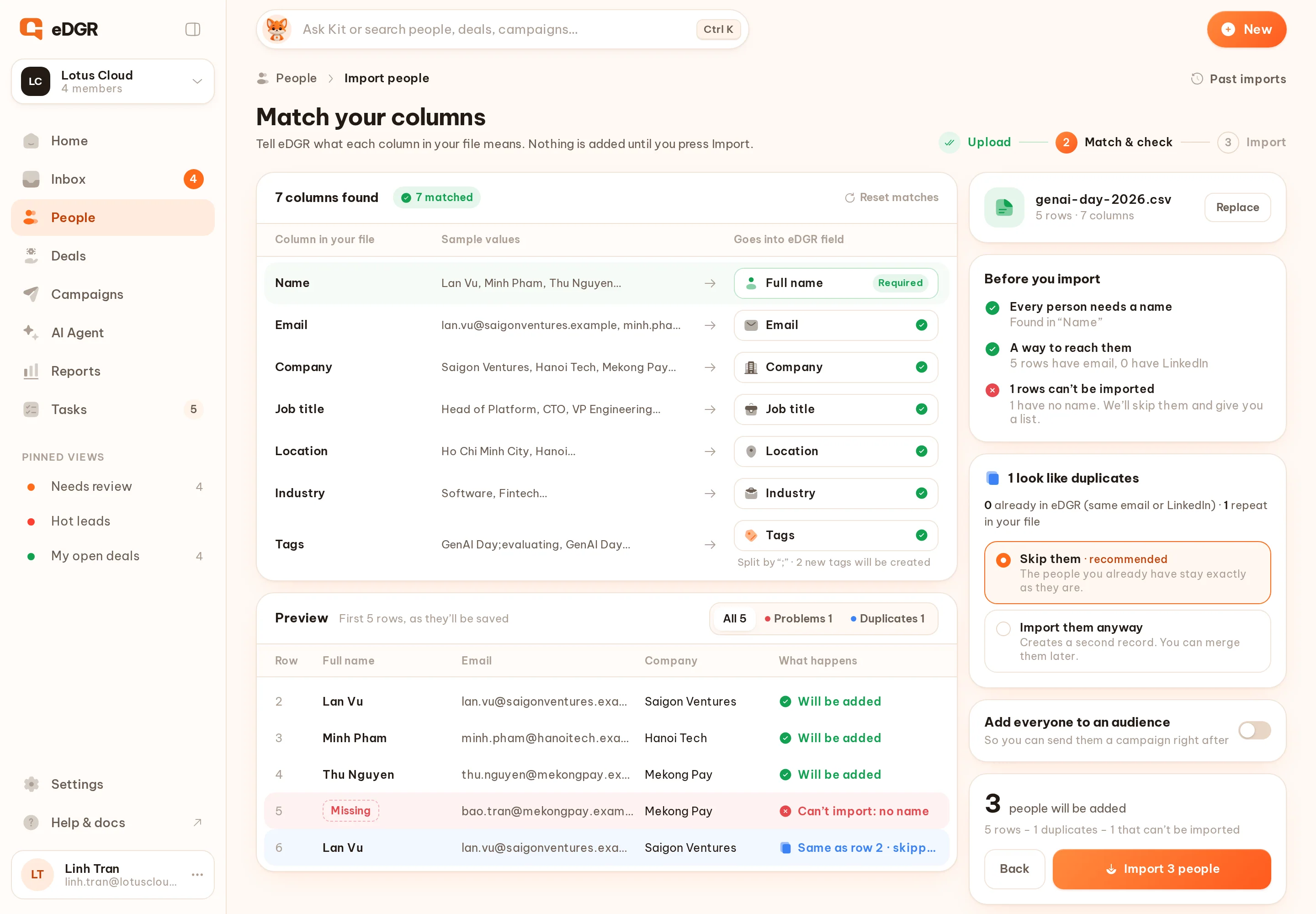
- 1 Upload, Match & check, Import.
- 2 Each column and the field it goes into.
- 3 Preview of the first five rows.
- 4 Before you import.
- 5 Duplicates: skip them or import them anyway.
- 6 Add everyone to an audience.
- 7 Import.
Fields
| eDGR field | Notes |
|---|---|
| Full name | Required, or First name and Last name, which are joined. |
| Becomes an email channel. A value that does not look like an address stops the row. | |
| LinkedIn profile | A linkedin.com/in/… link or a bare handle. Becomes a LinkedIn channel. |
| Telegram | An @username, a t.me link or a numeric id. Checked during the import. |
| Phone | Kept for your team. Checked during the import. |
| Company | A new company name creates the company. |
| Job title, Location, Industry | Copied as they are. |
| About them | The person’s description. |
| Tags | Split by ;. New tags are created, and the row says how many. |
| Audiences | Split by ;. New audiences are created by name. |
Each field takes one column. Choosing a field that another column already uses moves it to the new column. An owner column cannot be imported; set owners afterwards with Claim.
Rows that can’t be imported
- A row with no name.
- A row whose email does not look like an address.
- A row whose LinkedIn link is not a person’s profile.
They are skipped, and the result lists them. A bad phone number or Telegram handle is only found while the import runs, and that row lands in the same list.
The result
The import runs in the background, usually in under a minute. You can leave the page; the import keeps going. The result page shows:
- The status: running, Import finished or Import stopped. A stopped import added nobody; check that the file is a CSV with a header row and try again.
- Added (new people), Skipped (duplicates left alone) and Couldn’t import (rows with a problem).
- What’s next: View the N new people opens People filtered to this import, Start a campaign for them appears when you added them to an audience, and Claim leads from the pool.
- The rows that couldn’t be imported, each with Row (the row number in your sheet), Name in file, What went wrong and How to fix it, filterable by kind. Fix those rows in your sheet and import just them.
New people from an import have no owner: they go to the unassigned pool. People whose email domain matches a company join it. When automatic research is on and a reply model is set up, Kit queues company research for each of them.
The import does not update people you already have. With Import them anyway a duplicate becomes a second person.
Recent imports on the Import page lists earlier imports by day, with how many were added and how many failed. A stopped import has Try again. Download errors.csv on an import with problems downloads its error rows with the columns rowNumber, name, error and raw.
Export CSV
Columns and export at the right end of the People toolbar holds Export CSV. Under it, a line says what you will get:
- Everyone in the workspace with no tag or audience filter.
- Everyone in the tag or the audience when one of those filters is on, or both.
The export ignores the view, the search and the fit filter: on My leads it still exports everyone. The file is named customers- and the date, such as customers-2026-11-12.csv, and has these columns:
id, name, company, jobTitle, location, industry, description, source, sourceRef, tags, segments, email, linkedin, phone, createdAt
Tags and audiences (segments) are separated with ;. segments lists only the audiences the person was added to by hand. The export has no owner and no Telegram column.