Reply
Choose the account you send from
The picker above the composer lists your credentials, narrowed to channels this customer actually has a contact on. It defaults to Previous account — whichever account last sent or received on this conversation — so a reply leaves the same mailbox the customer has been talking to.
If the picker is empty, the customer has no contact on any channel you hold a credential for. Add a contact in the customer drawer, or connect the matching credential under Integrations.
AI drafts
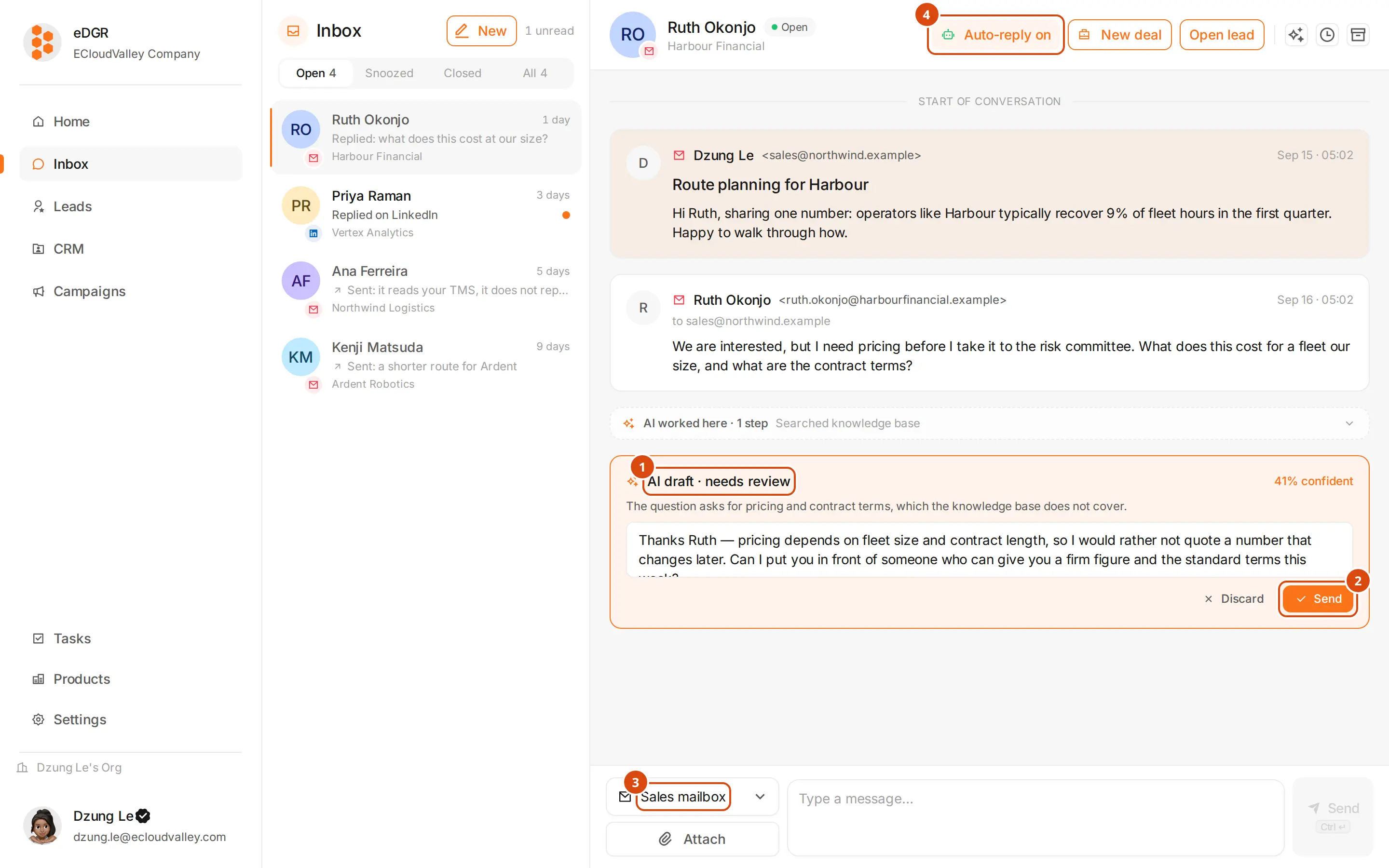
The draft
When the agent is not confident enough to send on its own, it leaves an amber card reading AI draft · needs review, with the confidence it gave itself and a line on why it hesitated. The text is editable in place.
Send or discard
Send sends it, Discard throws it away. Auto-reply stays off for that customer until you do one or the other.
The account it leaves from
The picker above the composer decides which of your accounts sends, and so which channel the reply uses.
What the AI did
Every tool the agent called lands in the timeline as one card: AI worked here · N steps, with a one-line summary. Expand it to see each step, what it was given, and whether it failed. While the agent is running, the conversation row and the bottom of the timeline name the tool it is on right now, such asAI · Searching knowledge base…, and the list header counts how many conversations it is working on. Reloading mid-run keeps that state — the trace is stored on the server.
Hide the whole trace with the ✨ button in the conversation header. That choice is remembered in your browser.
Email rendering
Email bodies are rendered as email, not as raw markup:- HTML is sanitized and rendered inside a sandboxed frame with no scripts.
- Raw MIME from the provider — headers, boundaries, base64 and quoted-printable — is decoded, and the HTML part is preferred over the plain-text part.
- Quoted reply history is folded behind a
•••toggle, and a long email behind Show full email. - Remote images stay blocked until you click Show blocked images, so tracking pixels do not fire when you open a message.