- A workflow — the nodes and arrows you draw in the builder. Each node is one step: send, wait, branch, tag, exit.
- An audience — a segment or a list of customers. Matching customers enter the workflow.
- Optionally, triggers — what makes enrollment happen: a manual click, a schedule, a webhook, an internal event. See Triggers.
- Optionally, products — attach one or more and analytics splits by product, while messages can reference the product.
Statuses
| Status | Takes new customers | What happens to those already inside |
|---|---|---|
draft | ❌ | Nothing runs |
active | ✅ | Keep moving through the flow |
paused | ❌ | Frozen where they stand |
completed | ❌ | Run to the end of the flow |
archived | ❌ | Nothing; analytics stay readable |
Build one
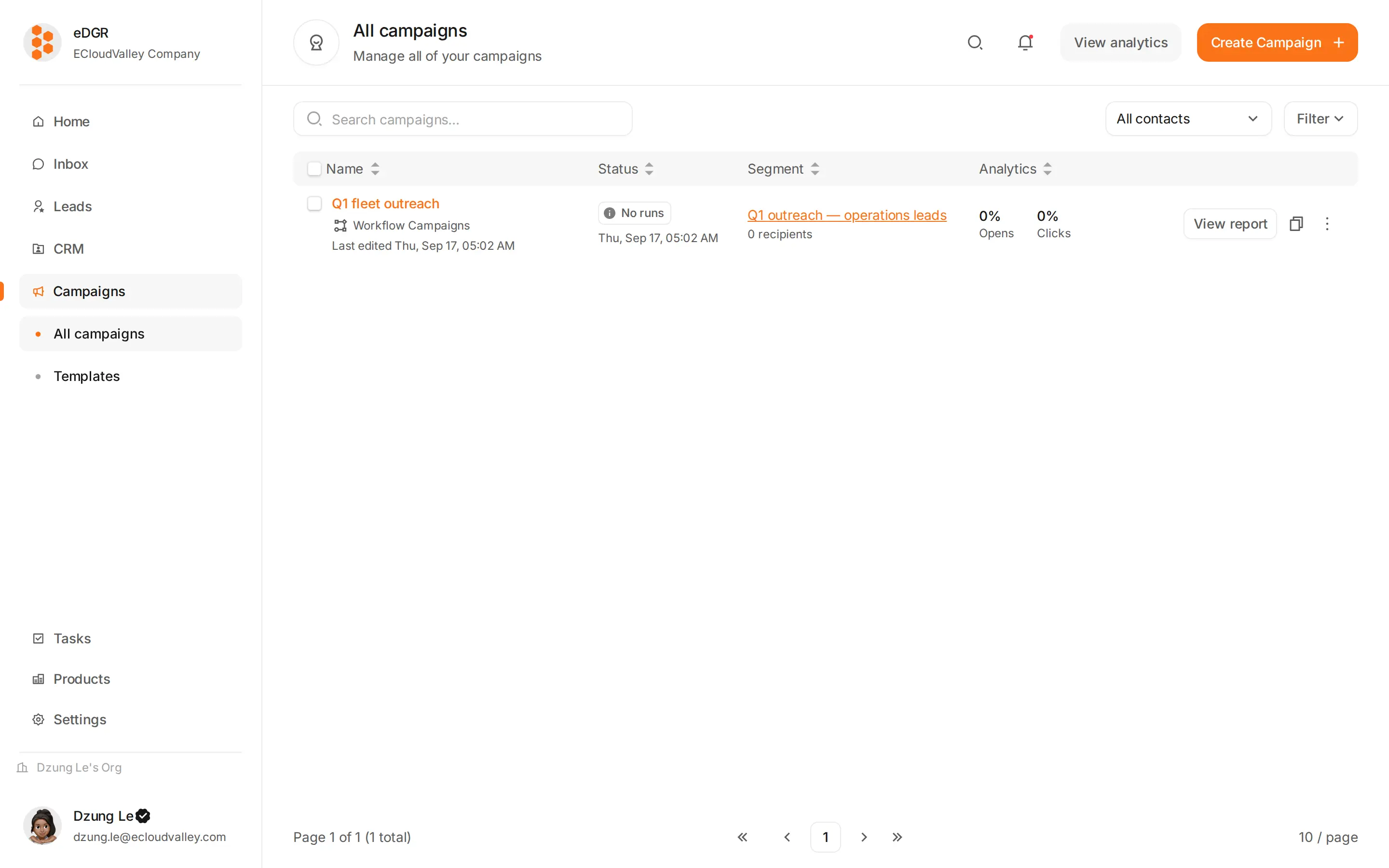
Create Campaign
Name it, describe it, choose the audience, and pick an owner. The owner defaults to you.
Draw the workflow
You land in the builder at
/campaigns/:id/builder. Drop nodes, connect them. See Builder.Fix the compile errors
The builder compiles the graph as you work and lists what is wrong in a banner. A campaign with errors cannot be activated.
How a customer moves through
A customer enters when they match the audience and a trigger fires. Each customer gets their own run, which walks the nodes along the arrows until it reaches an Exit node or runs out of flow. The run then readssuccess, partial, failed or canceled — see Status Reference.
A customer who has already completed a campaign does not enter it again, unless someone re-enrolls them from the ”…” menu.
Run it by hand
Run now on the campaign page fires a manual trigger, so everyone currently in the audience enters immediately. It is the fastest way to test a flow against a two-person segment.Duplicate
Campaign table → ”…” → Duplicate makes adraft copy named “[Old name] (copy)” holding every node, arrow and position. It deliberately leaves behind the audience, the triggers and the stats, so pick a new audience before activating. Duplicating is how you A/B a variant without touching the original.
Link products
Campaign → Products tab. Attaching a product splits analytics by product line, lets{{product.*}} resolve in templates, and gives an adjust-score node a criterion to fall back on when you did not name one.